StatRO

Account Administrator's Guide | StatRO

StatRO manages reverse-osmosis desalination plants: station, well and tank readings, reports and the dashboard, maintenance, fleet and sales. This guide is for the account administrator, the organisation's first user: from the registration request, through the four-step account setup, to a tour of every window and what it is for, and finally the home page after a week of work. Every name and figure in it is made up.
العربية

The whole video: from the setup to the dashboard

One continuous clip of what the sections below explain: the four setup steps in order, then a first entry in the browser (a periodic reading, then the daily reading), and finally the dashboard after a week of data.

VideoThe setup, then entries, then the dashboard
⬇ Download the video (MP4)

The registration request

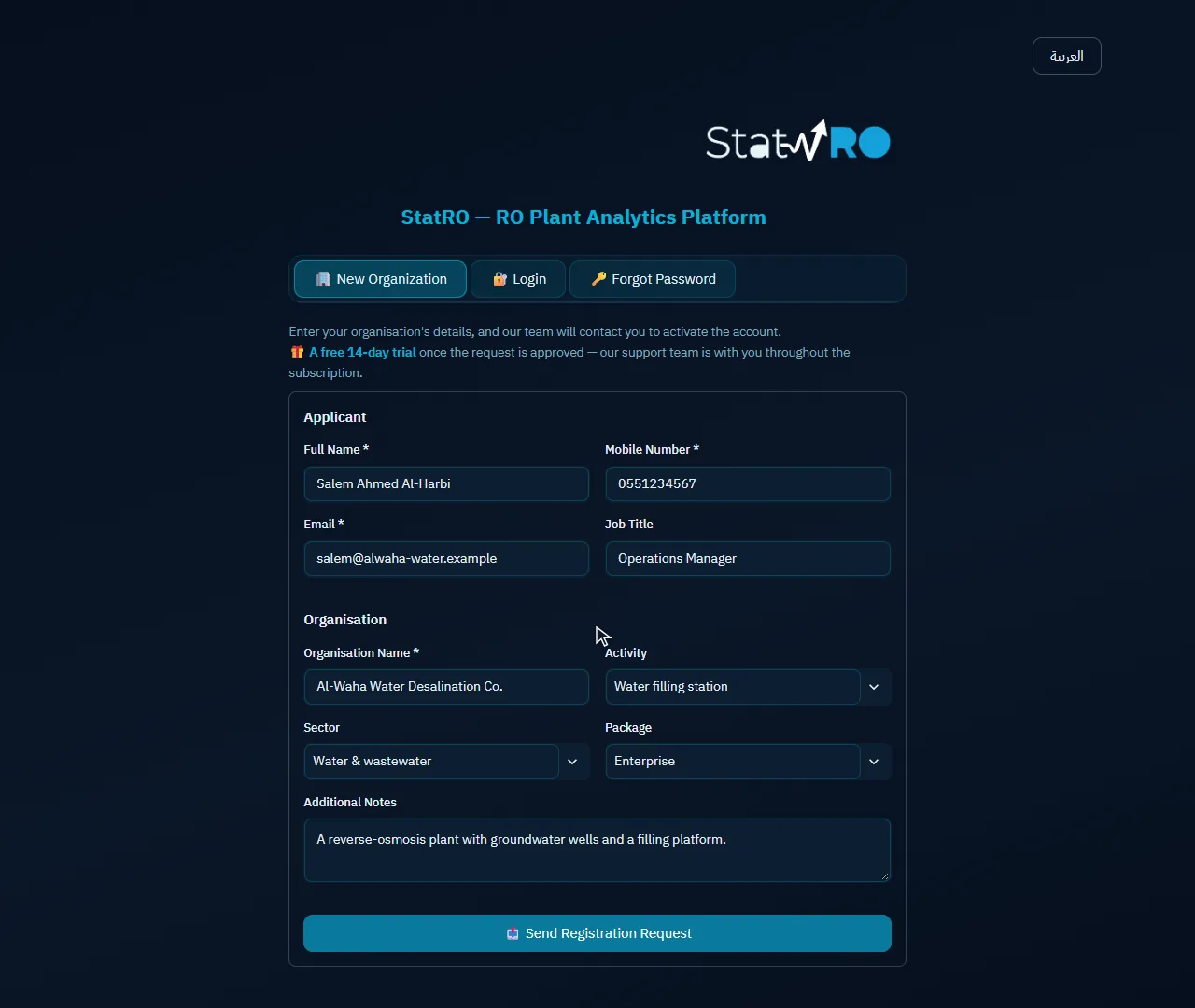
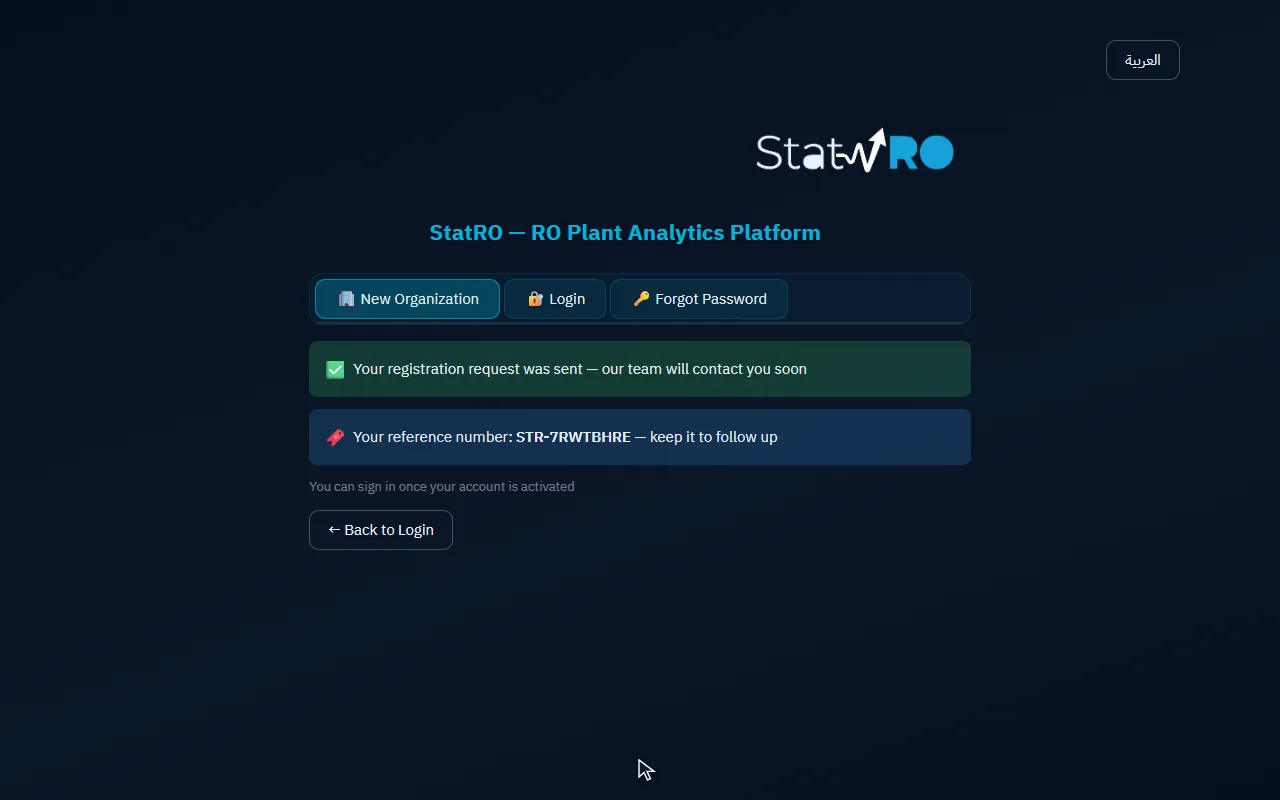
On the sign-in page, the «New Organization» tab: the applicant fills in their details and the organisation's, chooses the package, and sends the request. A reference number comes back; the StatRO team reviews the request and activates the account, and the administrator receives a username and a temporary password.

VideoFilling in and sending the request
⬇ Download the video (MP4)
The form before sending
ScreenThe form before sending
The request's reference number
ScreenThe request's reference number

The first sign-in

The administrator signs in with the username and the temporary password, and is asked at once for a password of their own (at least 10 characters, with upper- and lower-case letters, a digit and a symbol). Then the setup begins: four steps, shown as a bar at the top of the page; entries stay closed to everyone until they are done.

VideoSigning in, then a new password
⬇ Download the video (MP4)
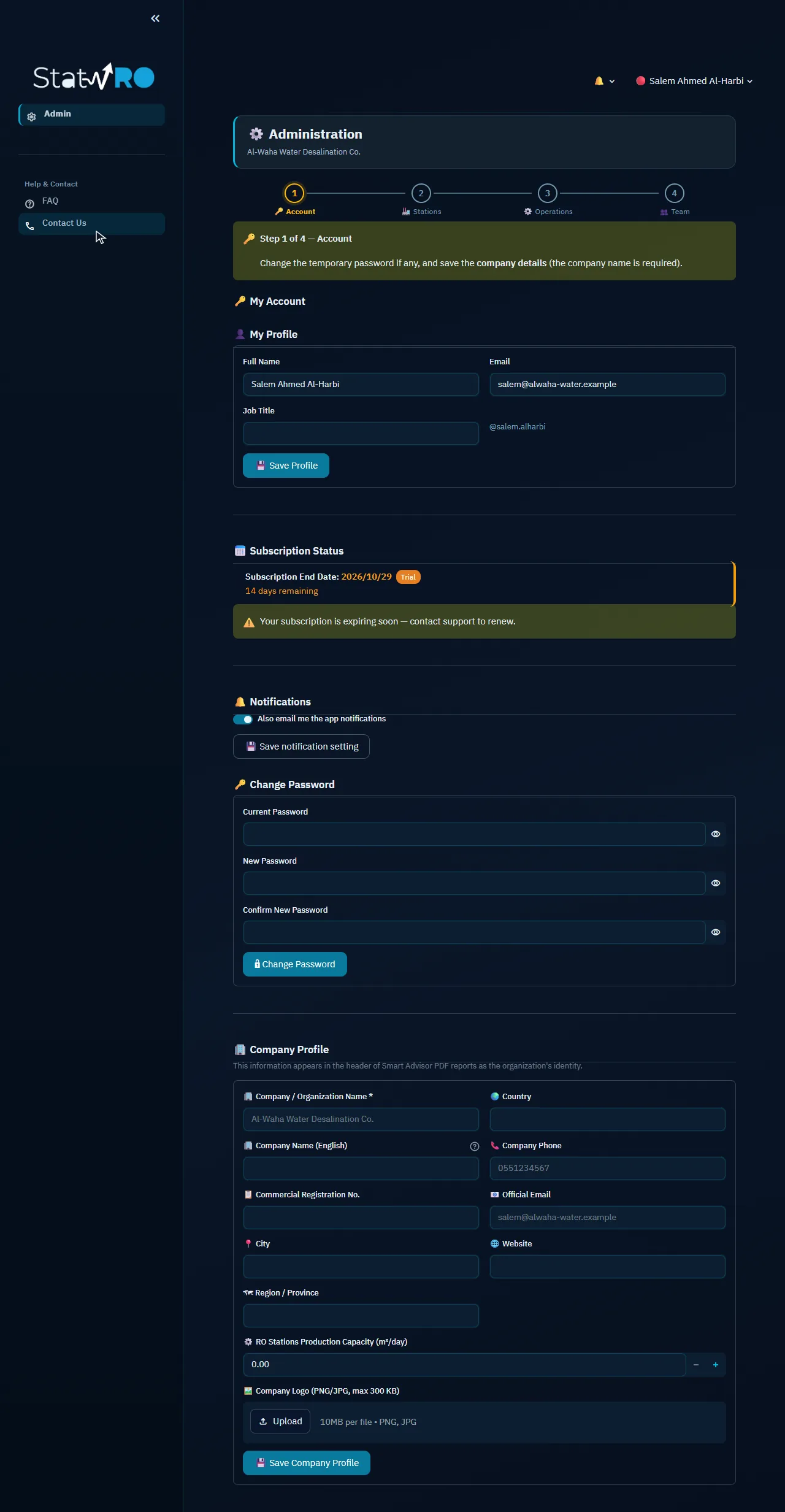
Step 1 of 4
ScreenStep 1 of 4

Step 1: The company

The company's details head its reports. What the registration request gave (name, phone, e-mail) stays locked; the administrator adds the English name, the commercial registration, the address and the website, and may upload the company logo, then saves.

VideoCompleting and saving the company
⬇ Download the video (MP4)
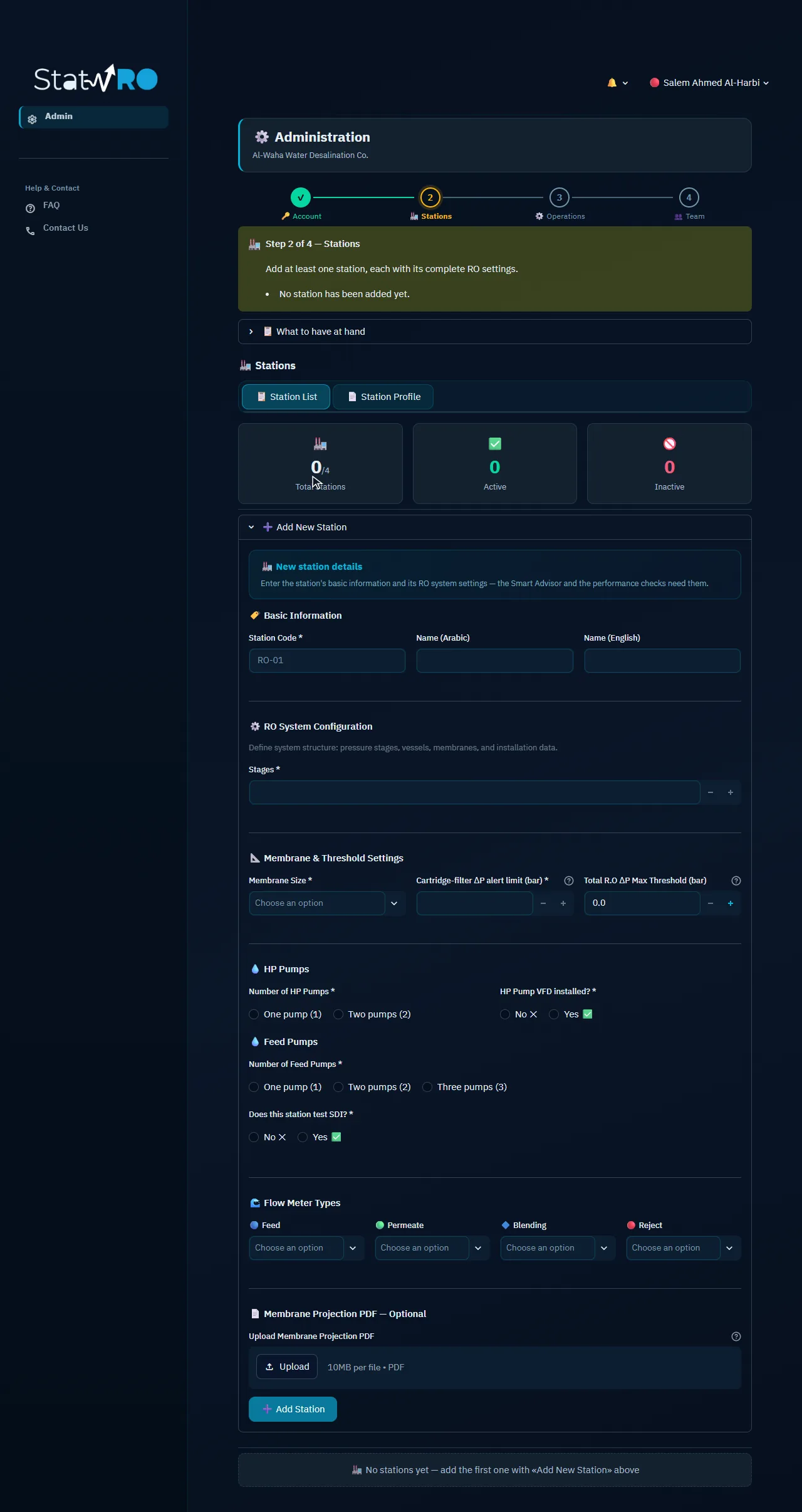
Step 2 of 4
ScreenStep 2 of 4

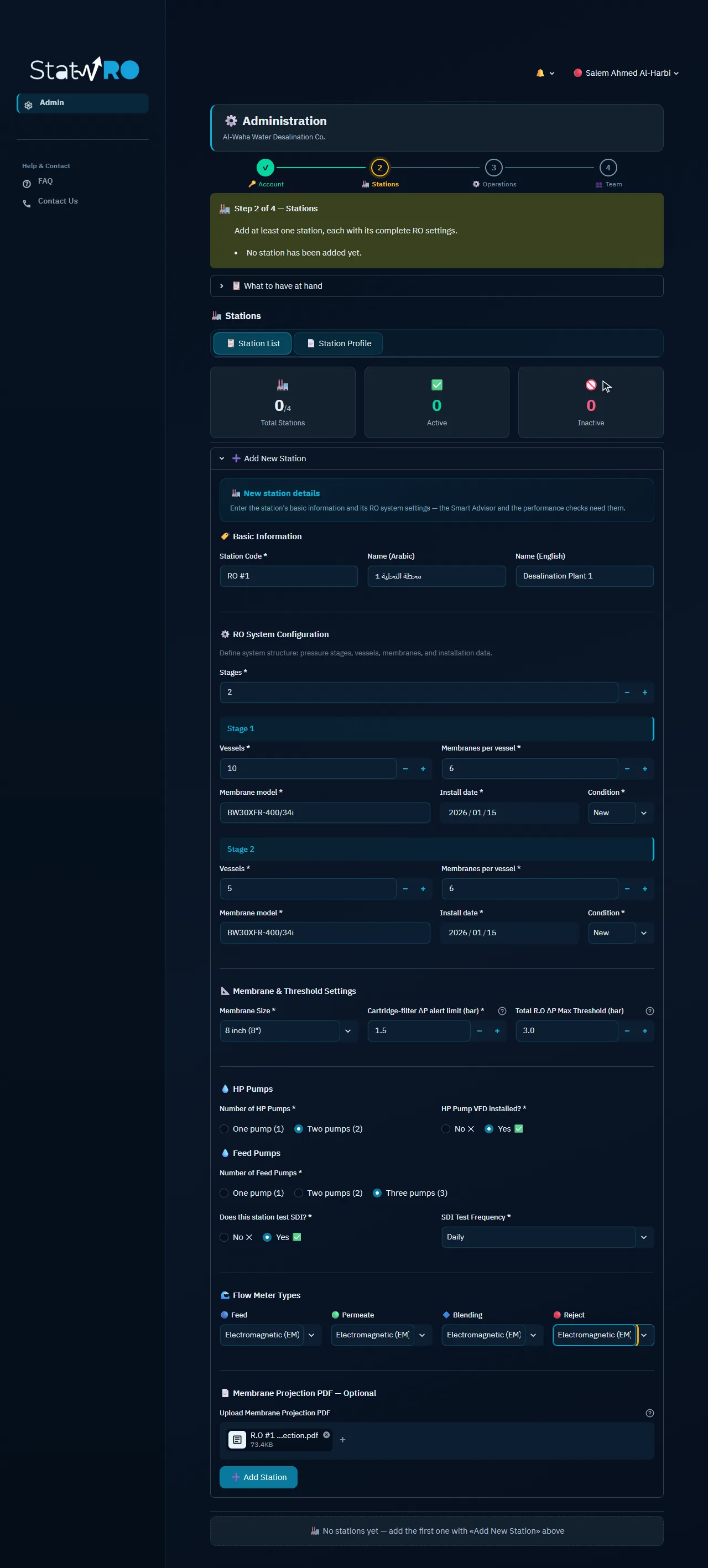
Step 2: The station

Each station has a code and a name, then the shape of its RO system: the number of stages and, for each, its vessels, membranes per vessel, membrane model, install date and condition. Then the membrane size and the two ΔP alert limits (cartridge filter and system), the high-pressure and feed pumps and whether there is a VFD, the SDI test and how often, and each flow meter's type. The membrane projection (PDF) is attached. All of it drives the calculations, the alerts and the Smart Advisor. More stations are added the same way, or by copying one already set up.
VideoCode, names and stages
⬇ Download the video (MP4)
VideoEach stage's vessels and membranes
⬇ Download the video (MP4)
VideoLimits, pumps, SDI and meters
⬇ Download the video (MP4)
VideoAttaching the projection, adding the station
⬇ Download the video (MP4)
The whole station form
ScreenThe whole station form
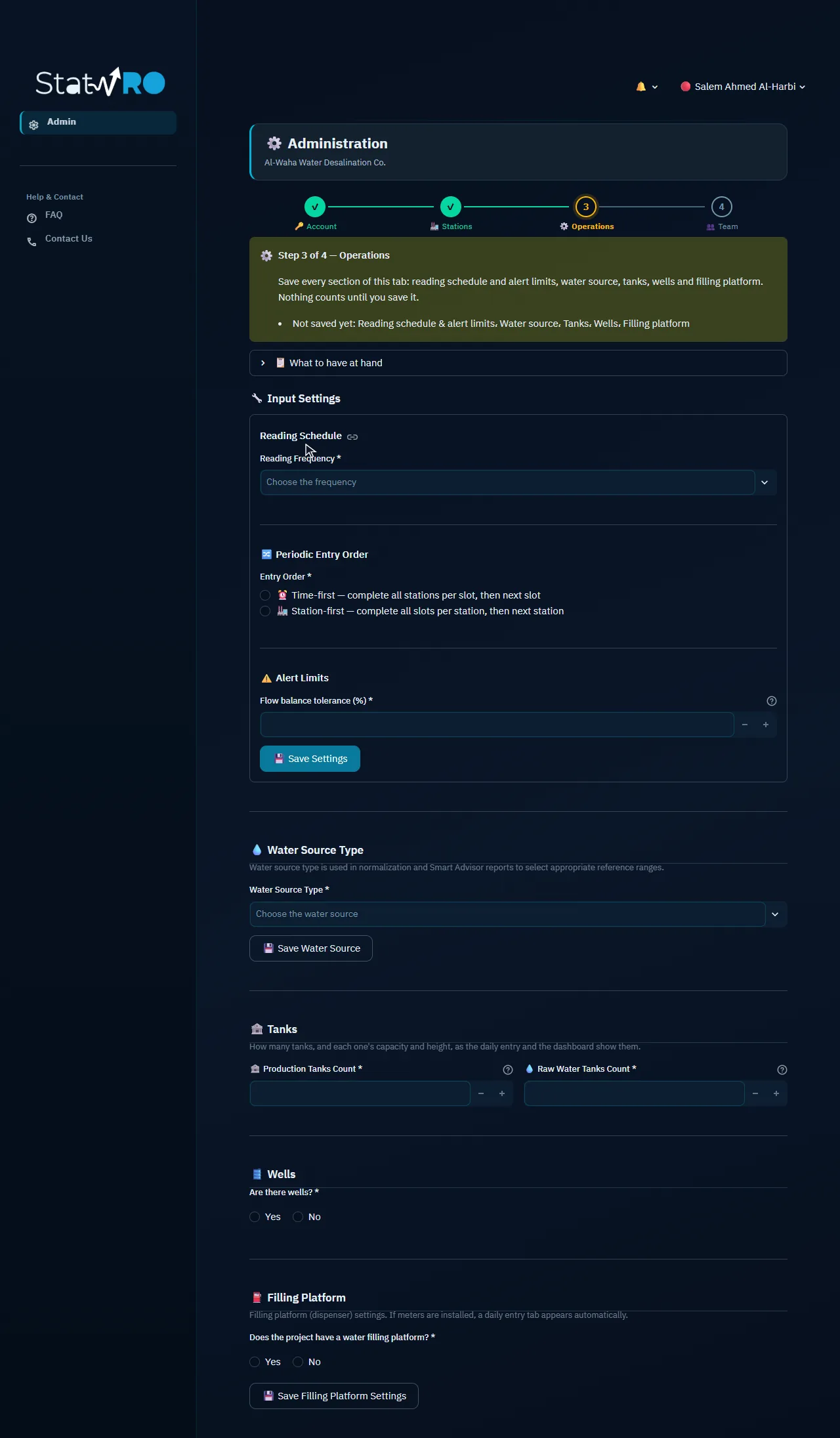
Step 3 of 4
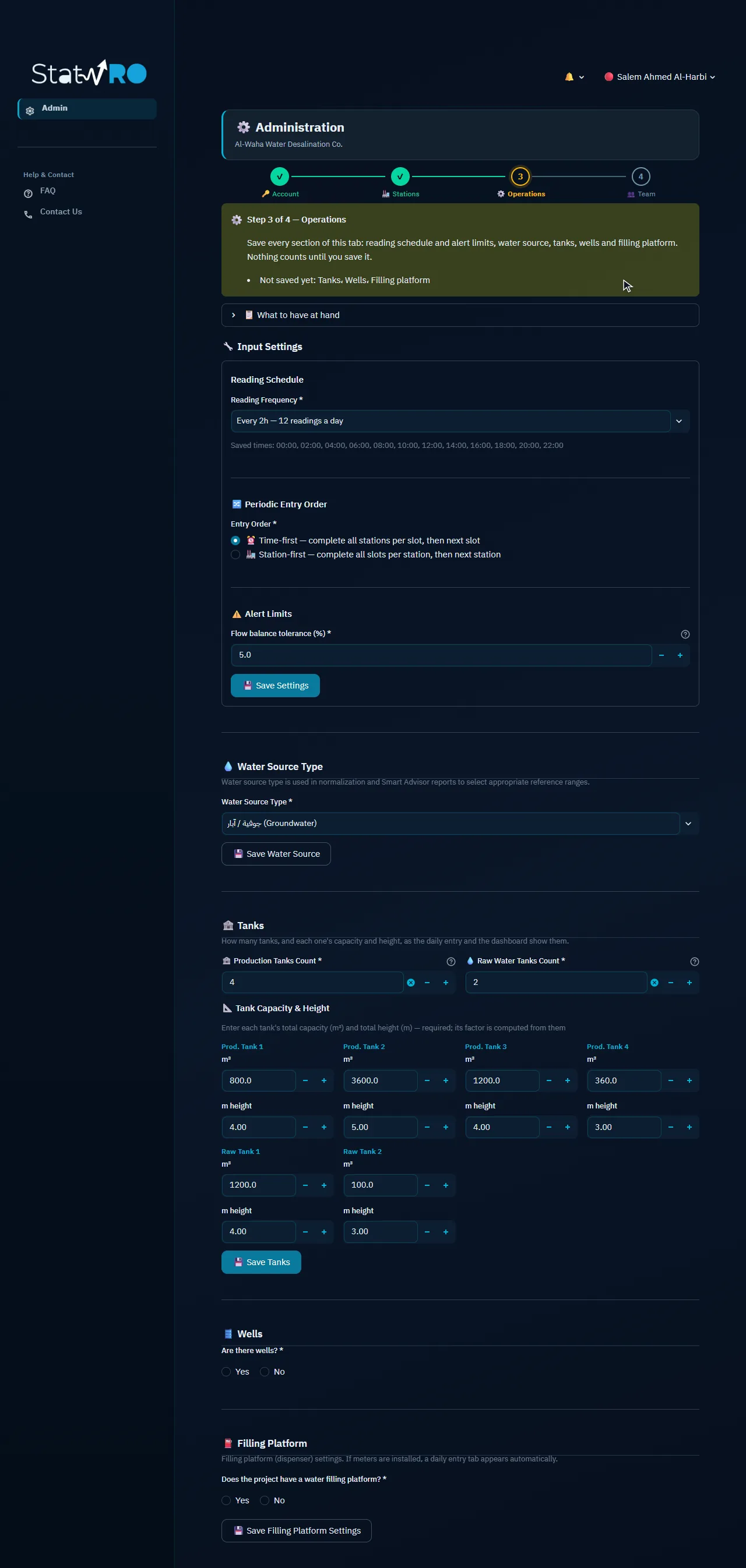
ScreenStep 3 of 4

Step 3: Operations

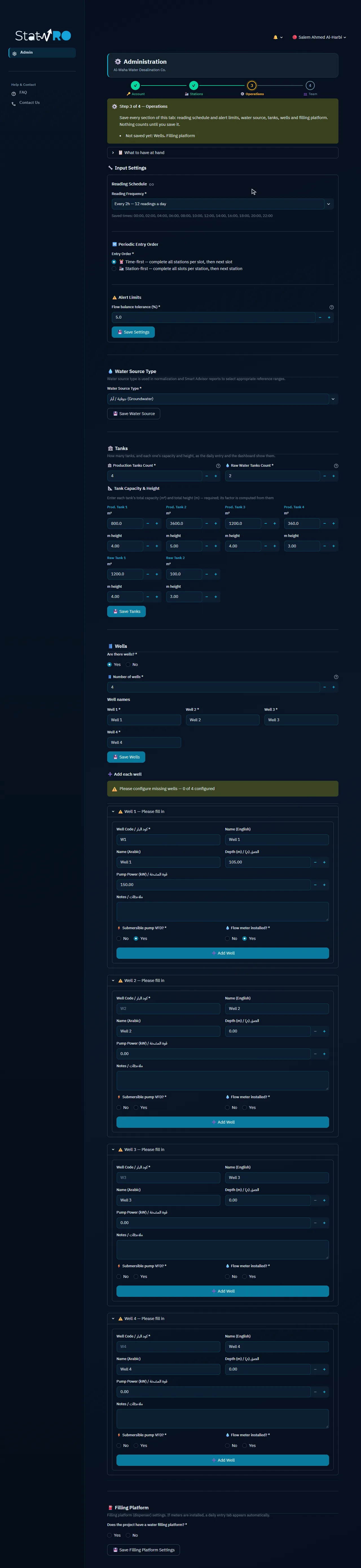
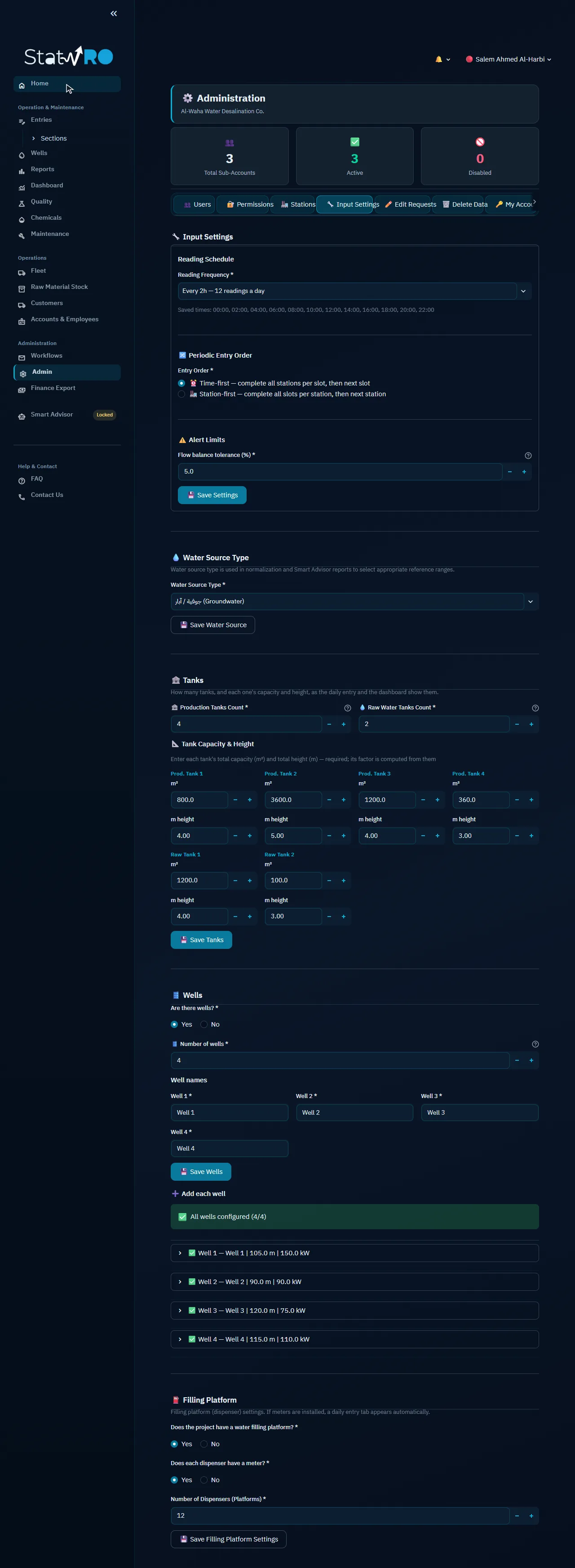
Five sections, each saved with its own button: the periodic reading schedule (here every two hours, 12 readings a day), the entry order and the flow-balance limit; the water source; the production and raw-water tanks with each tank's capacity and height; the wells: how many, then each well (depth, pump power, VFD, meter); and the filling platform with its dispensers. What is saved here shapes the entry forms in the browser and on the phone.
VideoThe reading schedule and order
⬇ Download the video (MP4)
VideoThe water source
⬇ Download the video (MP4)
VideoTanks: count, capacity, height
⬇ Download the video (MP4)
The tanks' settings
ScreenThe tanks' settings
VideoHow many wells, and their names
⬇ Download the video (MP4)
VideoEach well's details
⬇ Download the video (MP4)
A well's form
ScreenA well's form
VideoThe filling platform
⬇ Download the video (MP4)

Step 4: The team

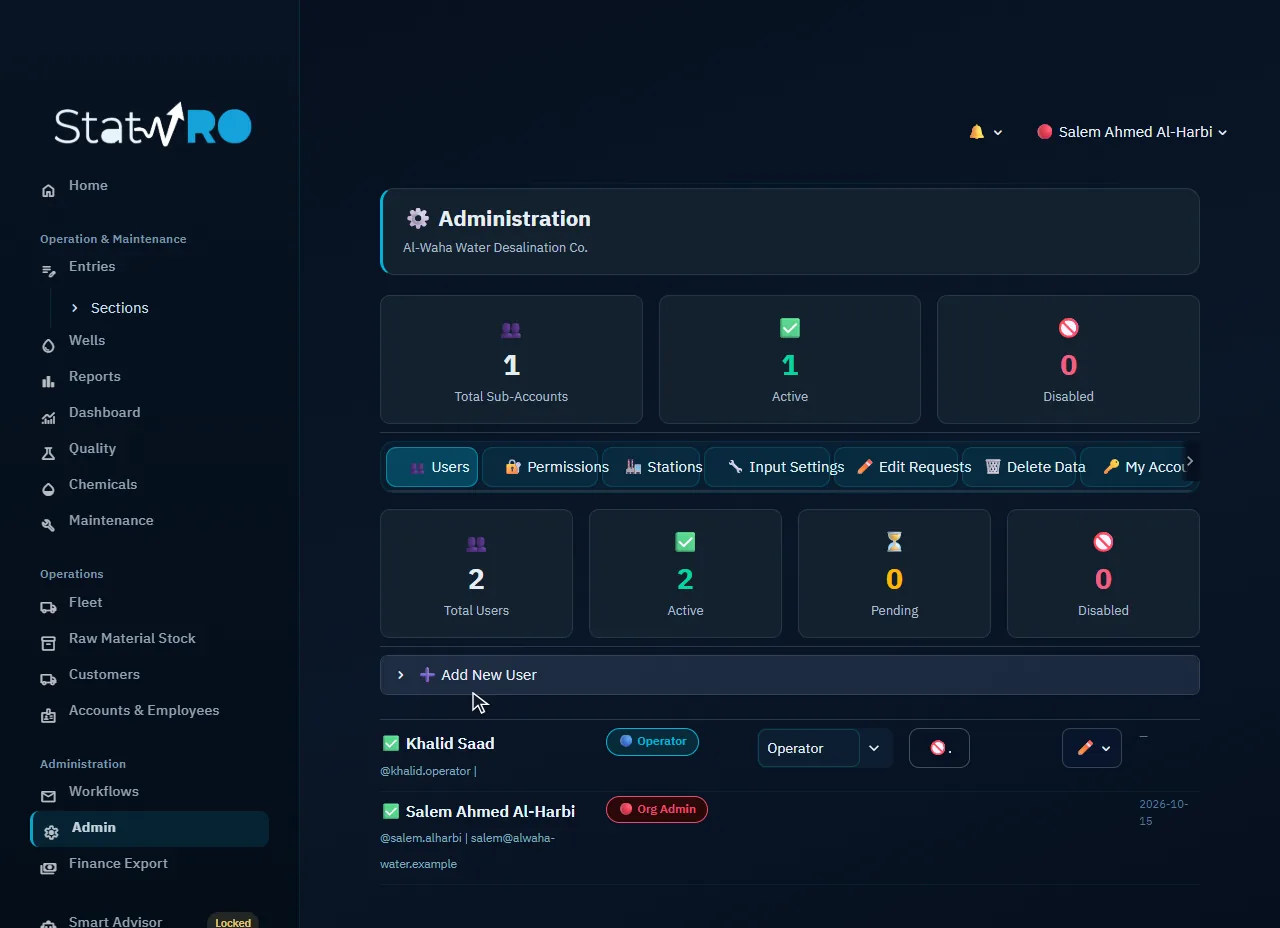
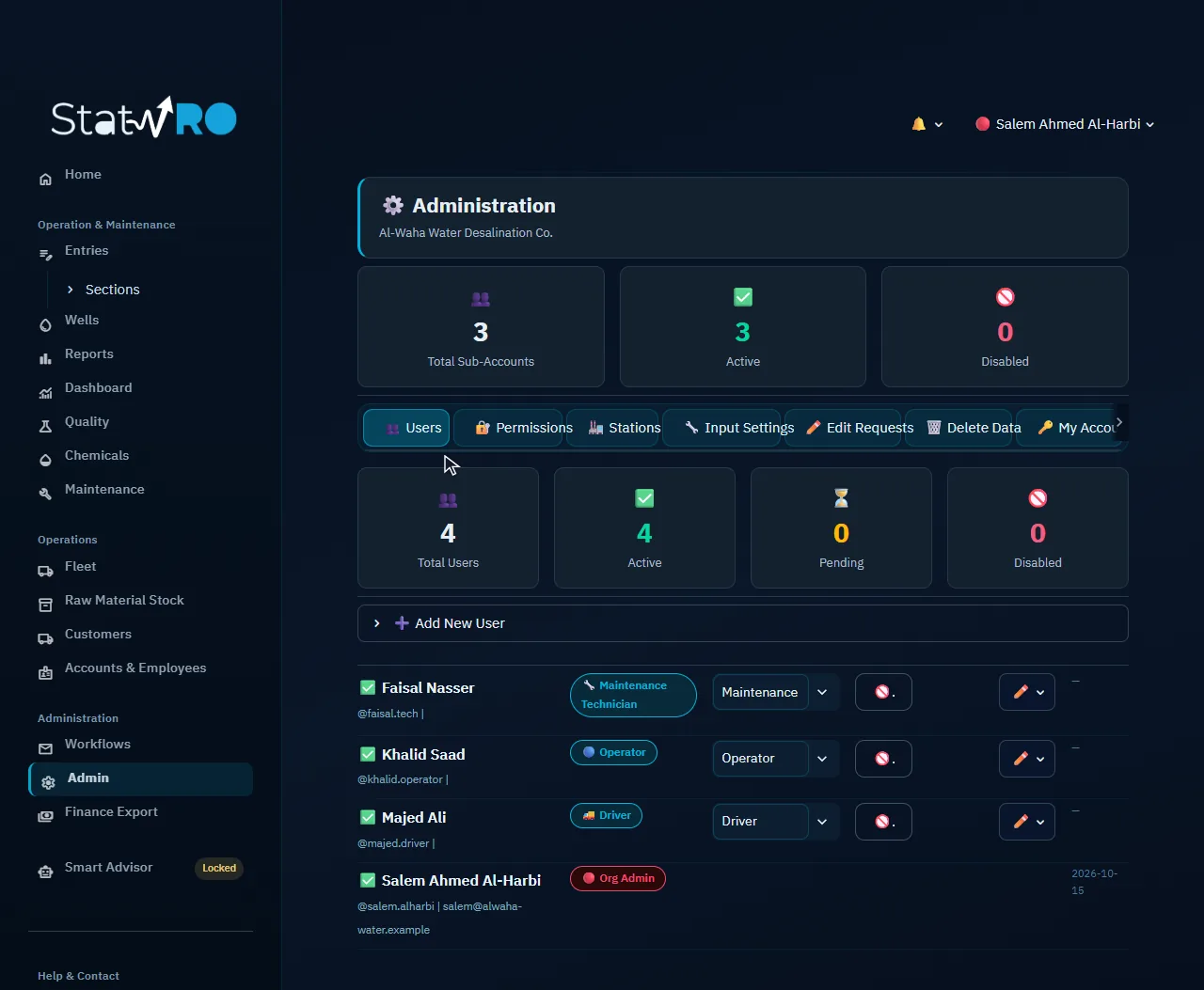
The first sub-account completes the setup and opens entries to everyone. Each account has a name, a username, a role, a phone and a password; it gets its role's permissions, adjustable in the «Permissions» tab. Here: an operator, a maintenance technician and a driver, the people the phone guide follows.

VideoThe first sub-account
⬇ Download the video (MP4)
The setup is complete
ScreenThe setup is complete
The whole team
ScreenThe whole team

A tour of the windows

Every window in the sidebar and its tabs, as the administrator sees them right after the setup, before any entry.

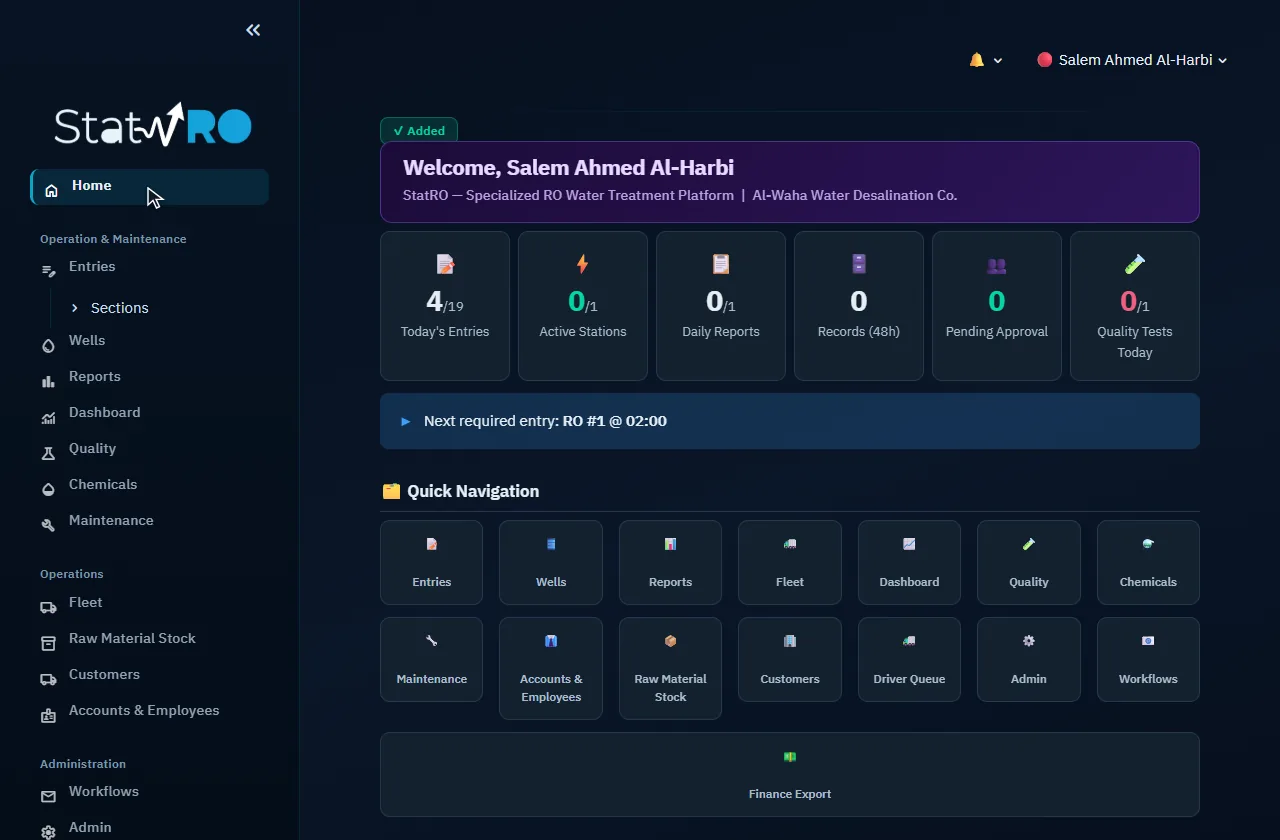
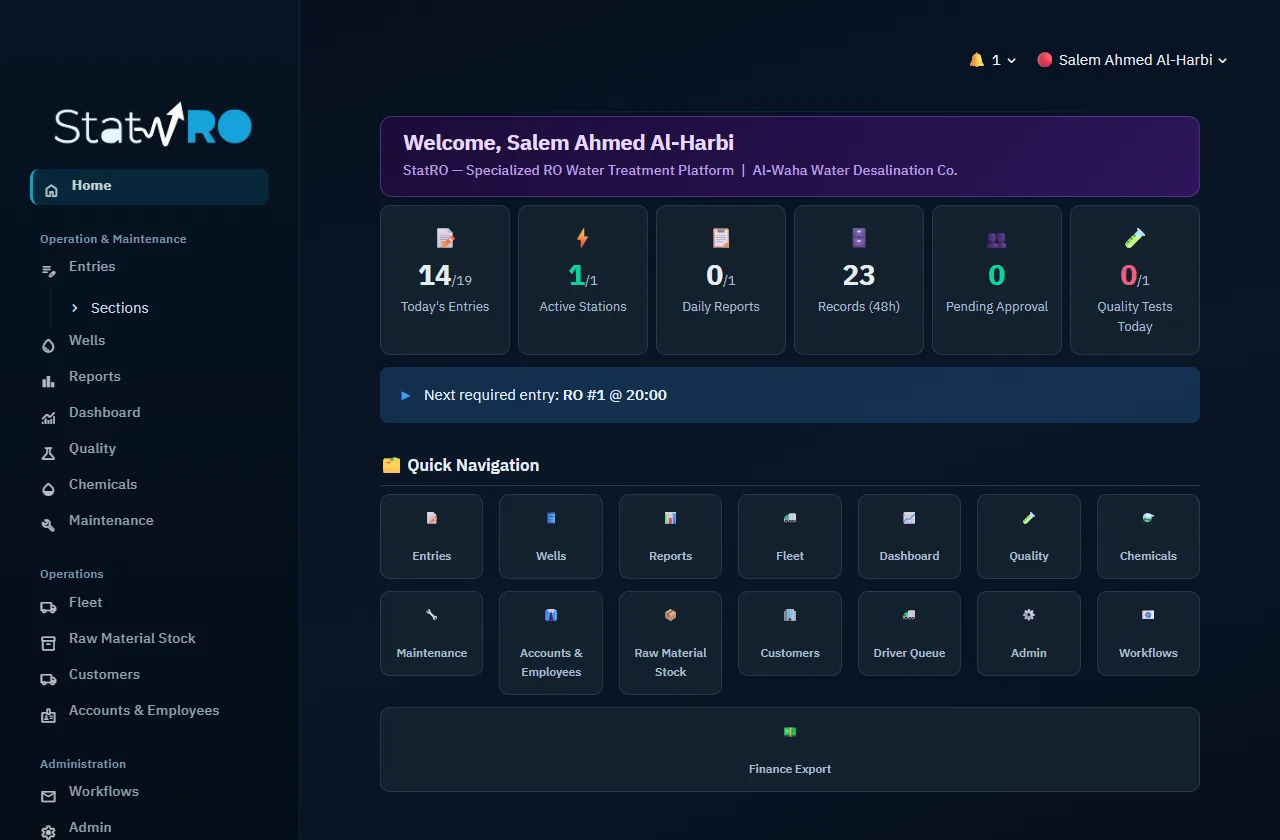
Home

Home

The starting point: today's figures, the next entry due, and a quick link to every module.

Entries

Entries

Where every reading is entered: stations (periodic and daily), wells, quality, chemicals, maintenance and sales.

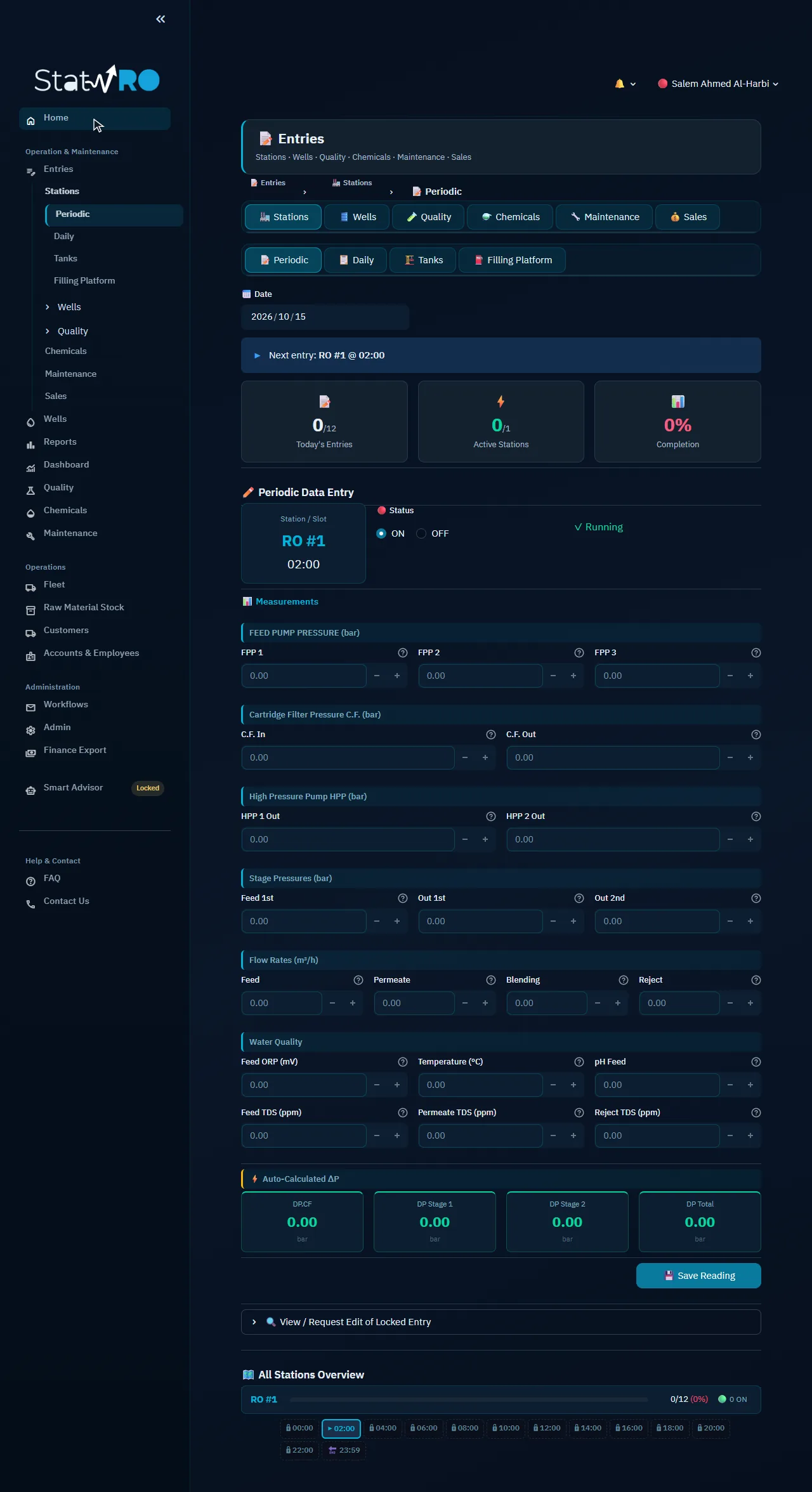
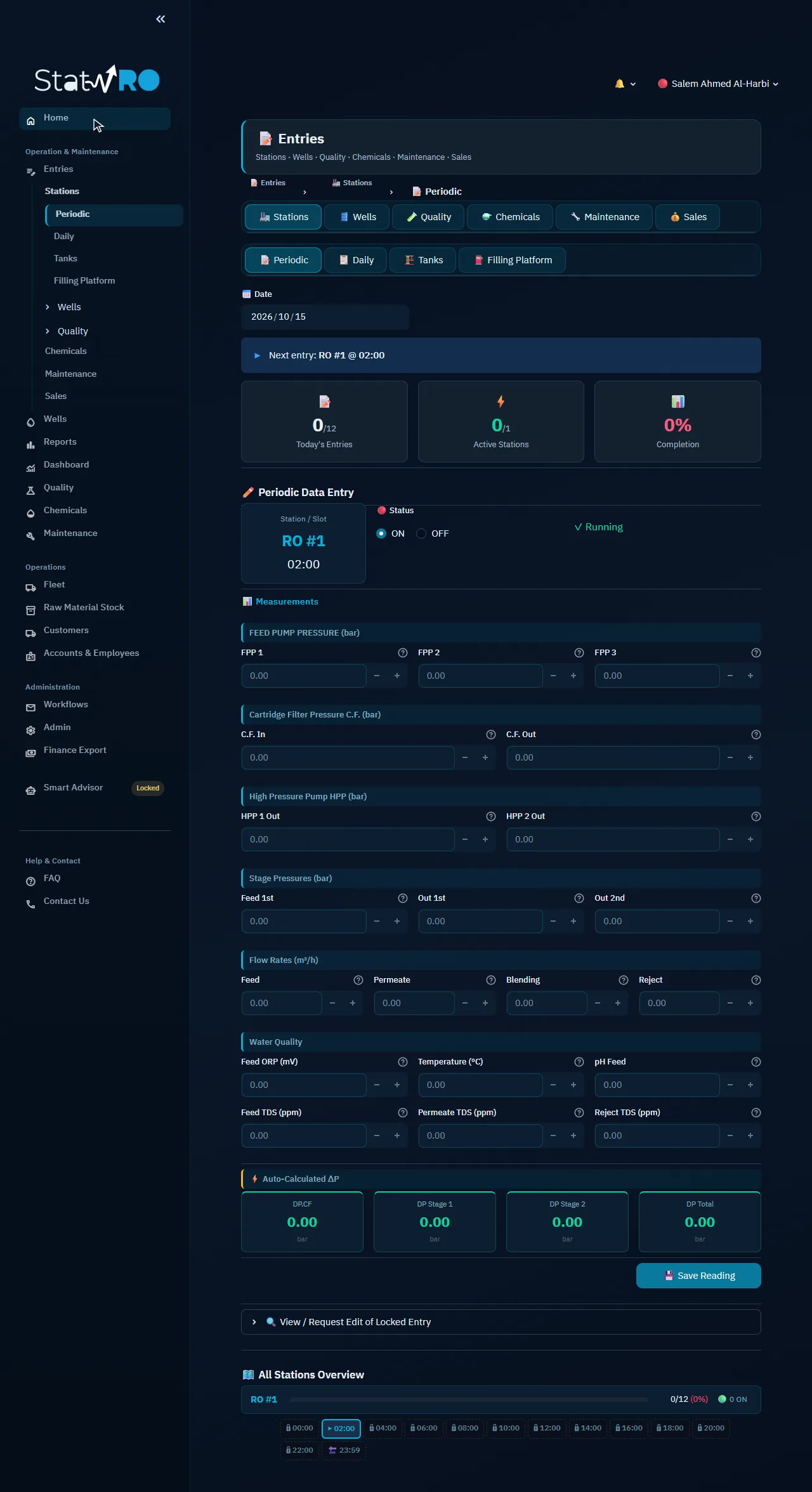
Entries ▸ 🏭 Stations

Entries ▸ 🏭 Stations

The periodic readings of each slot, and the daily reading of meters, pumps and tanks.

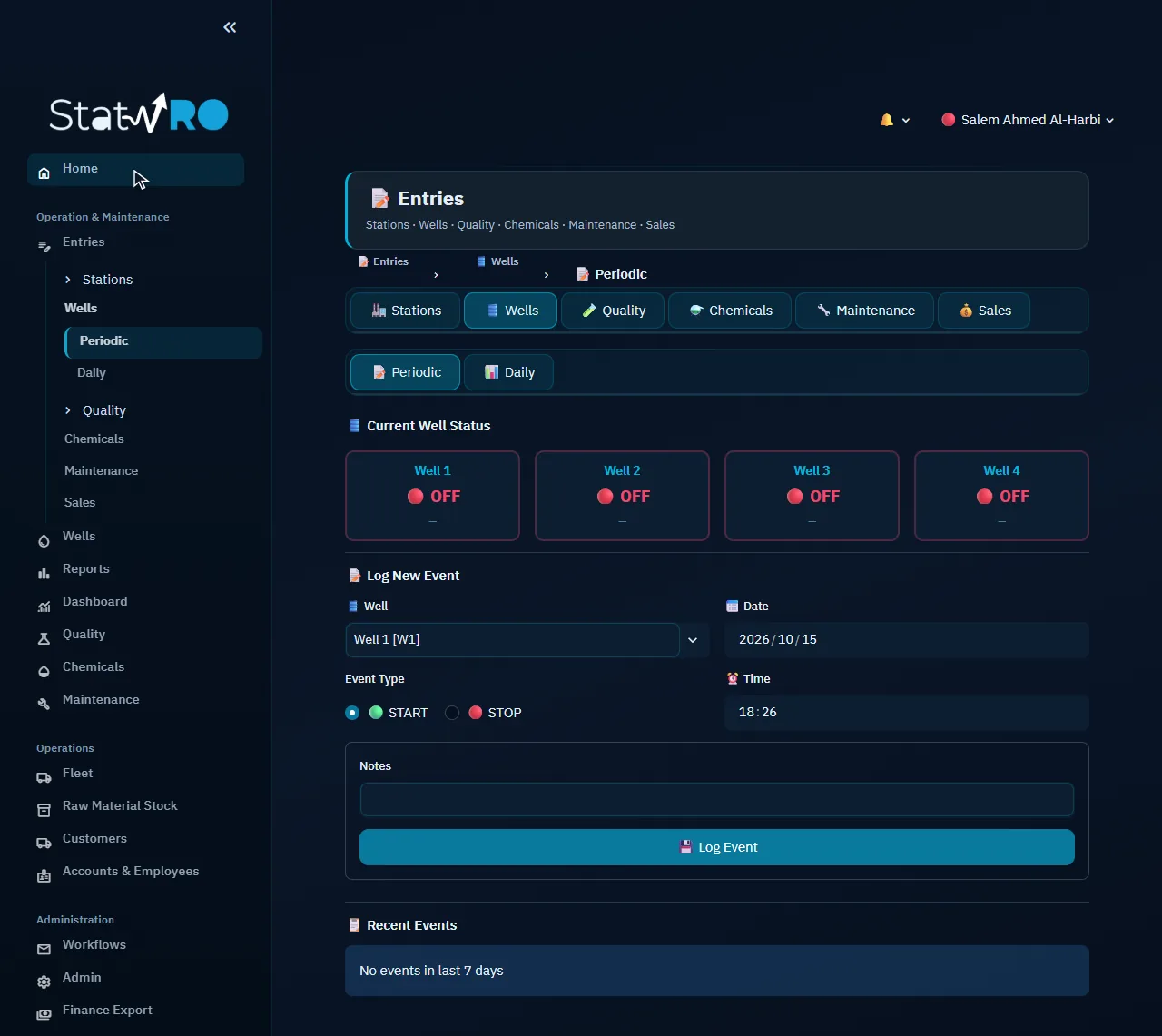
Entries ▸ 🛢️ Wells

Entries ▸ 🛢️ Wells

Starting and stopping each well, with the time, and its daily reading.

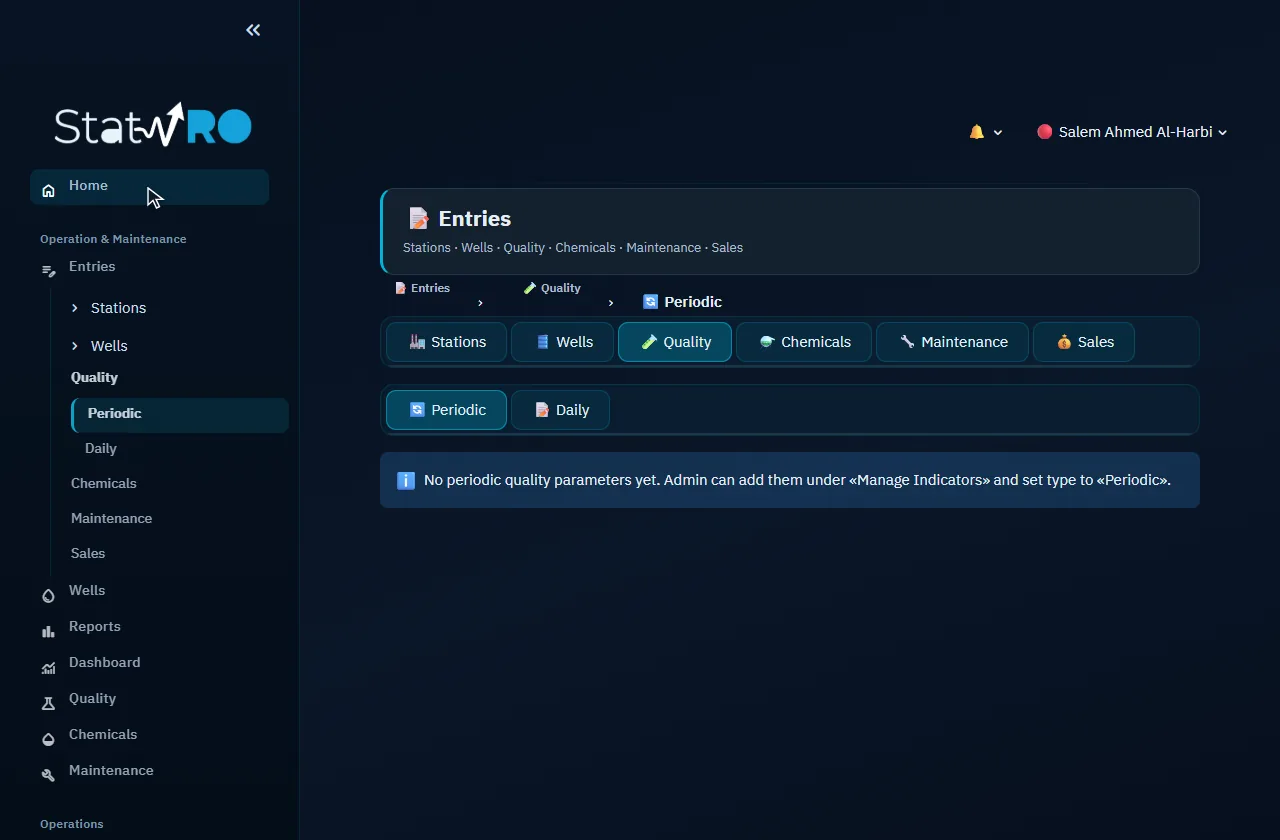
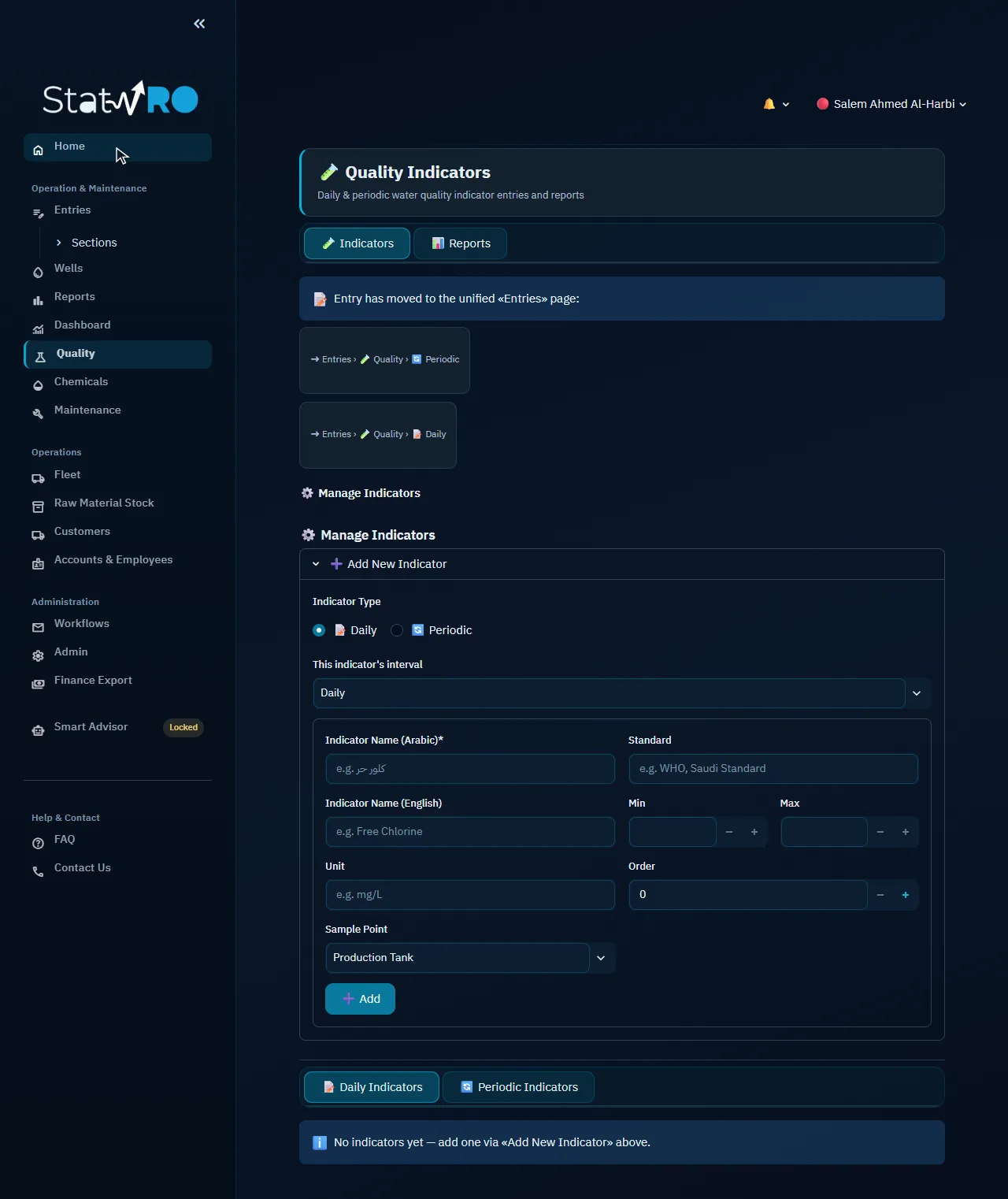
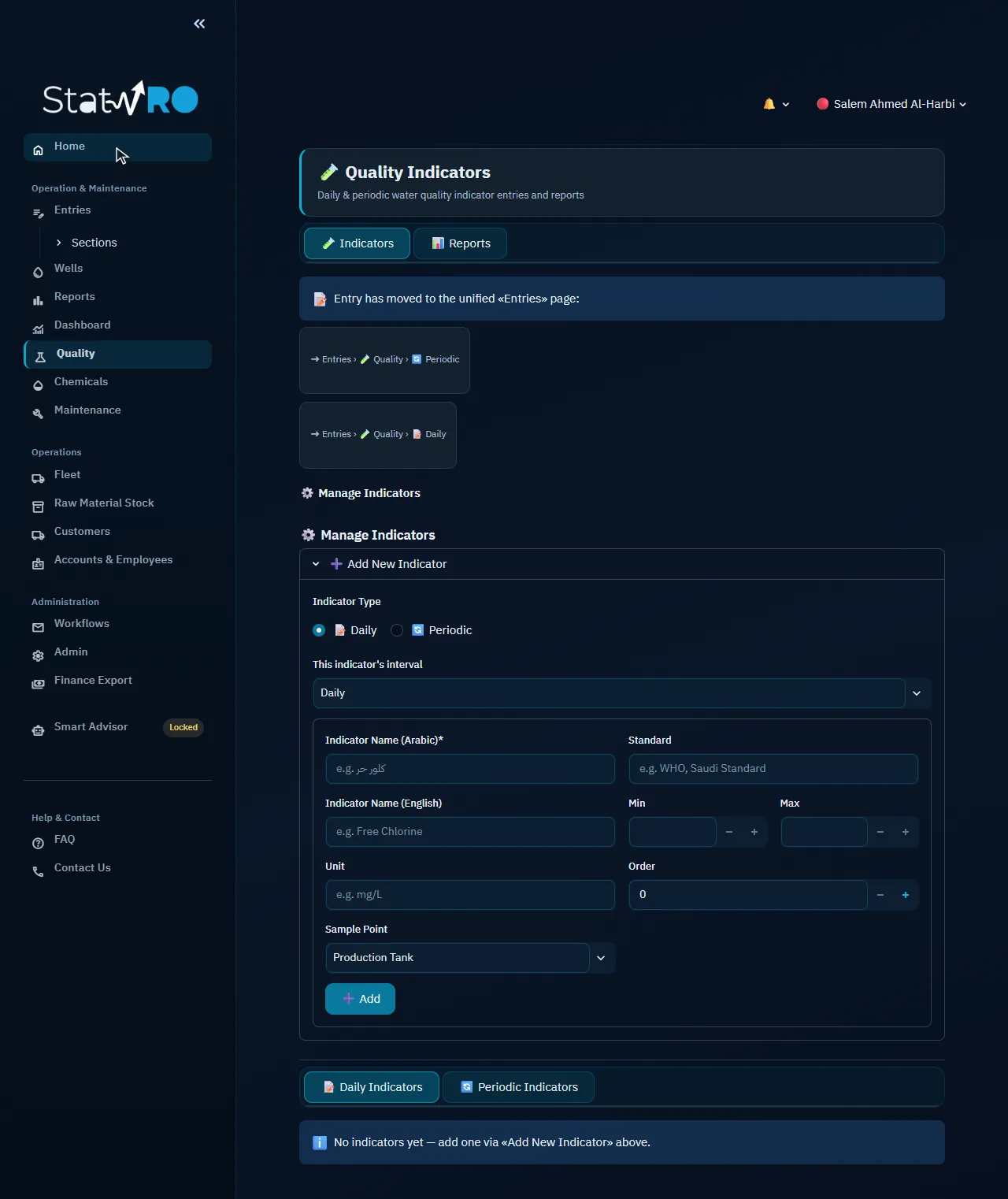
Entries ▸ 🧪 Quality

Entries ▸ 🧪 Quality

Readings of the quality indicators the organisation set.

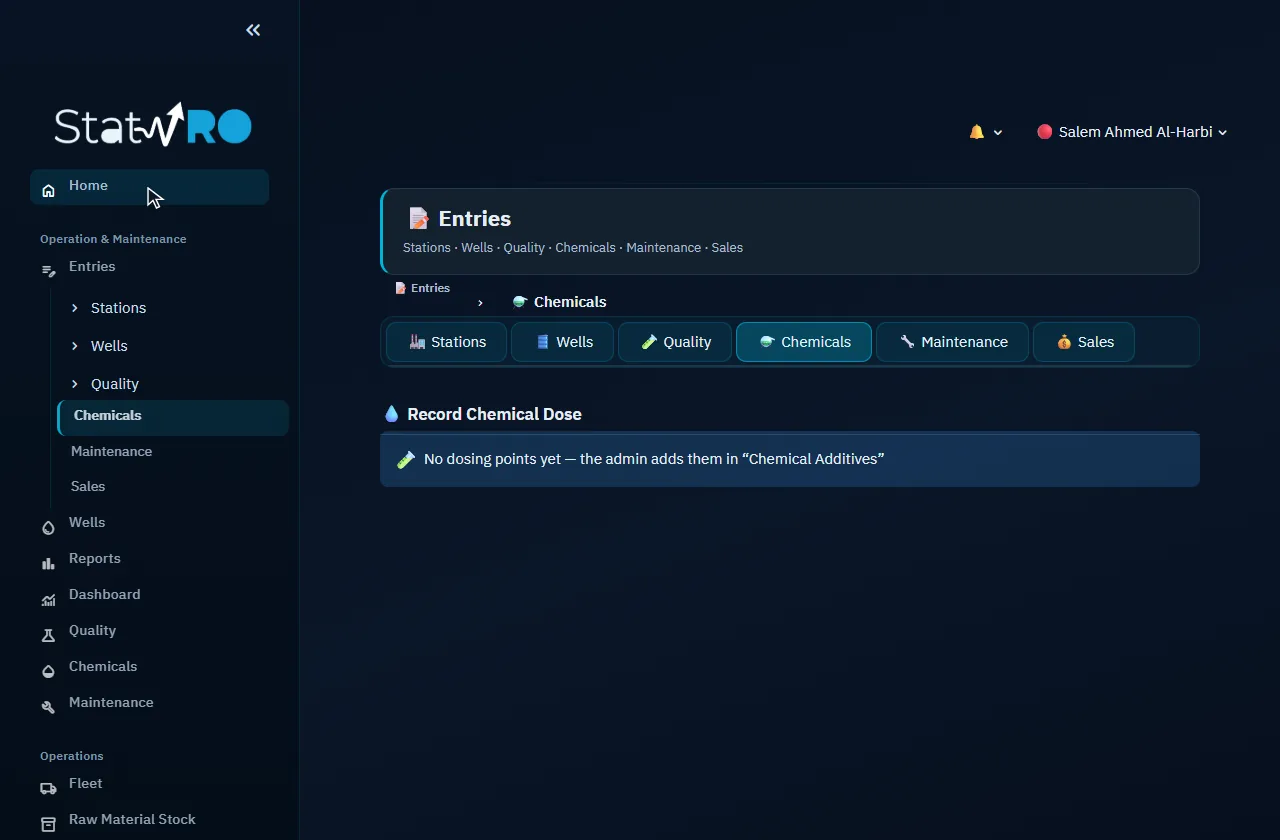
Entries ▸ ⚗️ Chemicals

Entries ▸ ⚗️ Chemicals

Recording a dose at each dosing point.

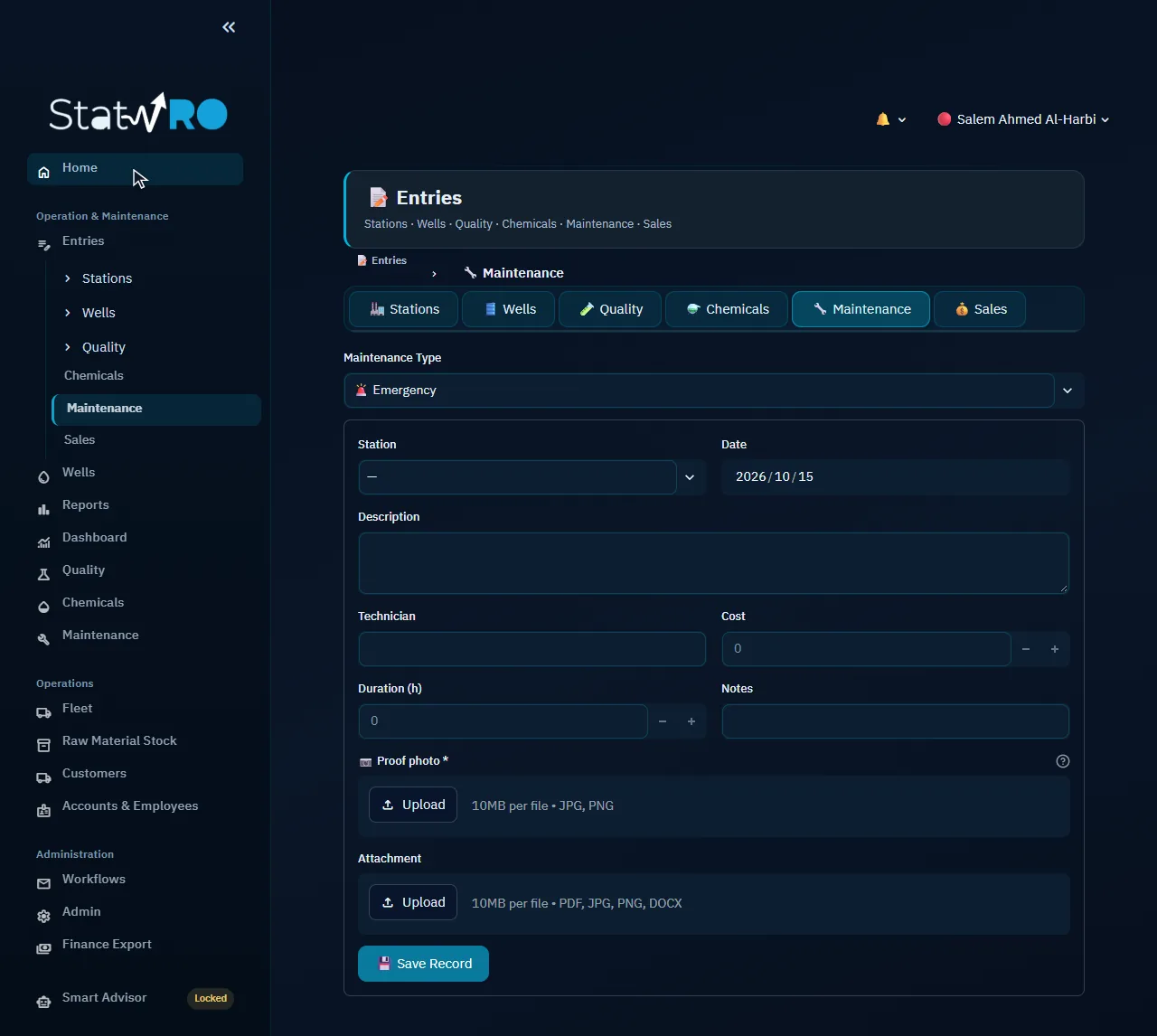
Entries ▸ 🔧 Maintenance

Entries ▸ 🔧 Maintenance

Recording maintenance carried out.

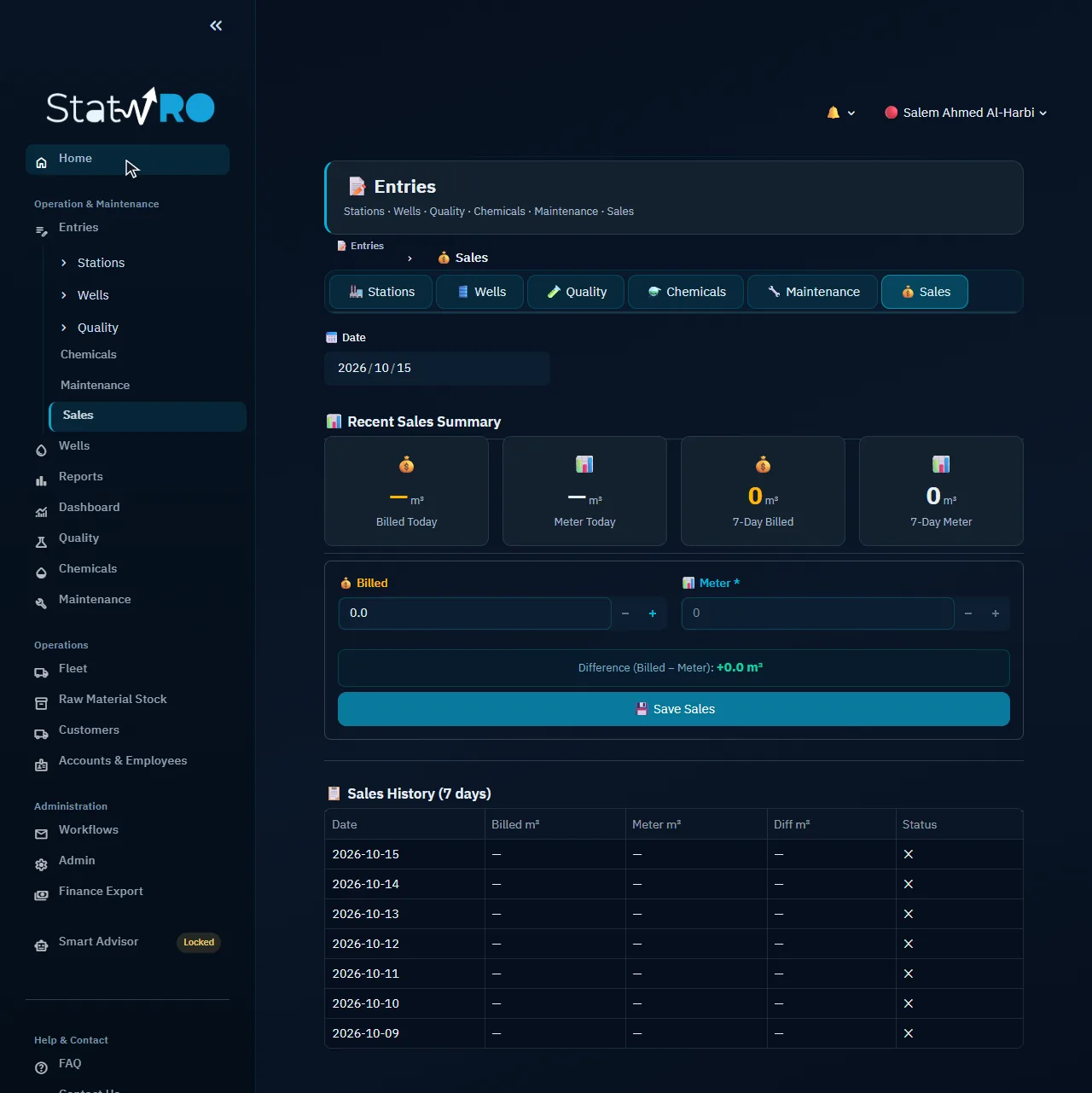
Entries ▸ 💰 Sales

Entries ▸ 💰 Sales

The daily sales of the filling platform: billed and metered.

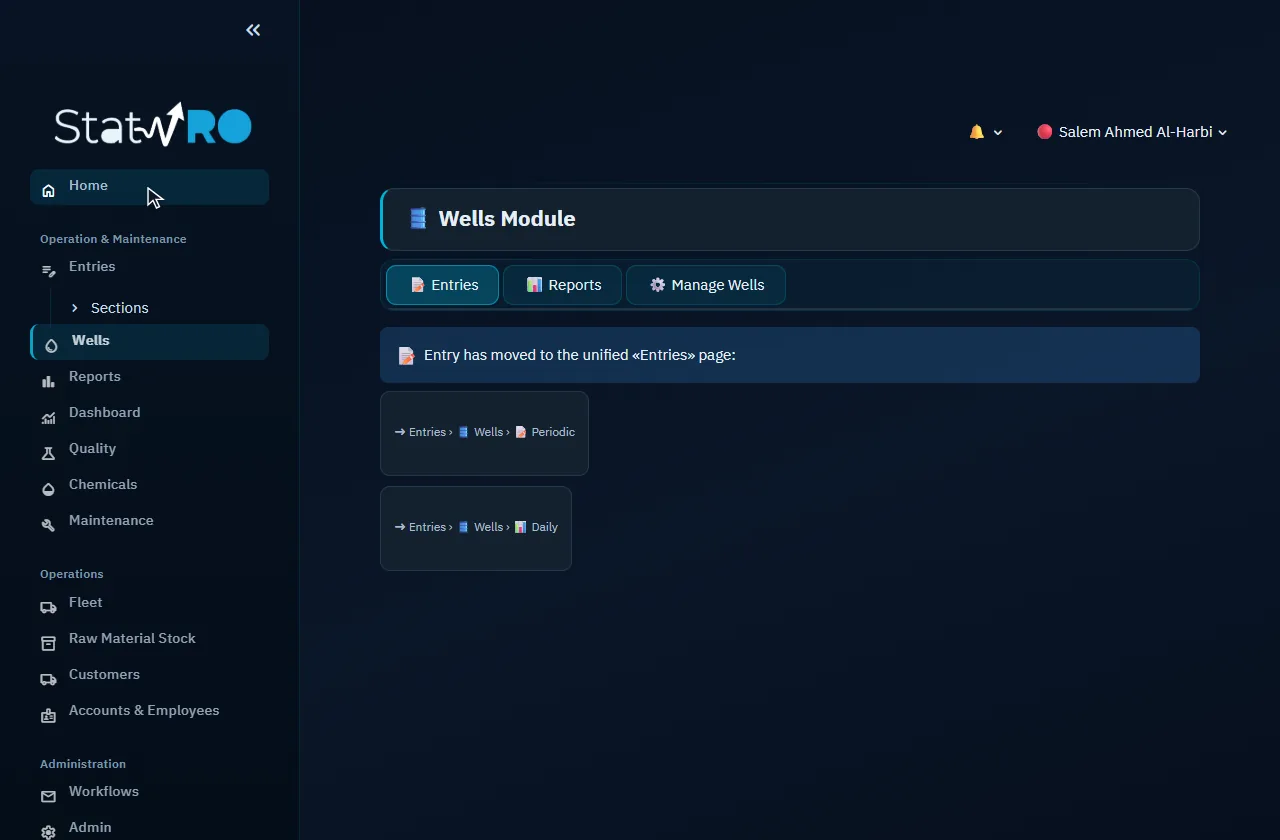
Wells

Wells

Starting and stopping the wells, their daily readings, their reports, and their details.

Wells ▸ 📝 Entries

Wells ▸ 📝 Entries

The state of each well and its run events.

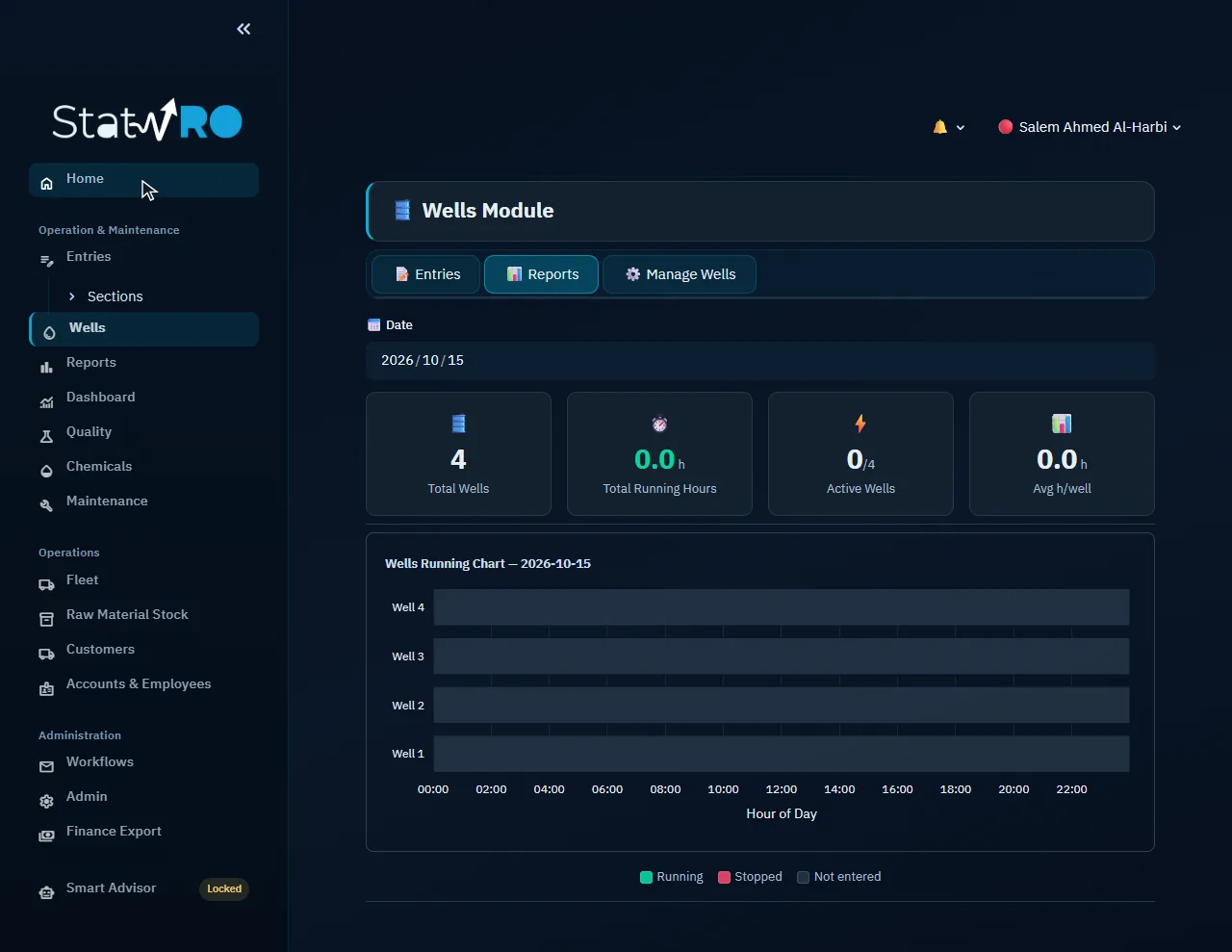
Wells ▸ 📊 Reports

Wells ▸ 📊 Reports

The running hours and withdrawals of the wells for any period.

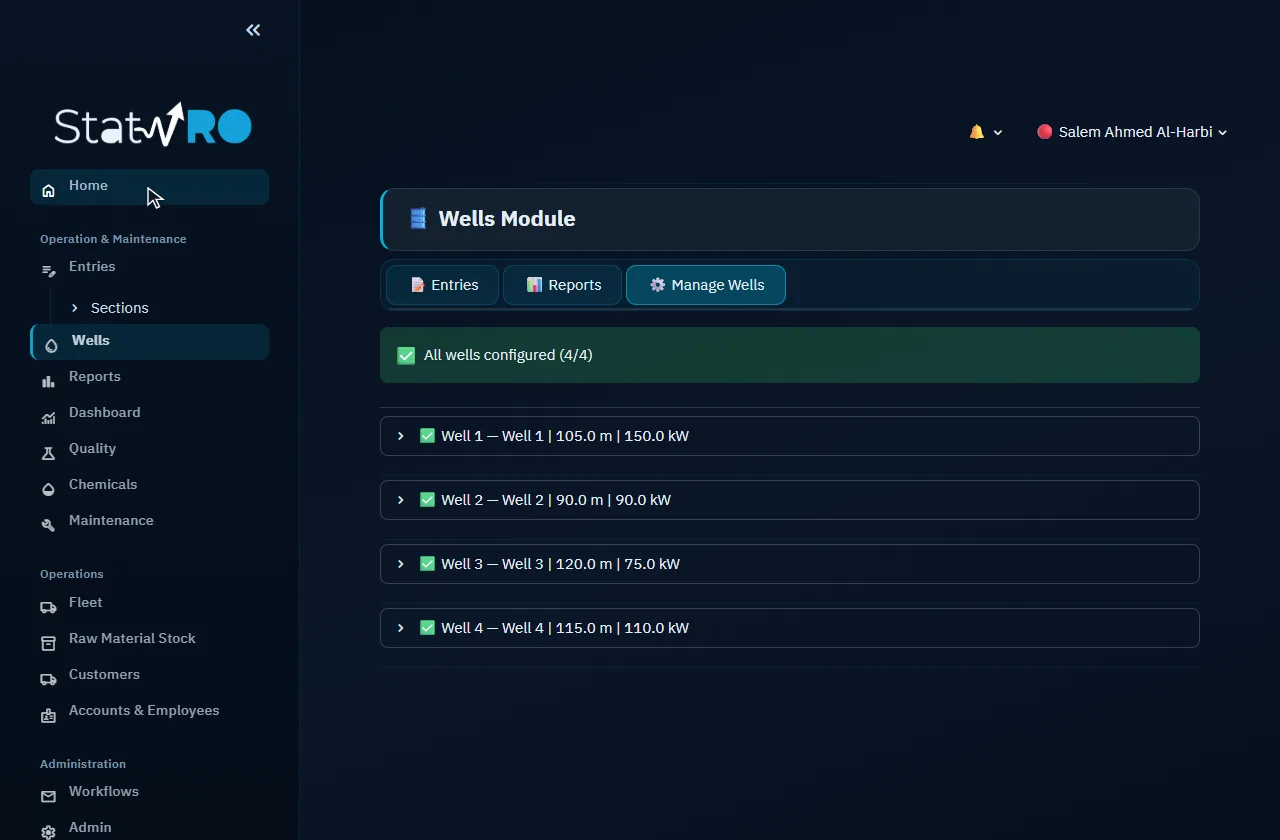
Wells ▸ ⚙️ Manage Wells

Wells ▸ ⚙️ Manage Wells

The details of each well: code, depth, pump and meter.

Reports

Reports

The official daily report and its Excel export, and the entered data for any period.

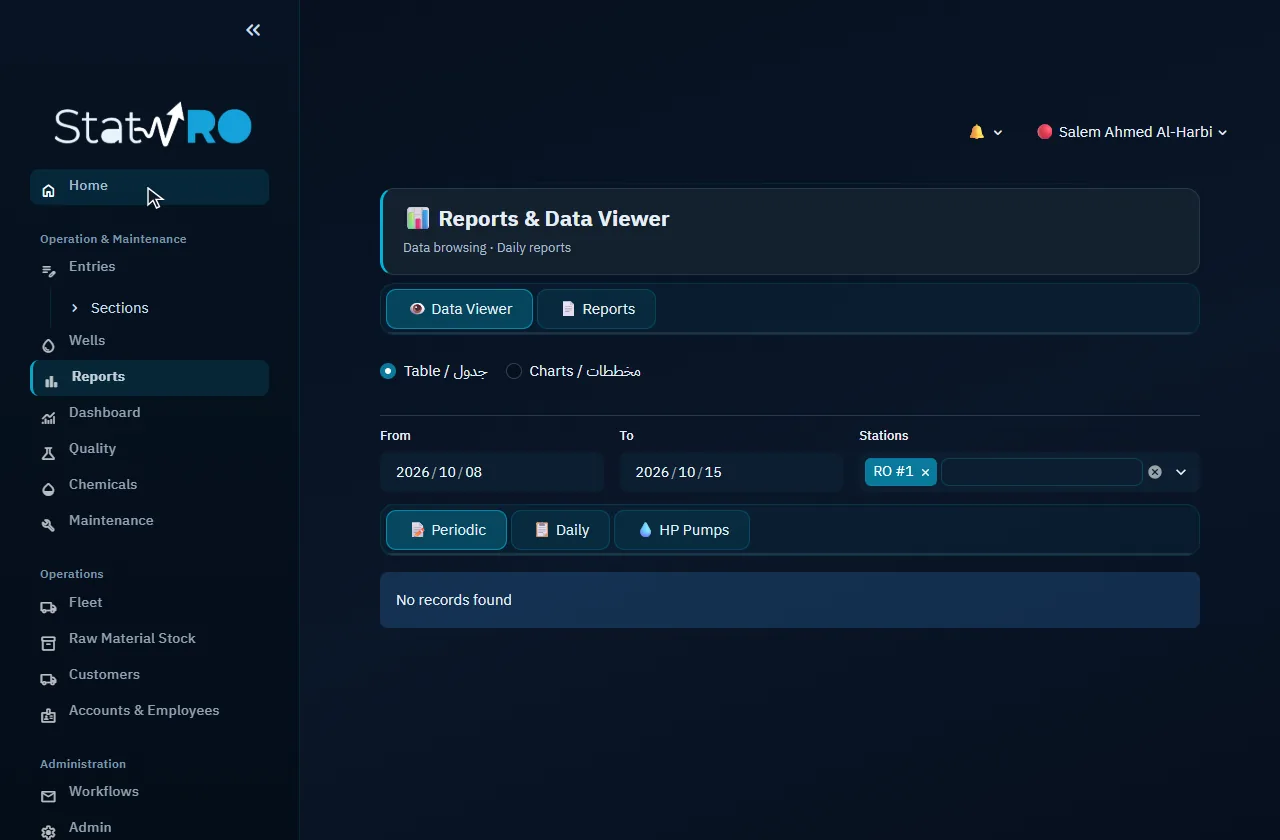
Reports ▸ 👁️ Data Viewer

Reports ▸ 👁️ Data Viewer

Tables of readings for any station and period, to download.

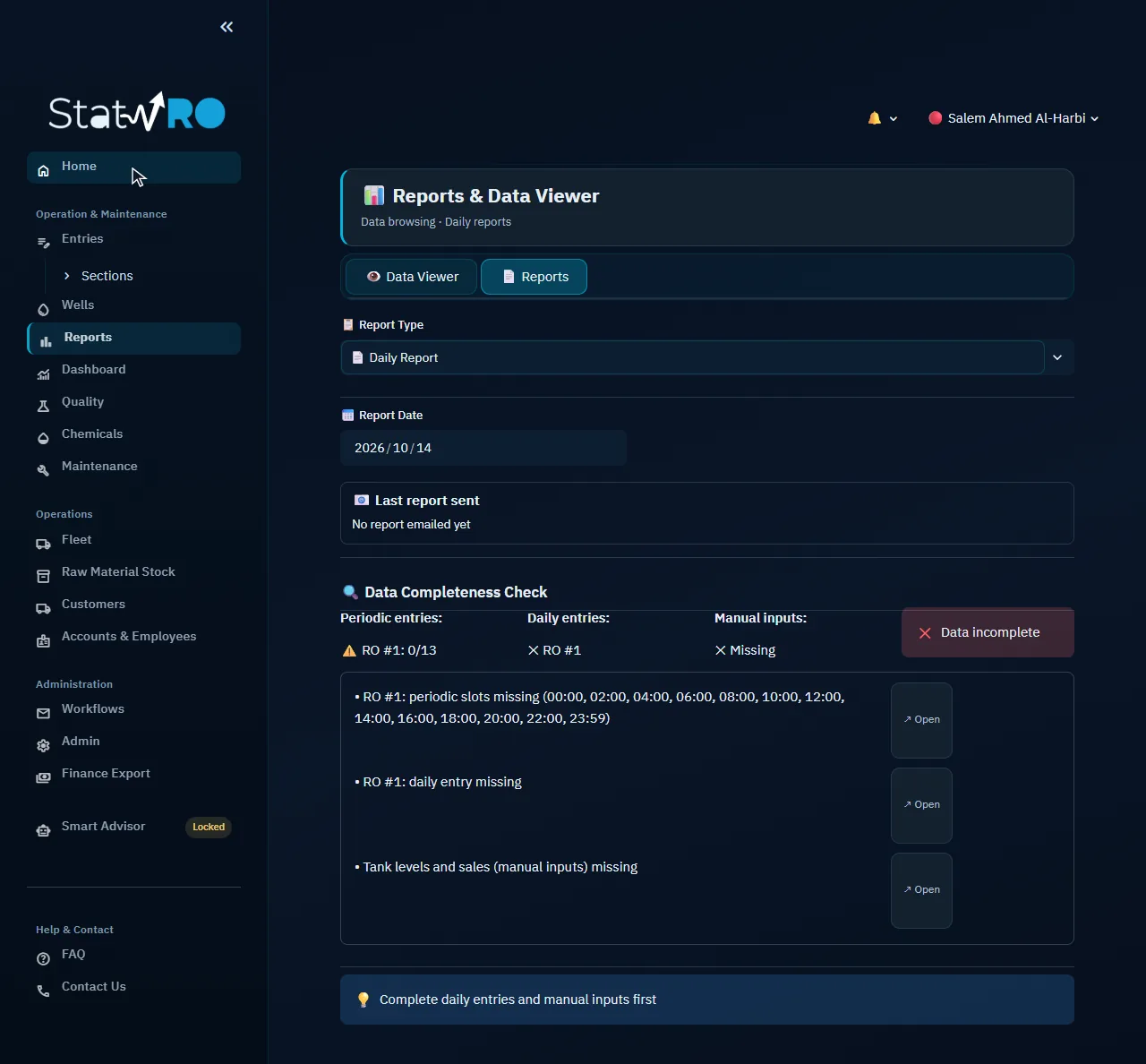
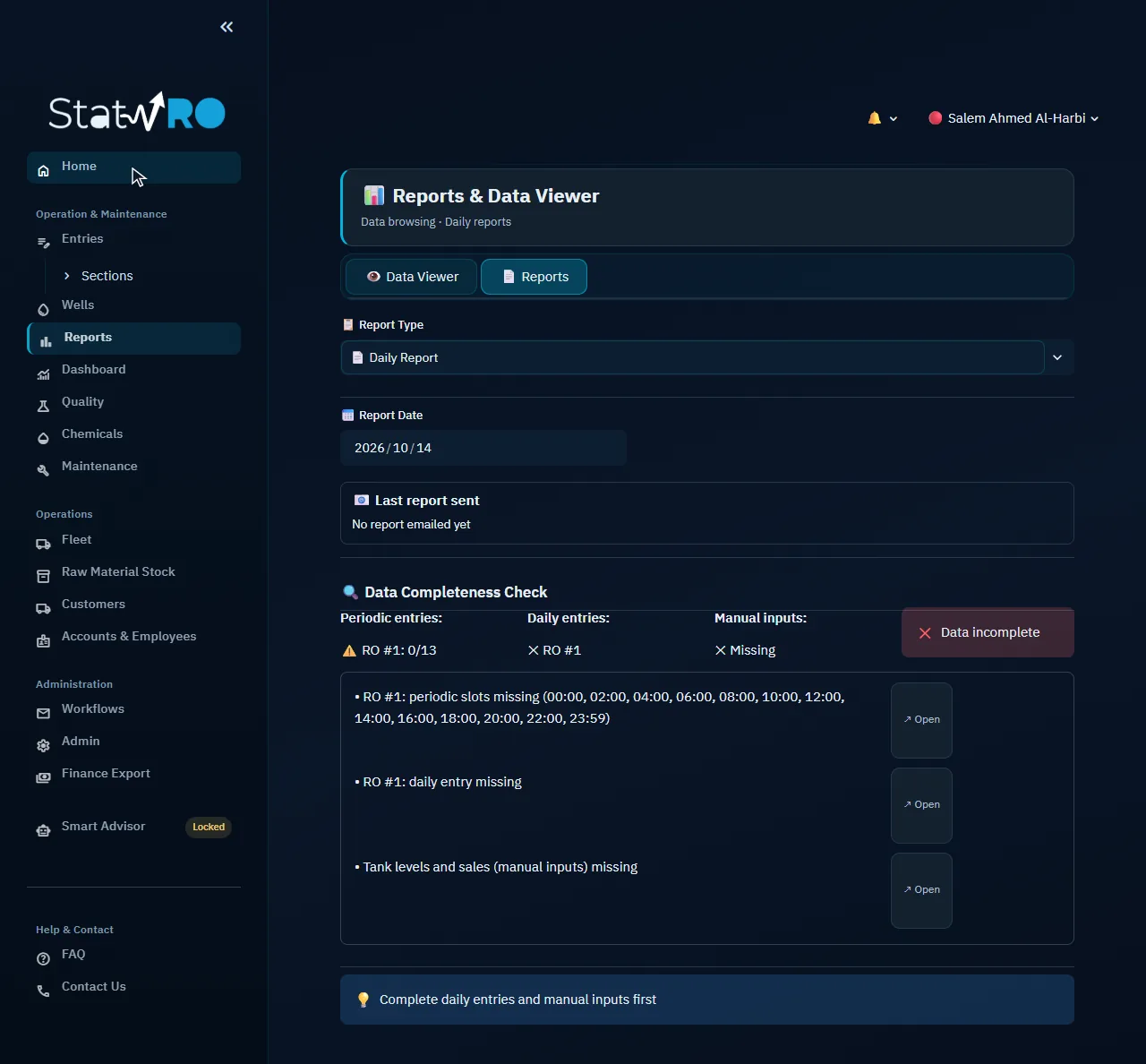
Reports ▸ 📄 Reports

Reports ▸ 📄 Reports

The daily report in its official form and its export, with a check that entries are complete.

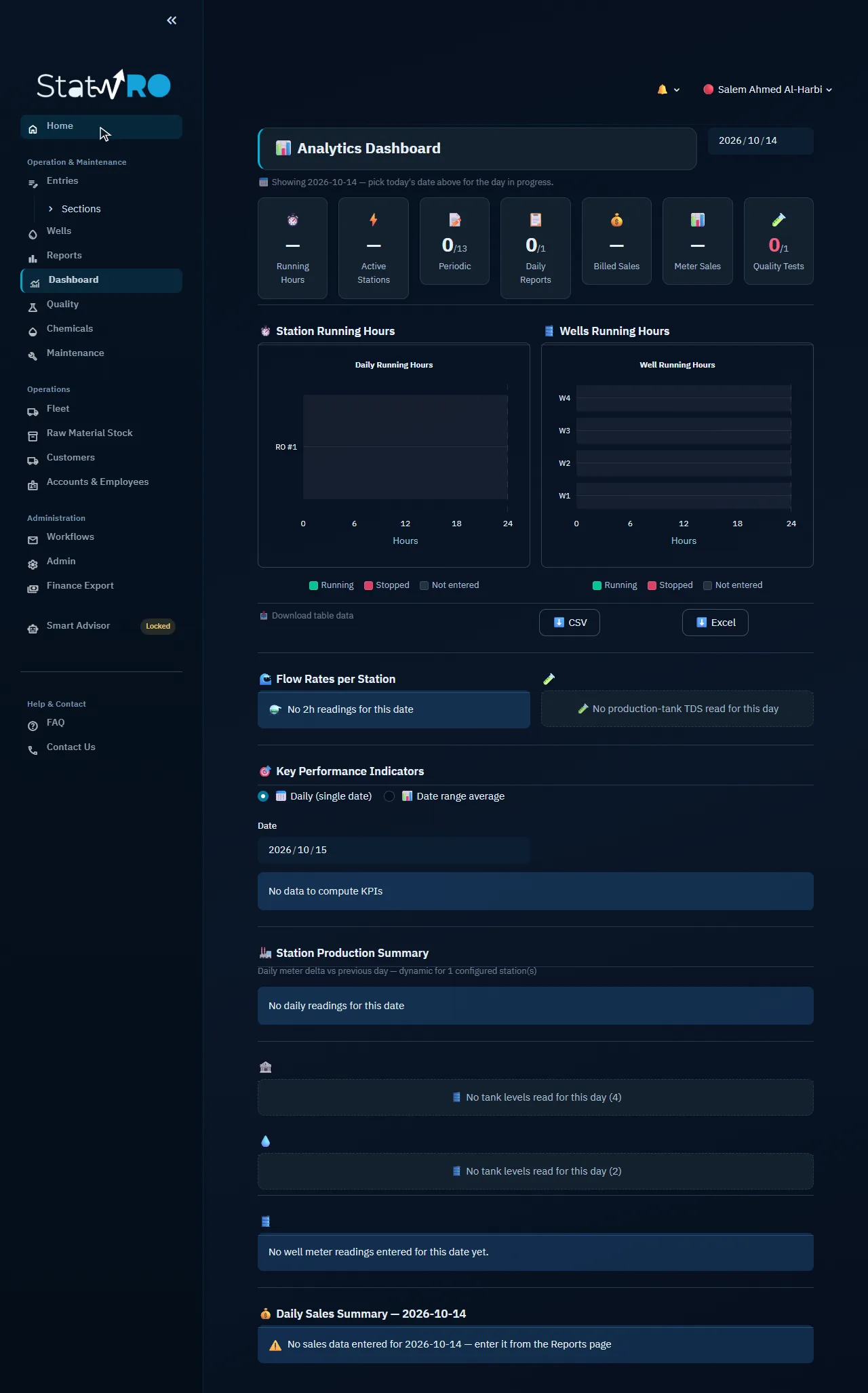
Dashboard

Dashboard

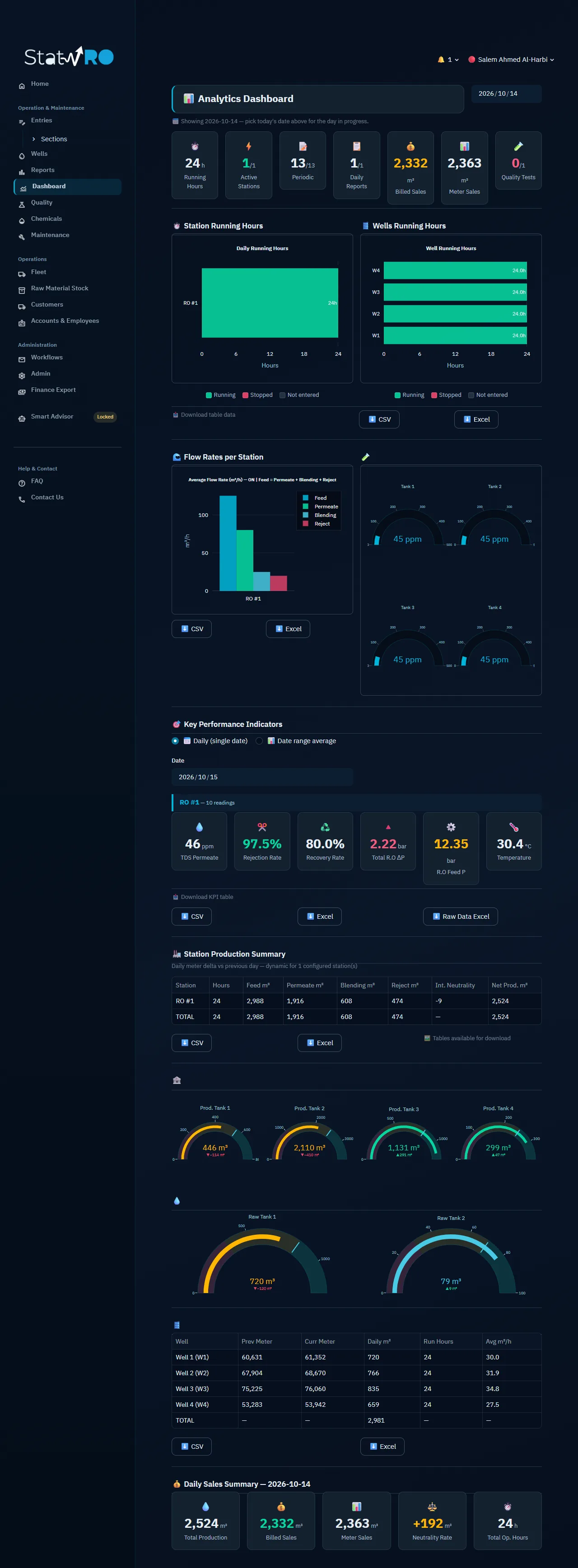
The whole day at a glance: operating hours, flows, key indicators, tanks, wells and sales.

Quality

Quality

The water-quality indicators the organisation sets, their entries and their reports.

Quality ▸ 🧪 Indicators

Quality ▸ 🧪 Indicators

Adding quality indicators, their limits and how often they are read.

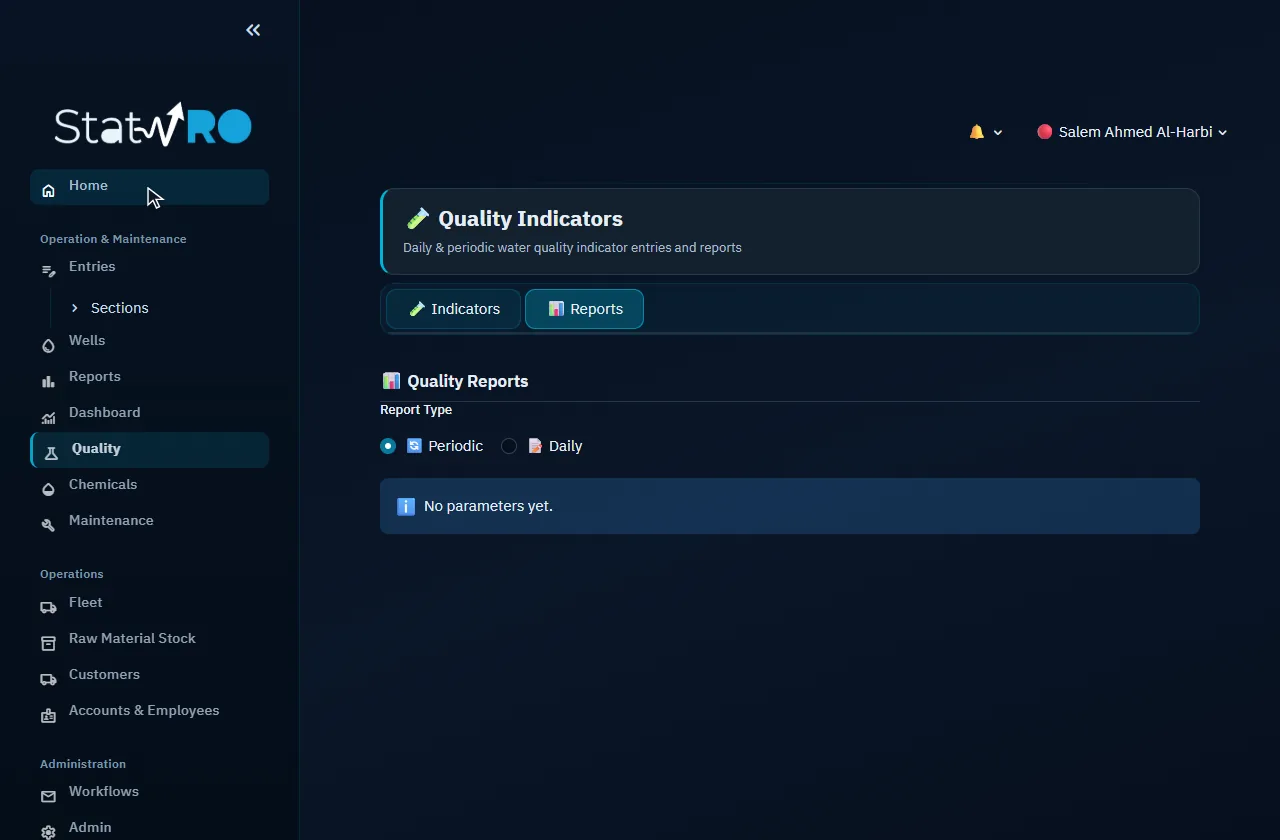
Quality ▸ 📊 Reports

Quality ▸ 📊 Reports

Daily and periodic indicator reports.

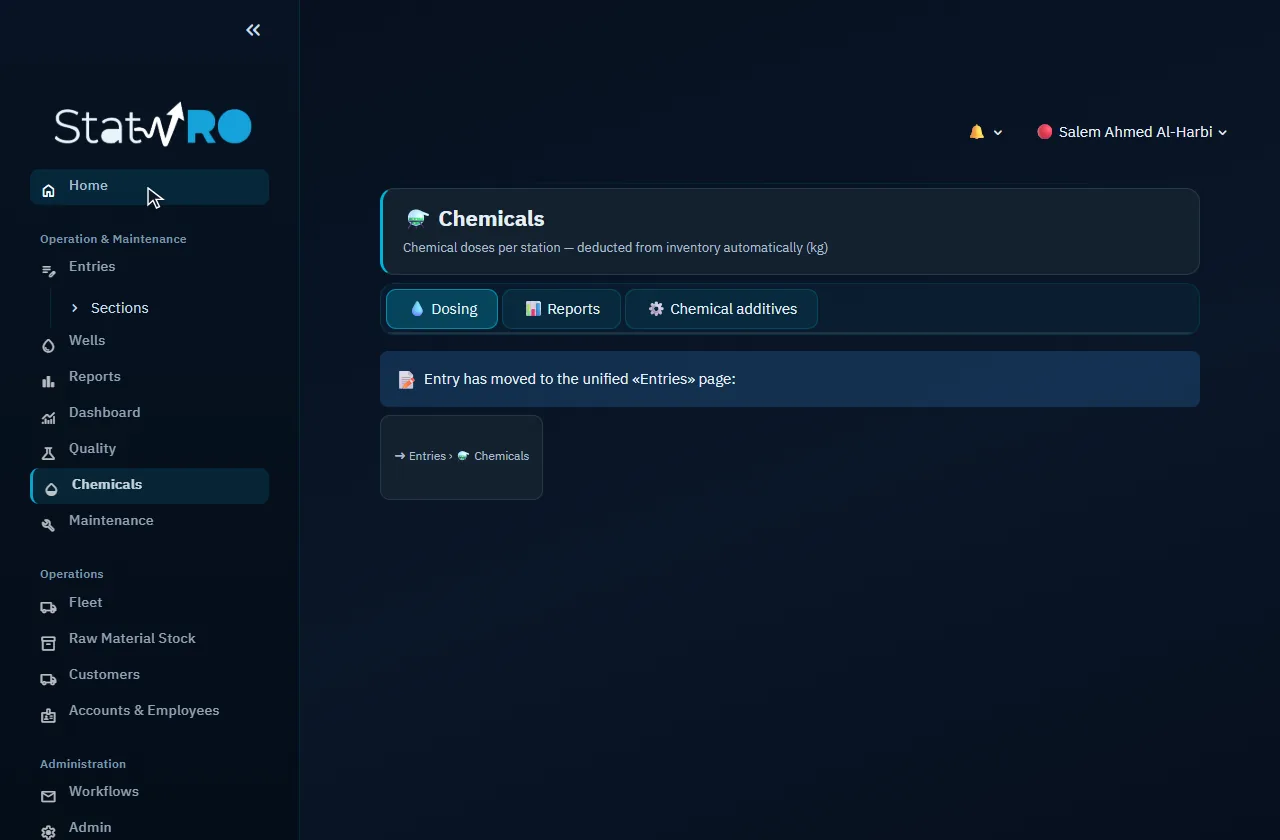
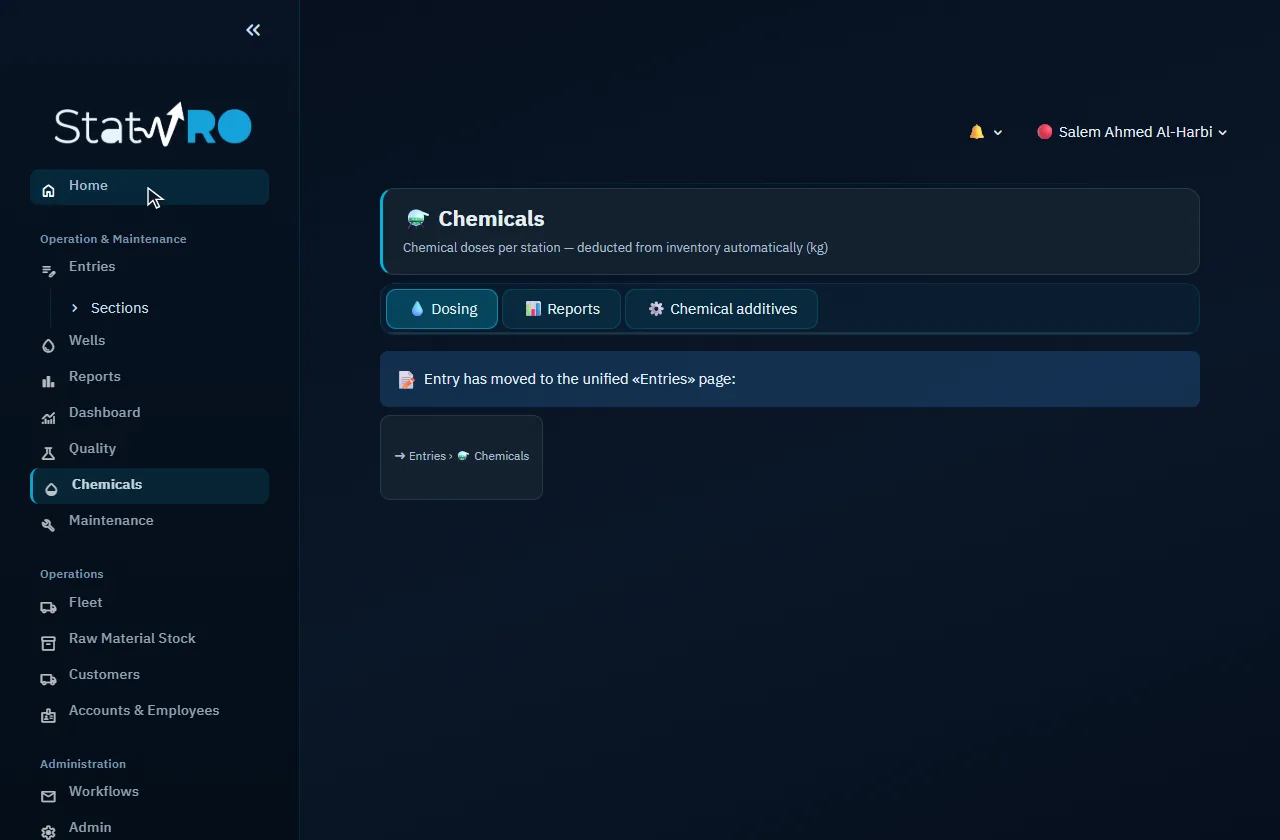
Chemicals

Chemicals

The chemical dosing points, recording each dose (taken from the store), and their reports.

Chemicals ▸ 💧 Dosing

Chemicals ▸ 💧 Dosing

The dose at each dosing point, taken from the store automatically.

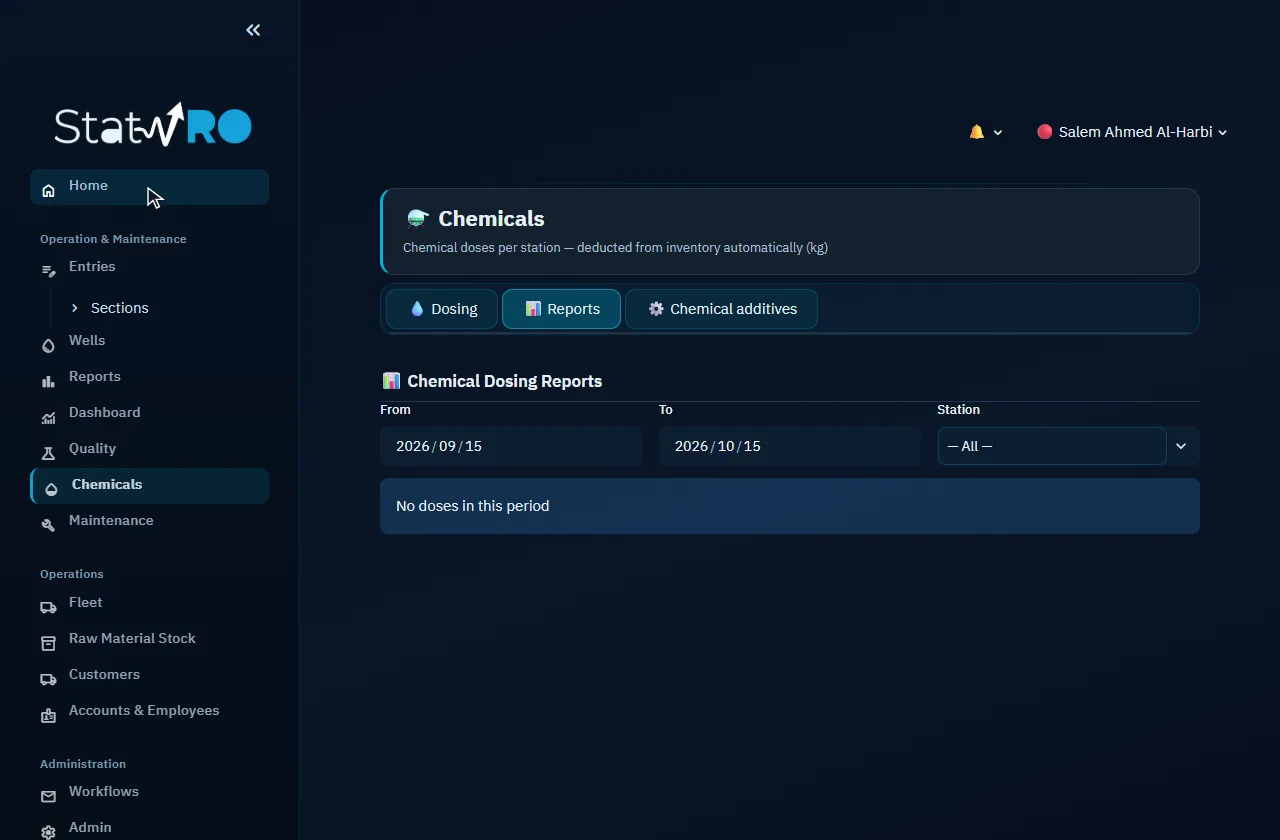
Chemicals ▸ 📊 Reports

Chemicals ▸ 📊 Reports

Chemical use and cost for any period.

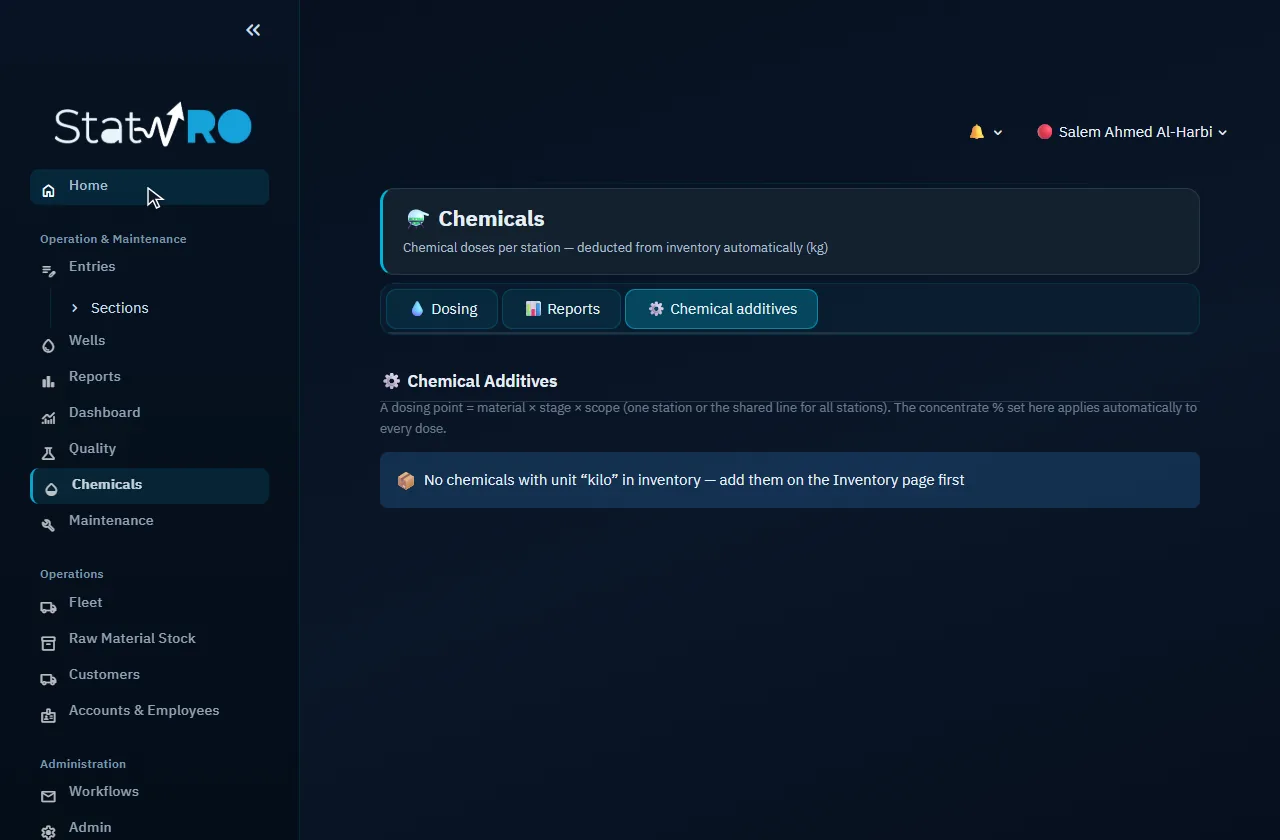
Chemicals ▸ ⚙️ Chemical additives

Chemicals ▸ ⚙️ Chemical additives

The dosing points: chemical, stage, station and concentration.

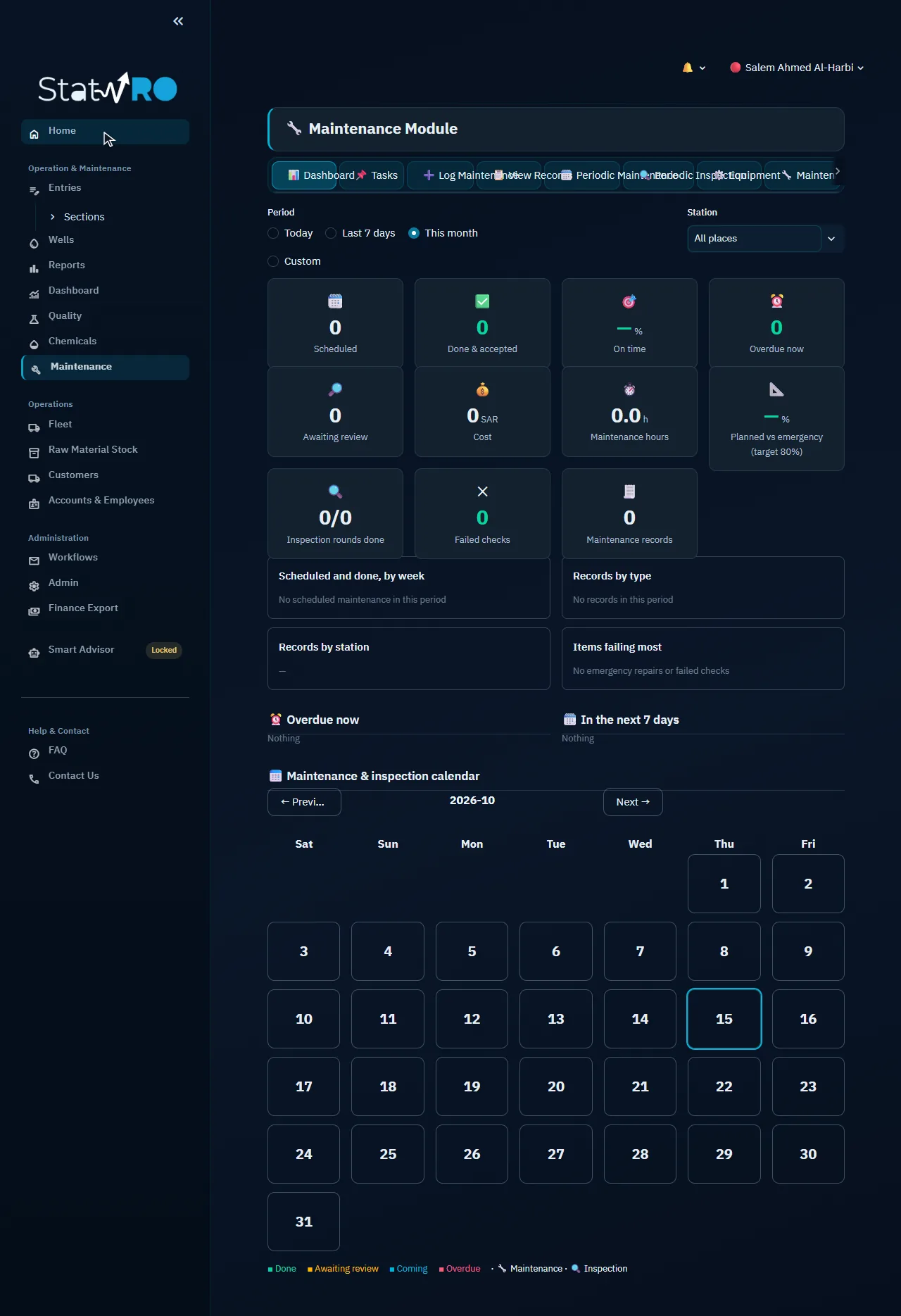
Maintenance

Maintenance

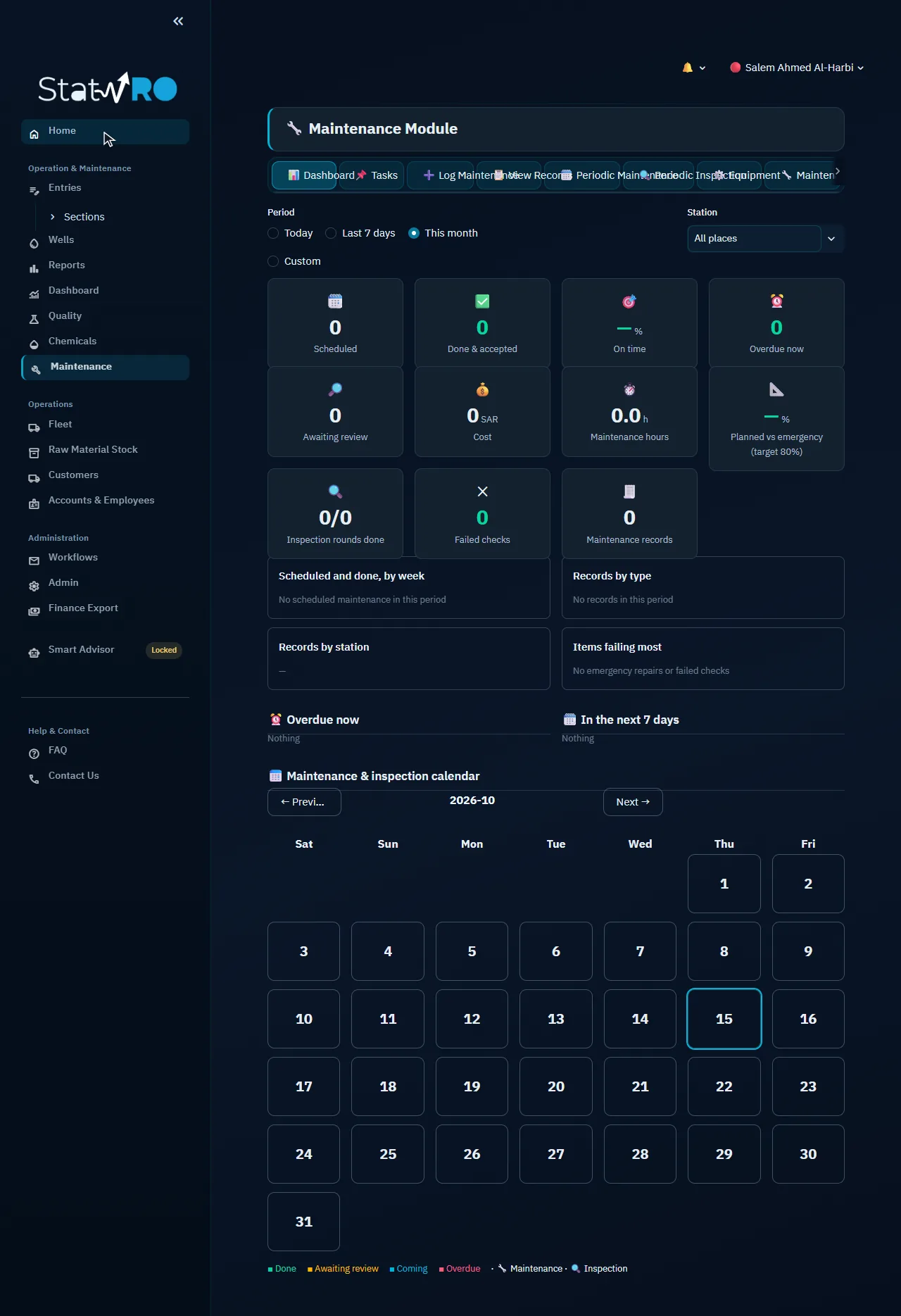
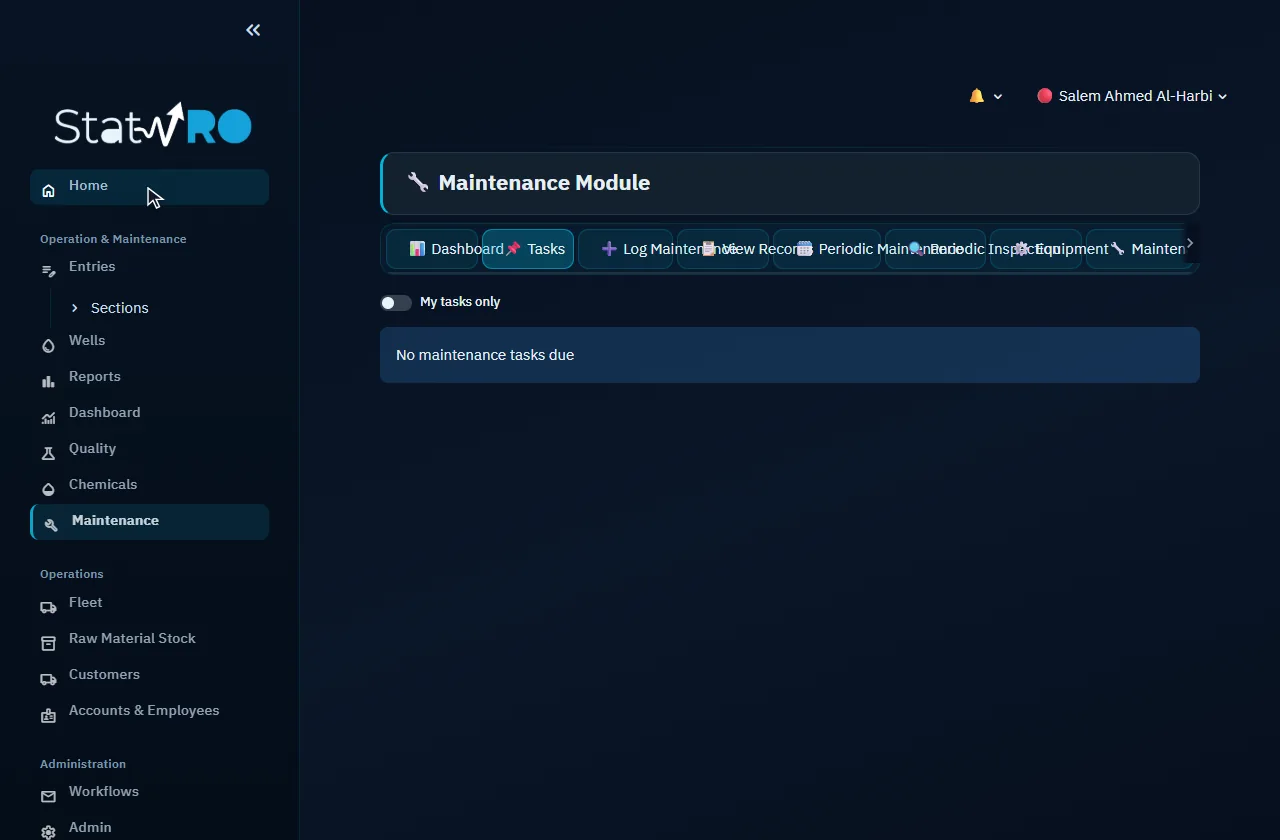
Equipment, preventive schedules and inspection rounds, tasks, maintenance requests and records.

Maintenance ▸ 📊 Dashboard

Maintenance ▸ 📊 Dashboard

Maintenance figures and the task calendar.

Maintenance ▸ 📌 Tasks

Maintenance ▸ 📌 Tasks

Due preventive tasks, their state and their review.

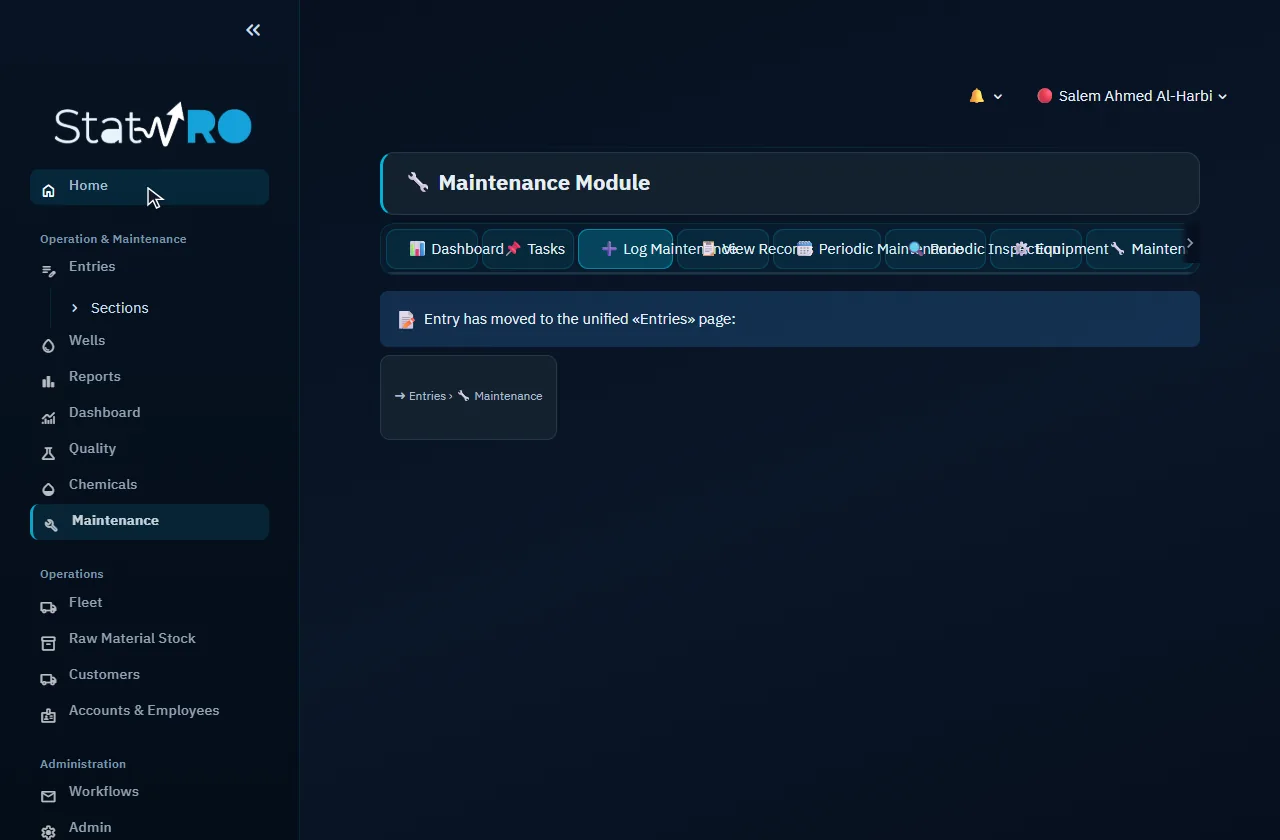
Maintenance ▸ ➕ Log Maintenance

Maintenance ▸ ➕ Log Maintenance

Recording emergency or completed maintenance.

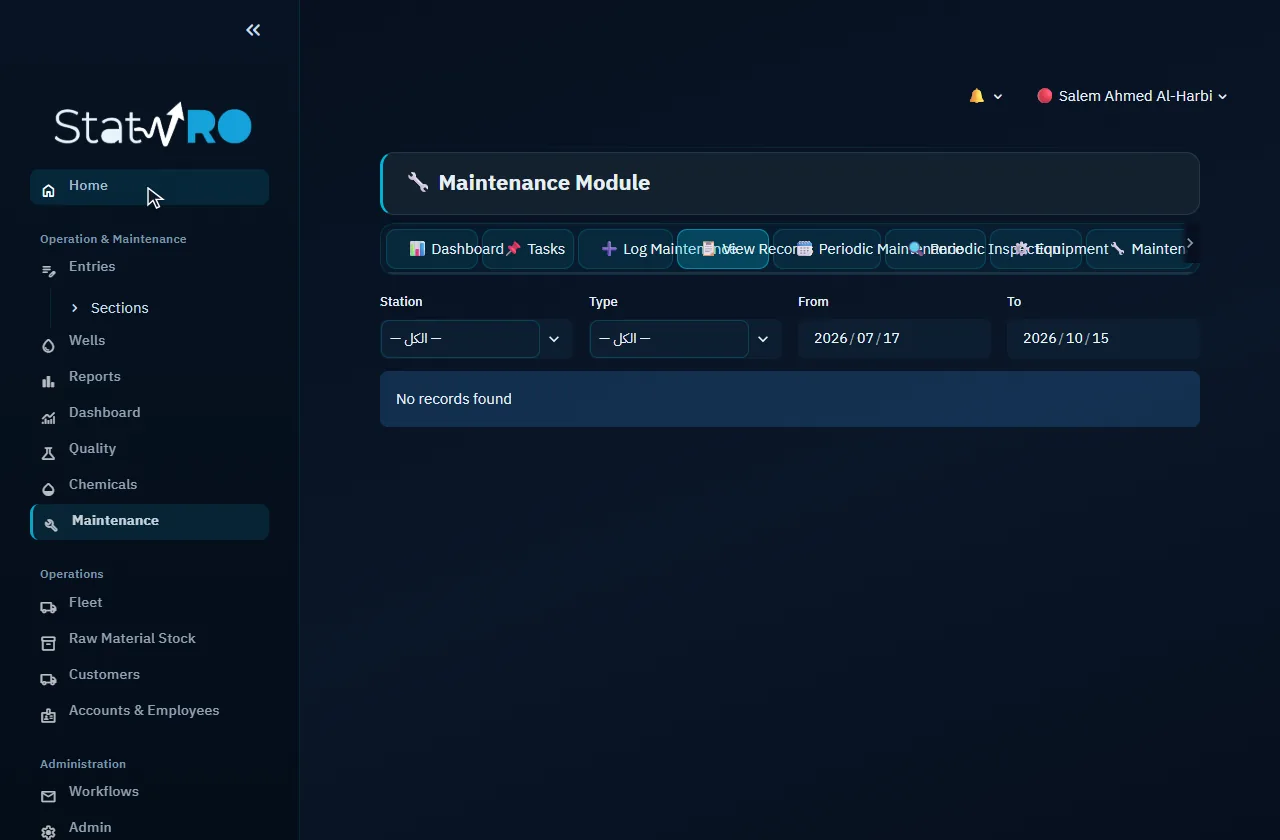
Maintenance ▸ 📋 View Records

Maintenance ▸ 📋 View Records

The maintenance log for any period.

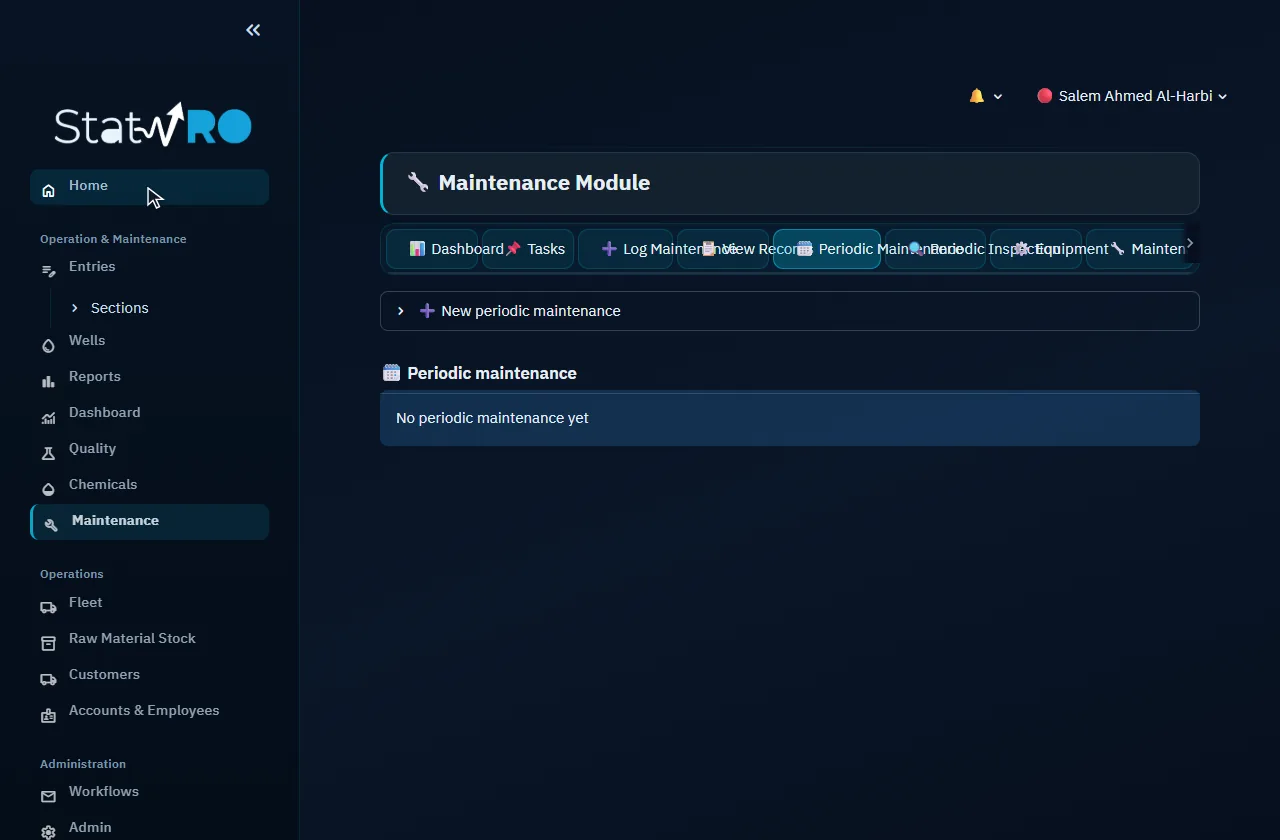
Maintenance ▸ 🗓️ Periodic Maintenance

Maintenance ▸ 🗓️ Periodic Maintenance

Maintenance schedules: equipment, frequency and the technician.

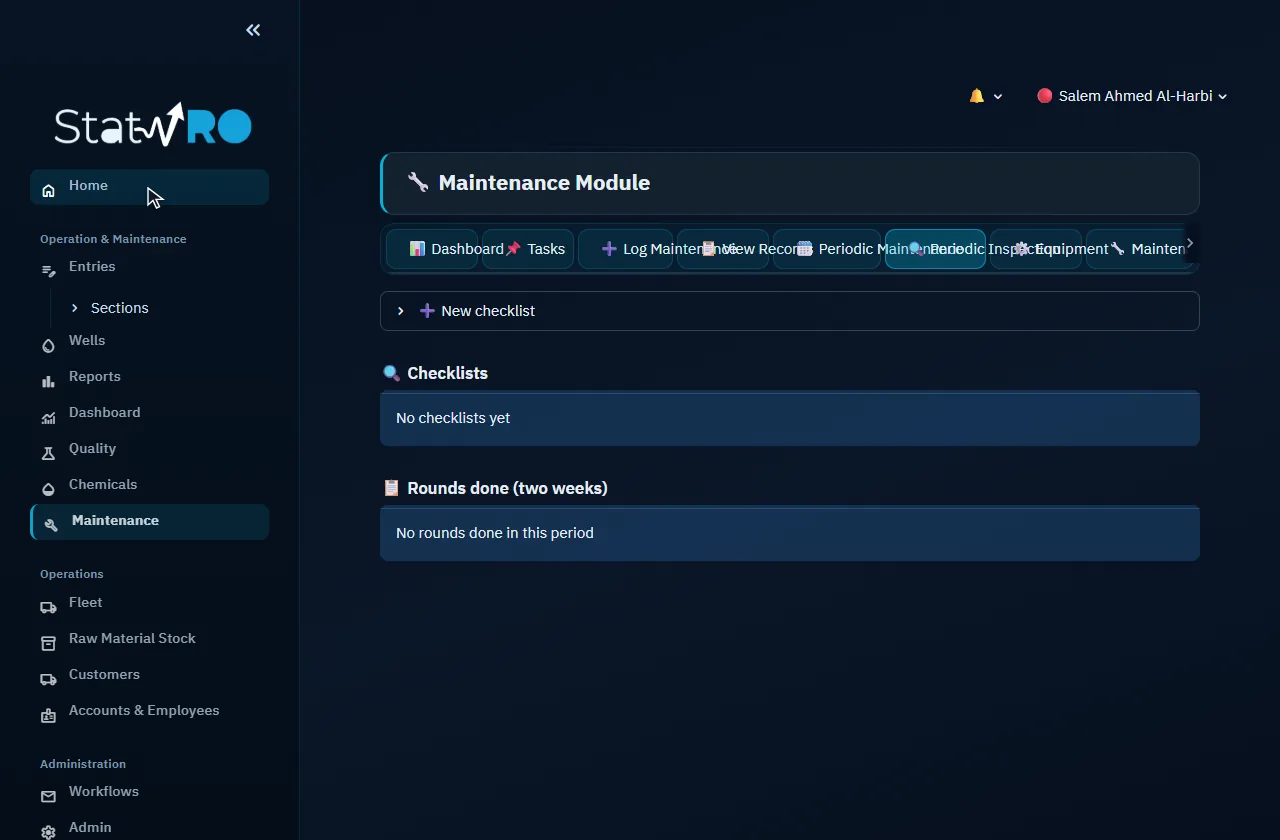
Maintenance ▸ 🔍 Periodic Inspection

Maintenance ▸ 🔍 Periodic Inspection

Inspection checklists and rounds.

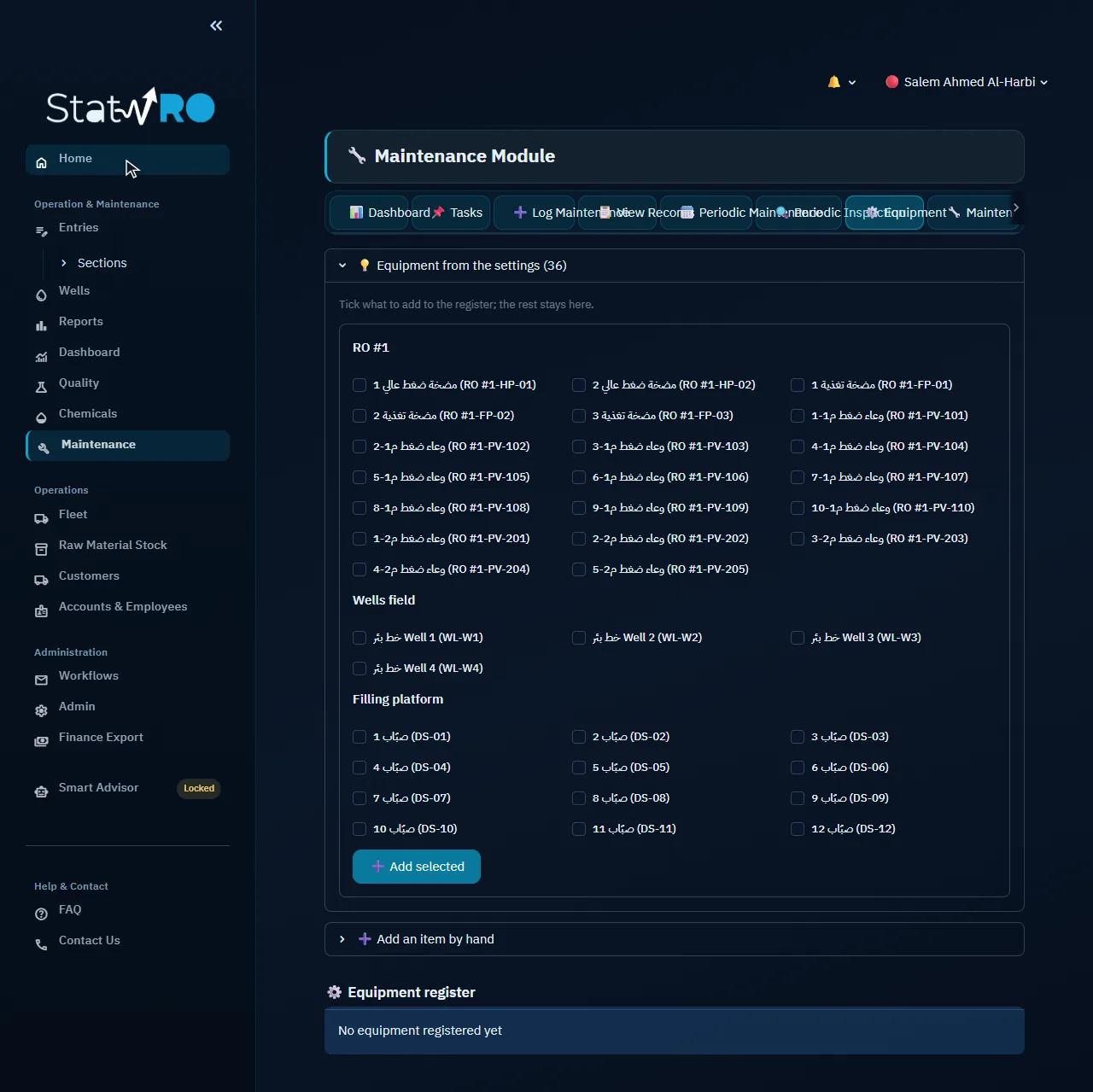
Maintenance ▸ ⚙️ Equipment

Maintenance ▸ ⚙️ Equipment

The equipment register, proposed from the settings of the stations.

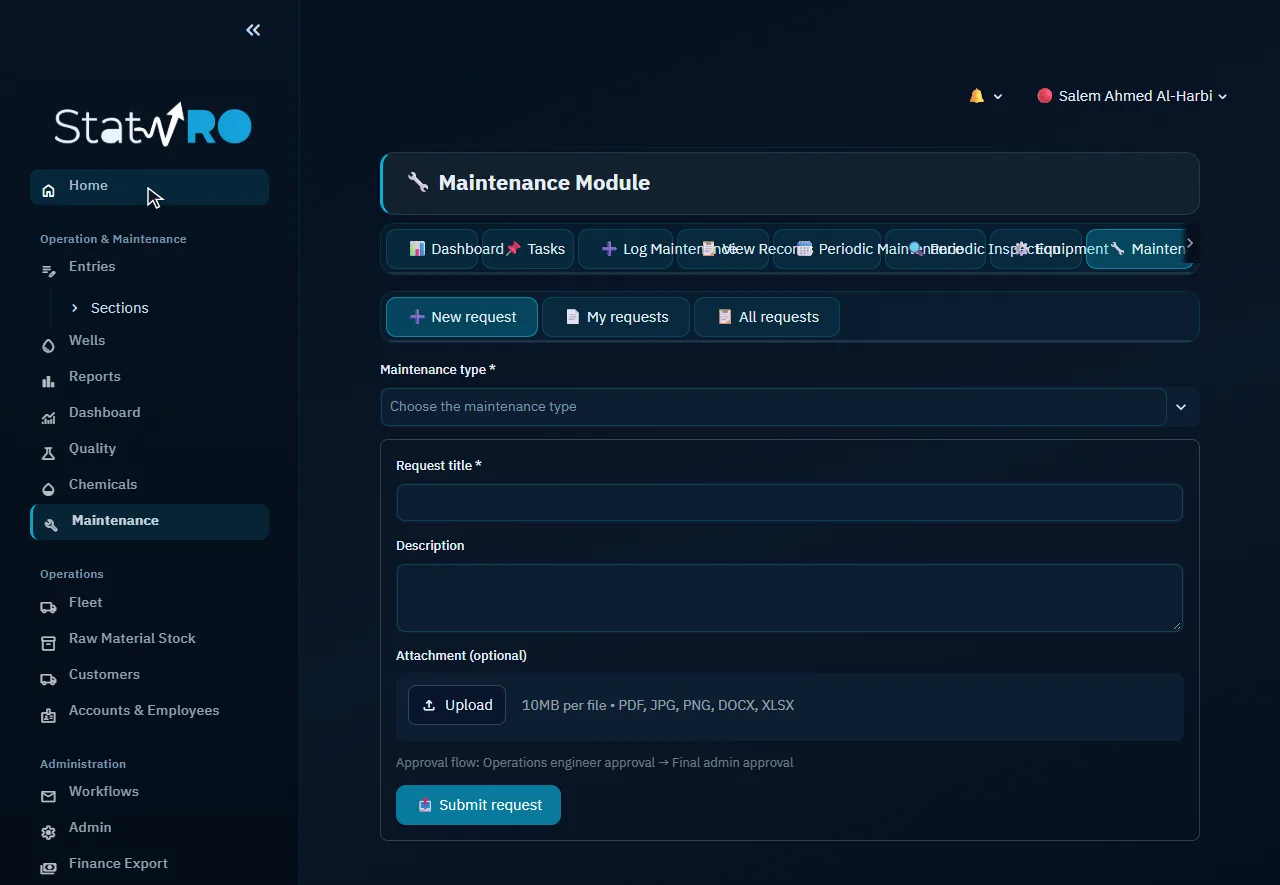
Maintenance ▸ 🔧 Maintenance Request

Maintenance ▸ 🔧 Maintenance Request

A maintenance request, for approval.

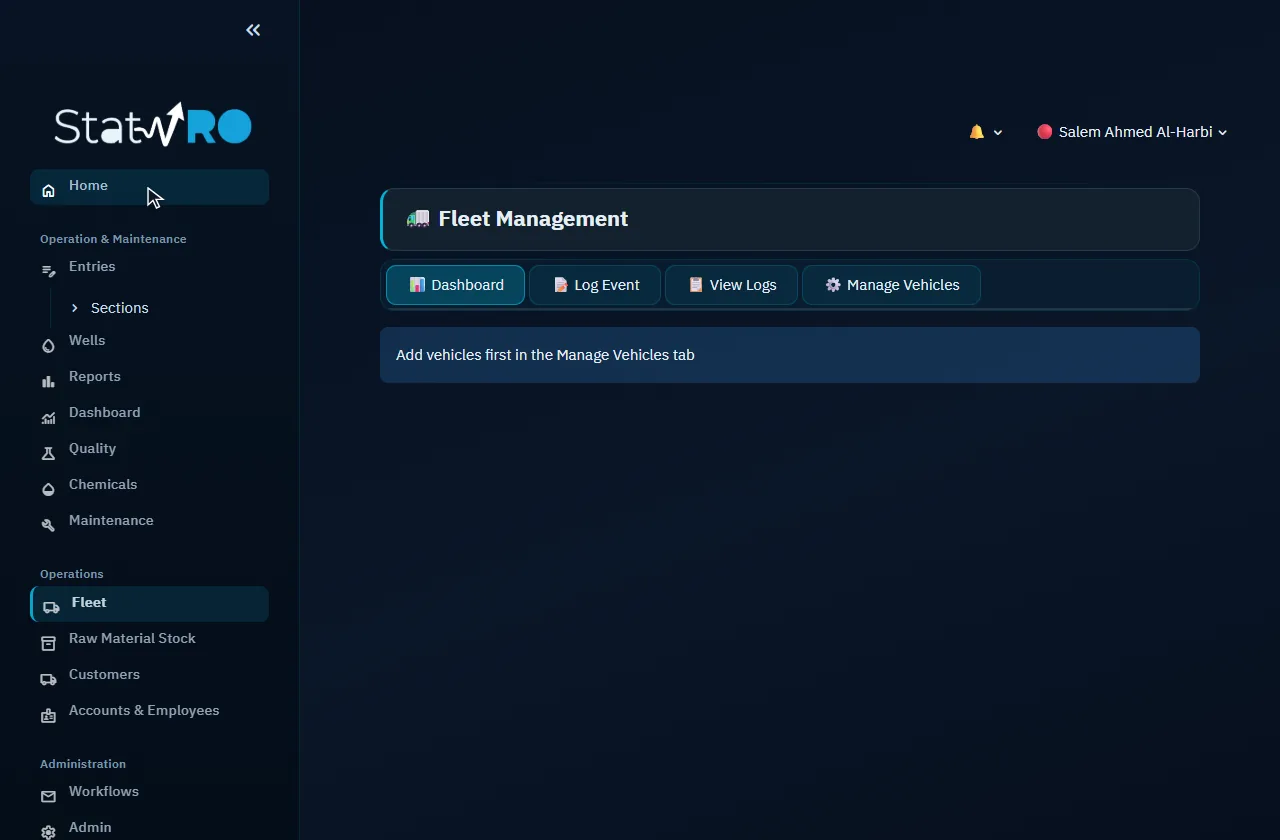
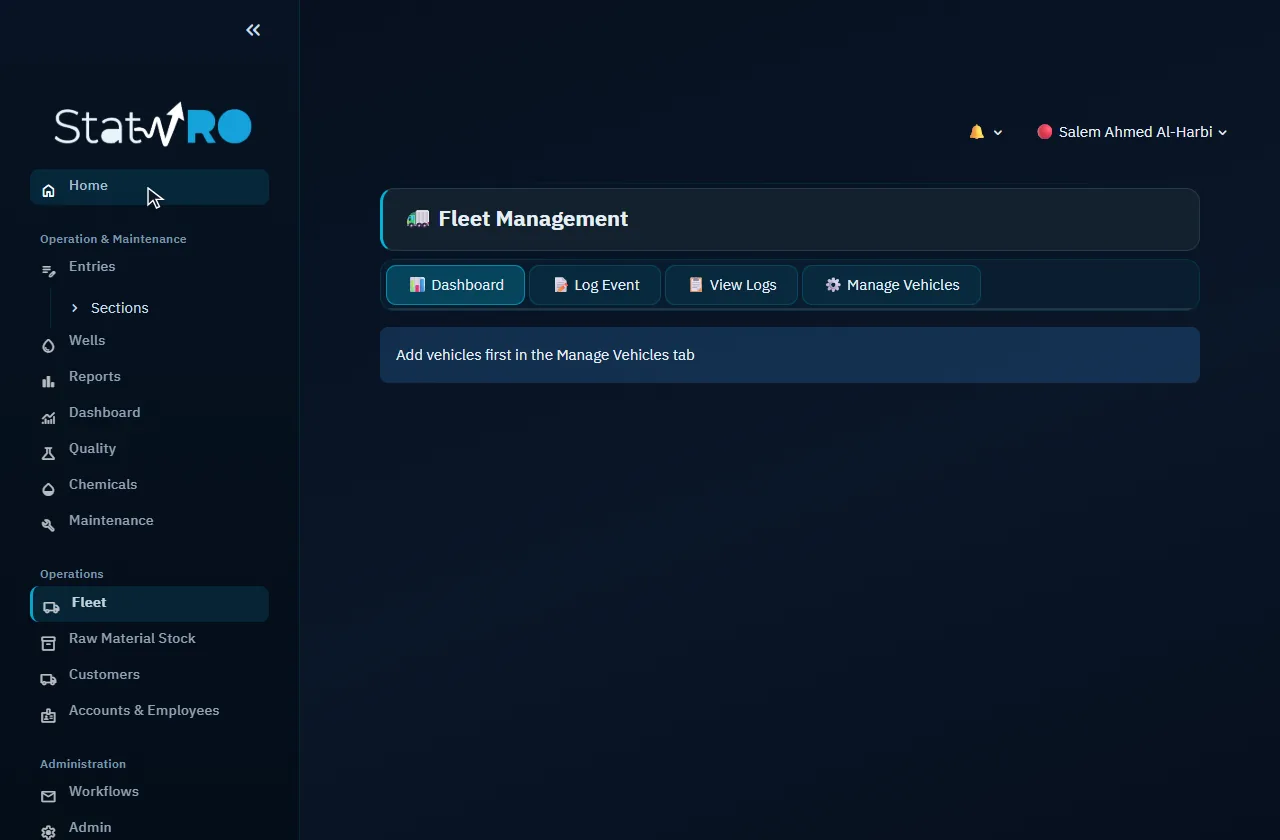
Fleet

Fleet

Vehicles and tankers and their drivers, their event log, and their dashboard.

Fleet ▸ 📊 Dashboard

Fleet ▸ 📊 Dashboard

A summary of the vehicles and their events.

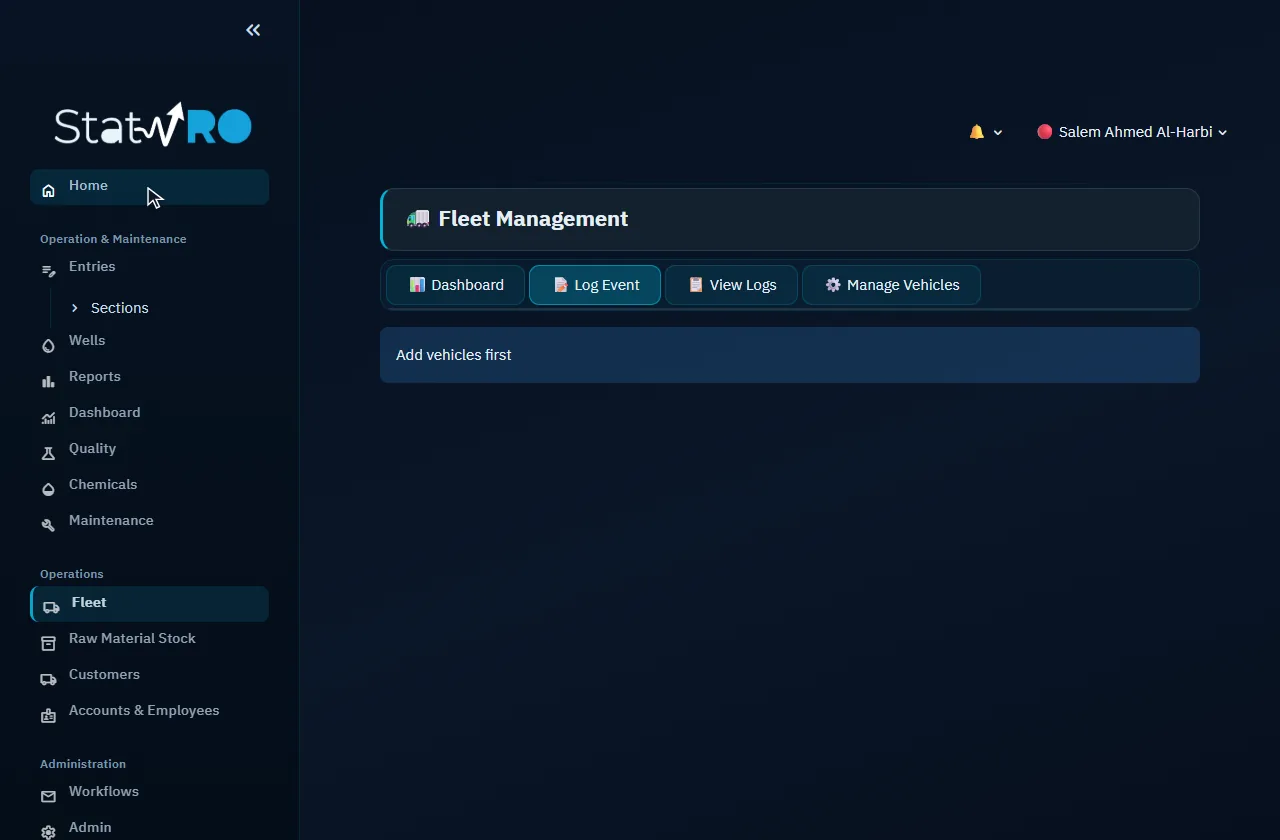
Fleet ▸ 📝 Log Event

Fleet ▸ 📝 Log Event

Refuelling, servicing, or any event for a vehicle.

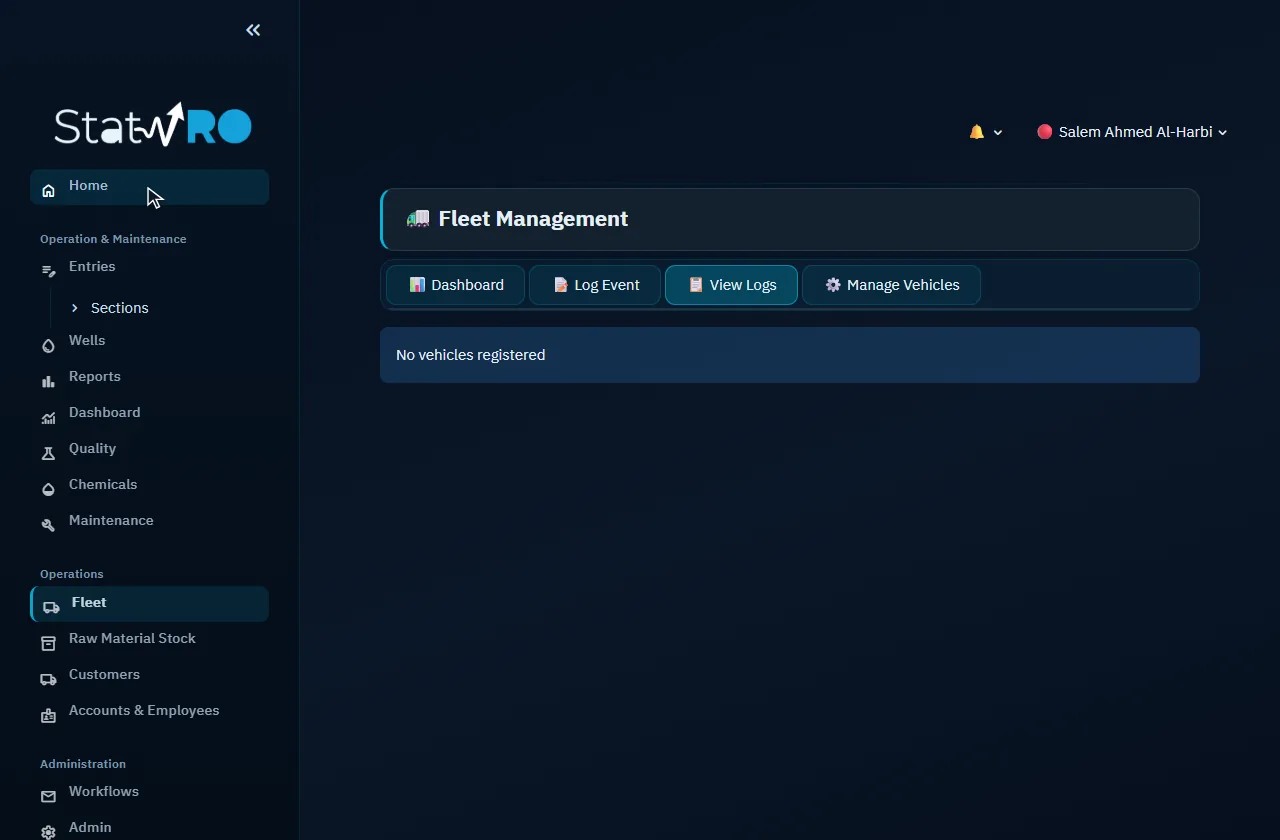
Fleet ▸ 📋 View Logs

Fleet ▸ 📋 View Logs

The event log of the vehicles.

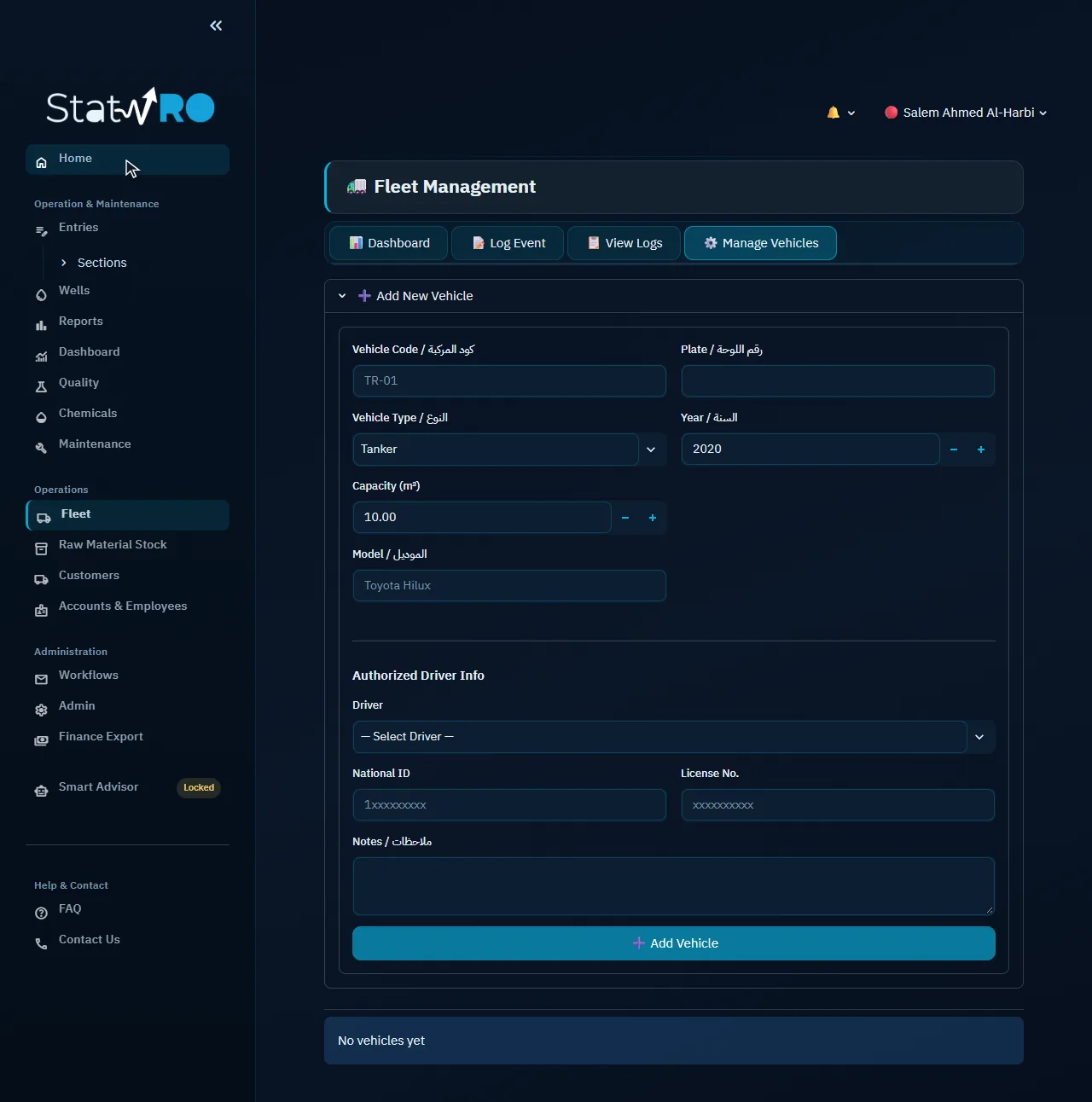
Fleet ▸ ⚙️ Manage Vehicles

Fleet ▸ ⚙️ Manage Vehicles

Vehicles and tankers, their capacity and drivers.

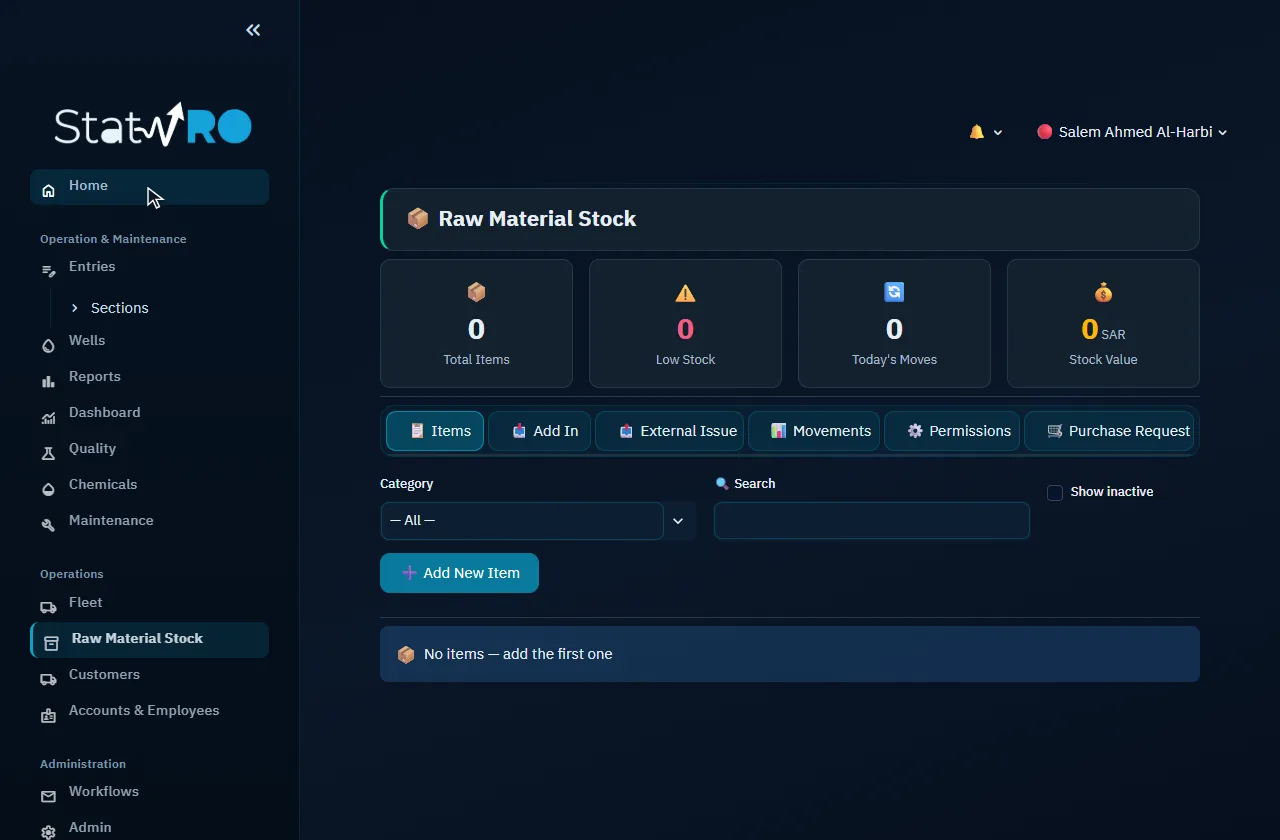
Store

Store

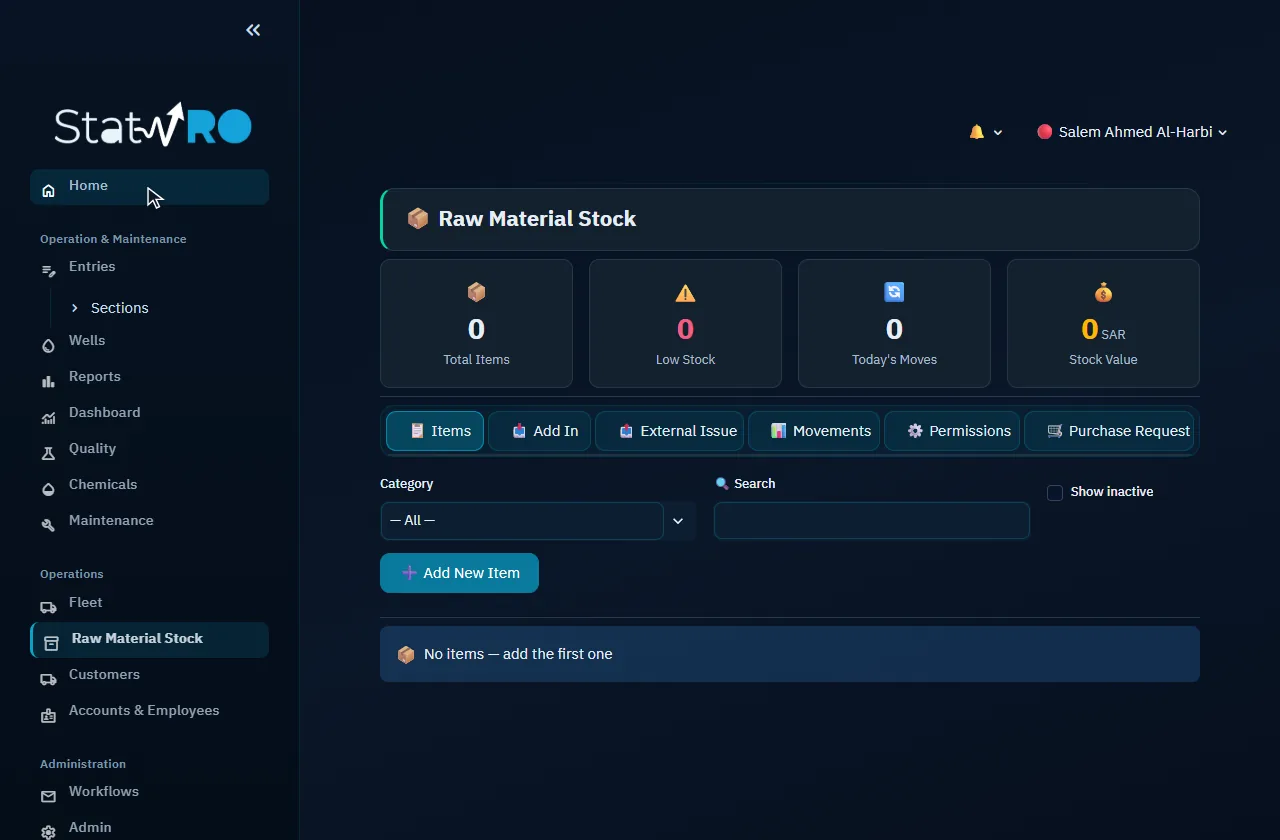
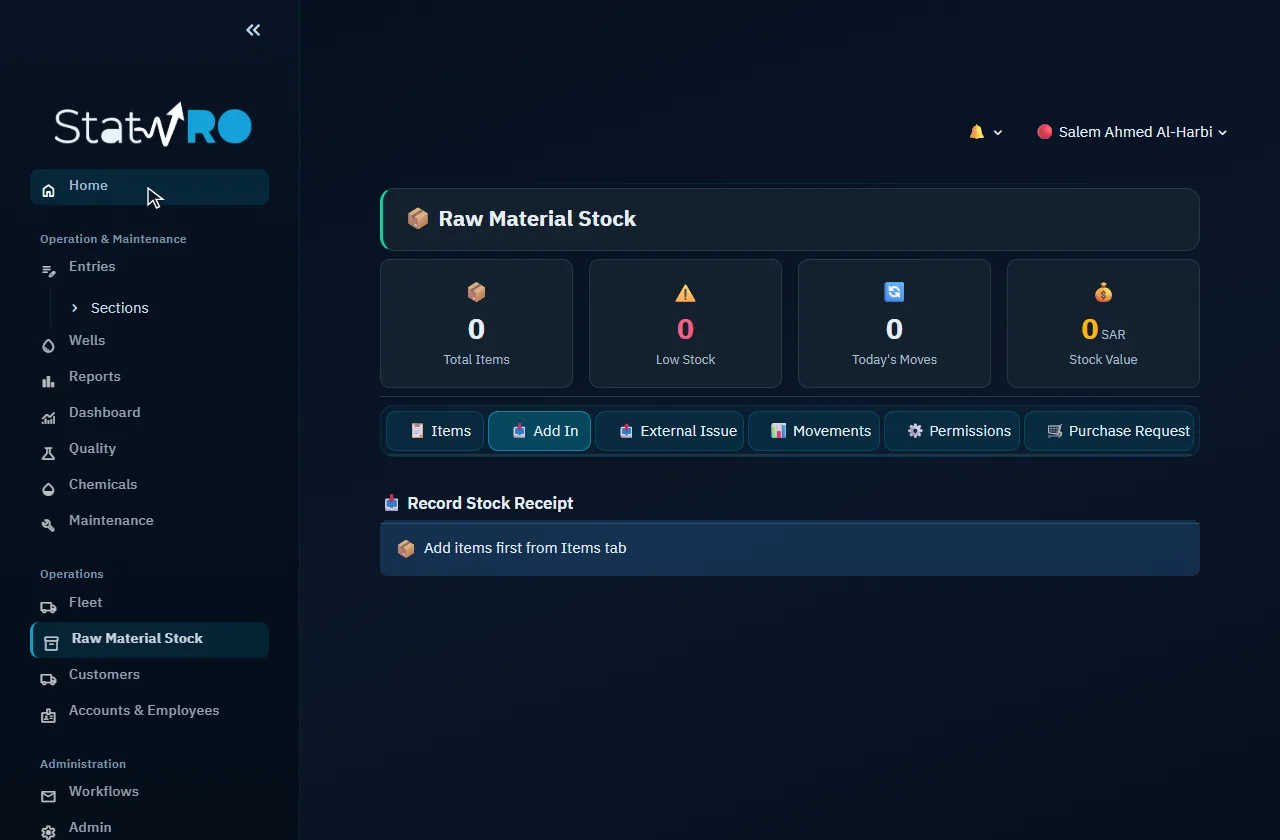
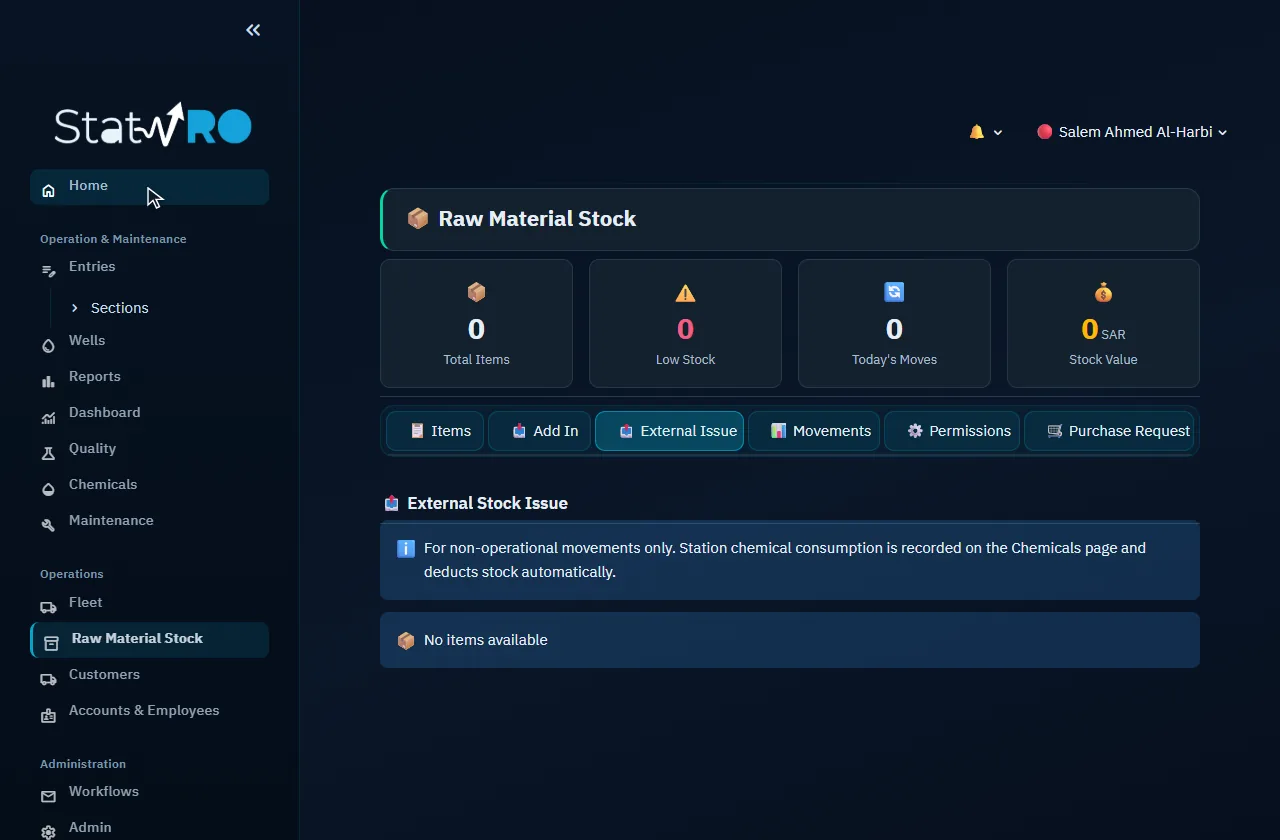
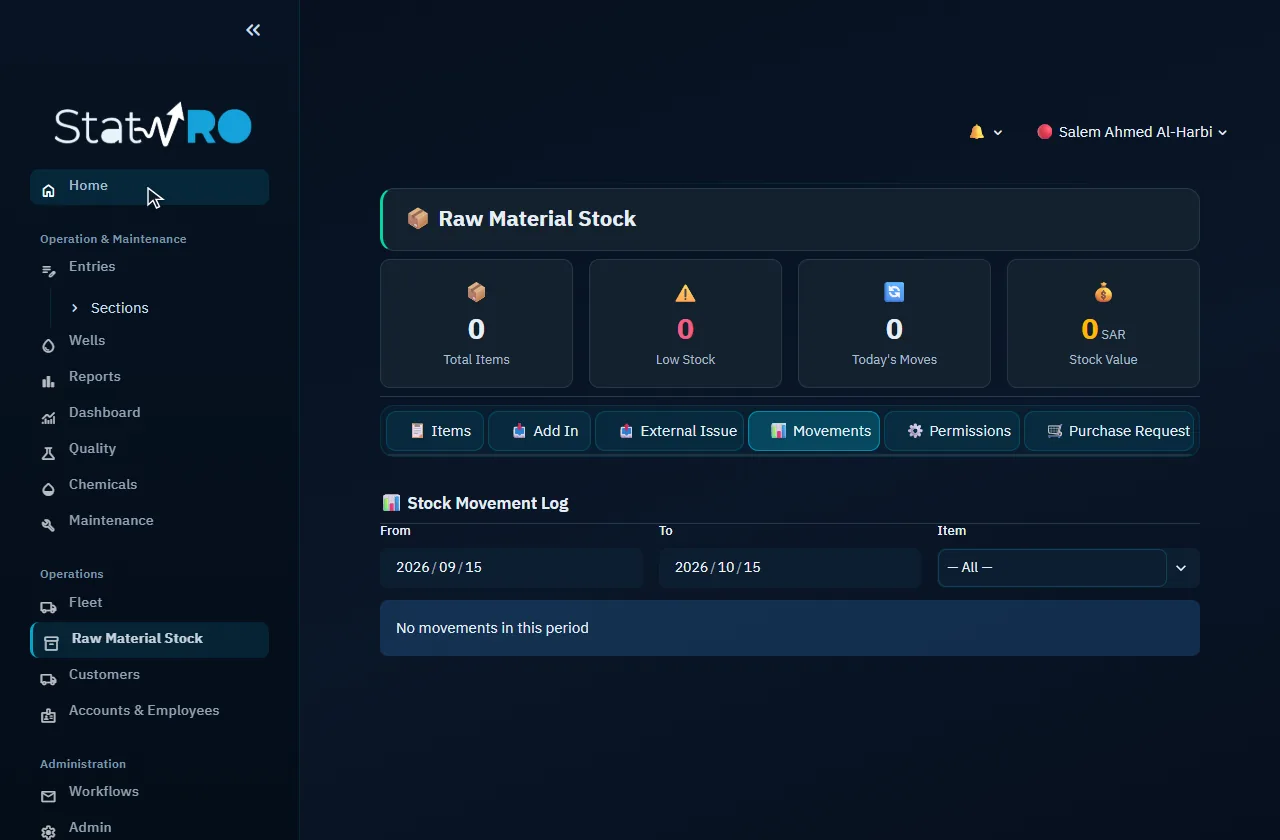
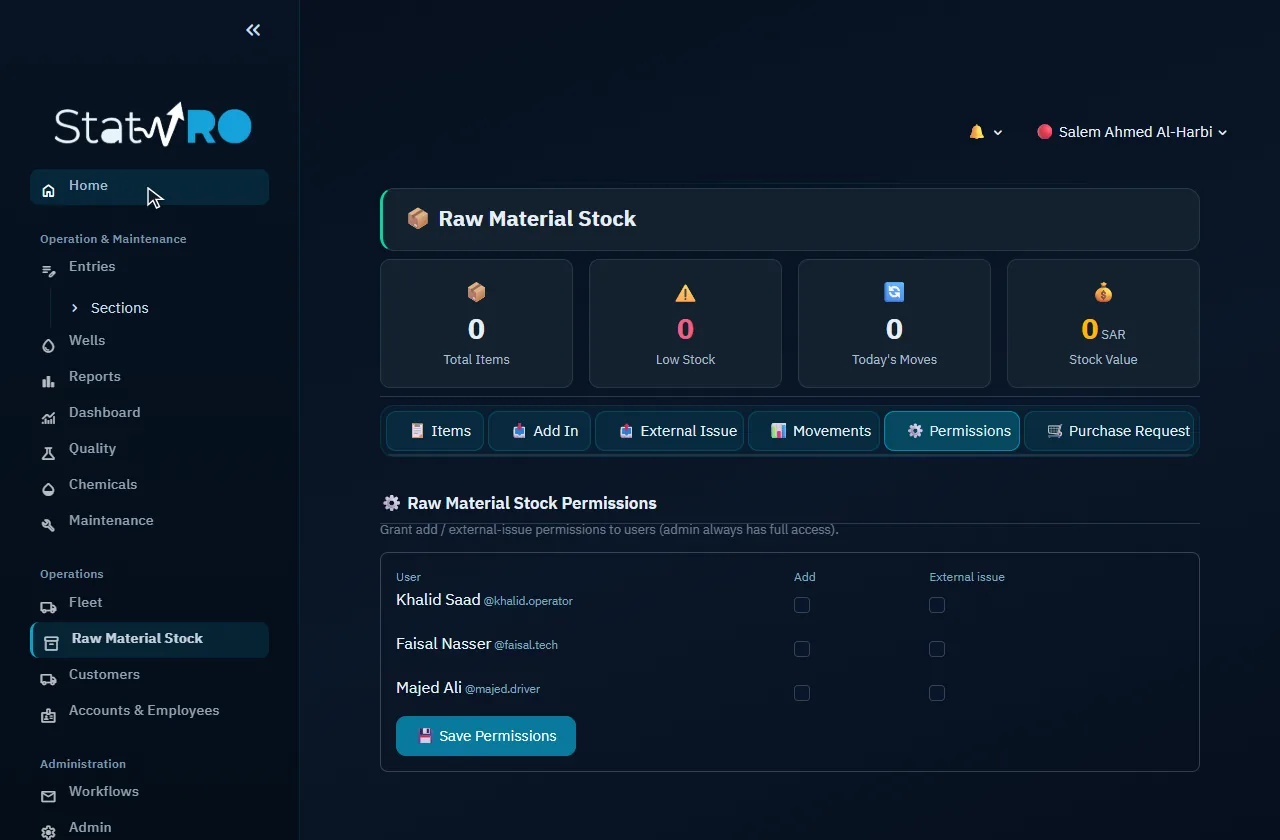
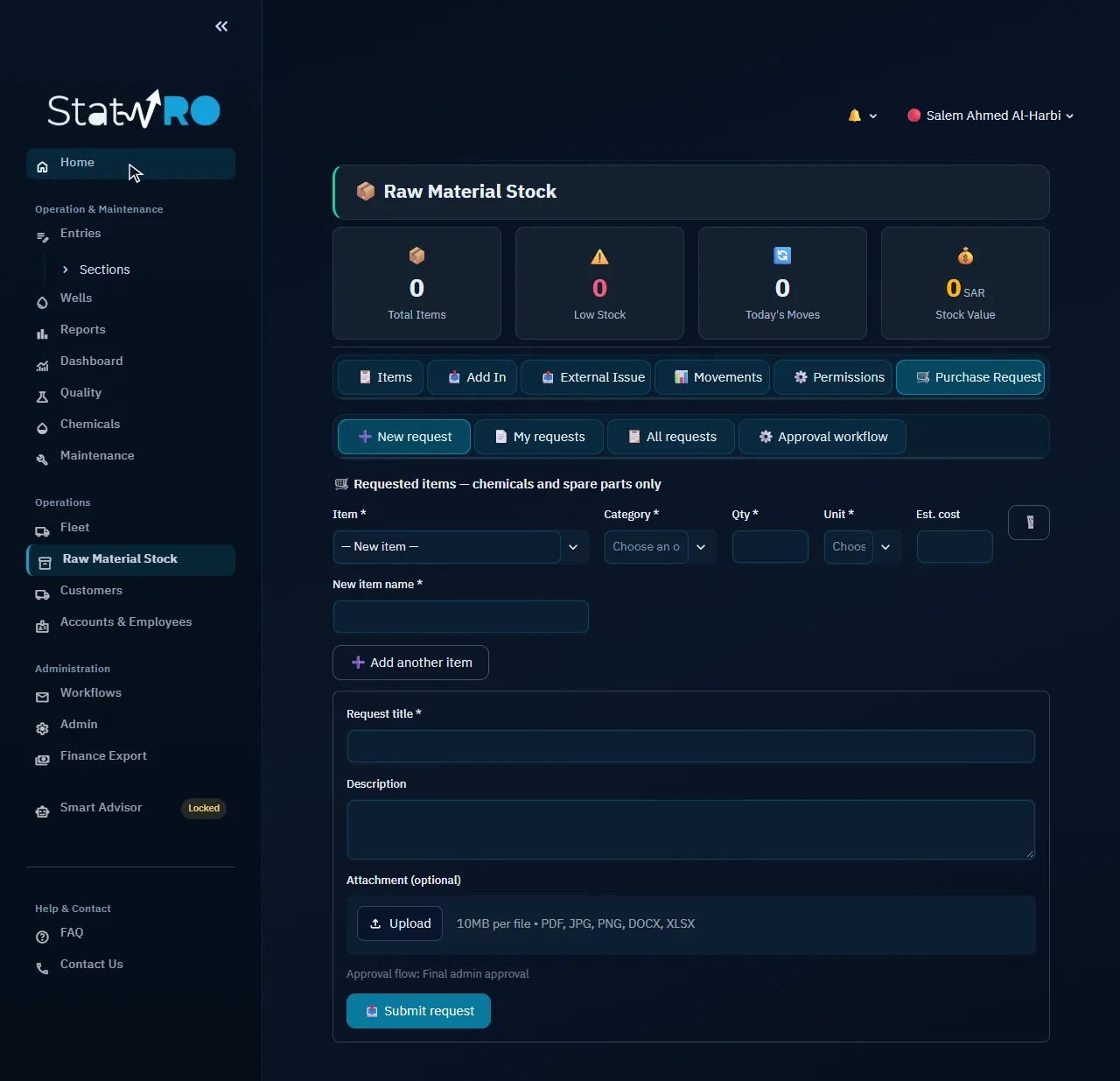
The store's items and movements: receiving, external withdrawals, purchase requests and permissions.

Store ▸ 📋 Items

Store ▸ 📋 Items

The items of the store, their stock and alert level.

Store ▸ 📥 Add In

Store ▸ 📥 Add In

Receiving stock into the store.

Store ▸ 📤 External Issue

Store ▸ 📤 External Issue

Issuing stock for a stated outside purpose.

Store ▸ 📊 Movements

Store ▸ 📊 Movements

Every receipt and issue.

Store ▸ ⚙️ Permissions

Store ▸ ⚙️ Permissions

Who may receive and who may issue.

Store ▸ 🛒 Purchase Request

Store ▸ 🛒 Purchase Request

A purchase request, for approval.

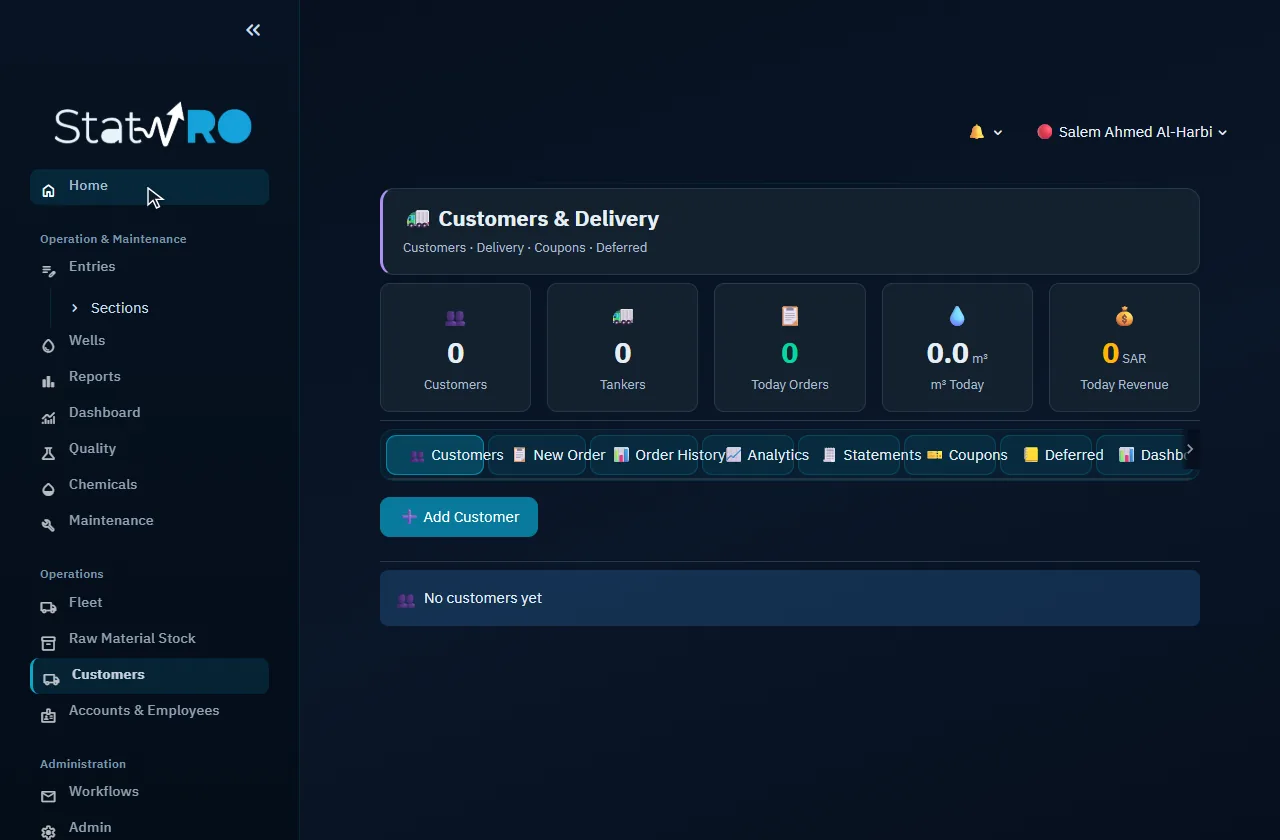
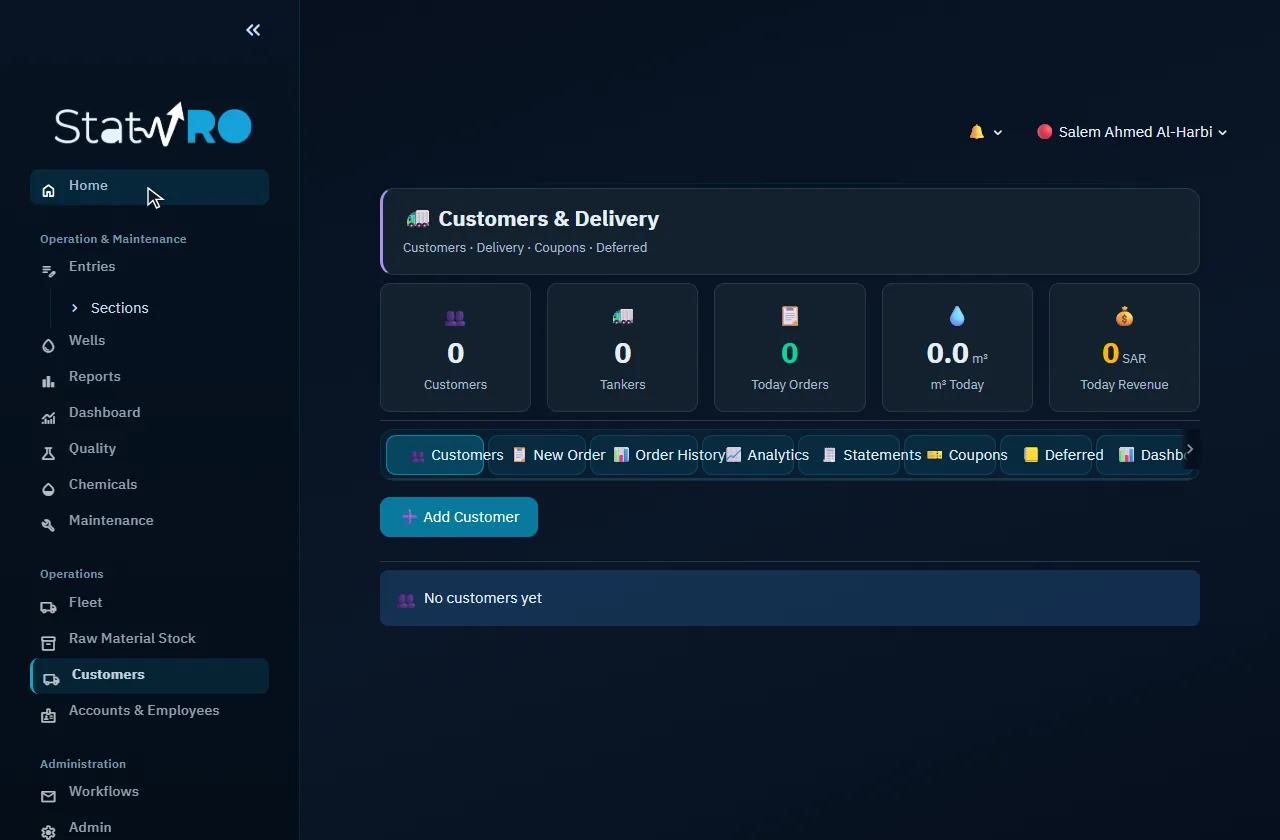
Customers

Customers

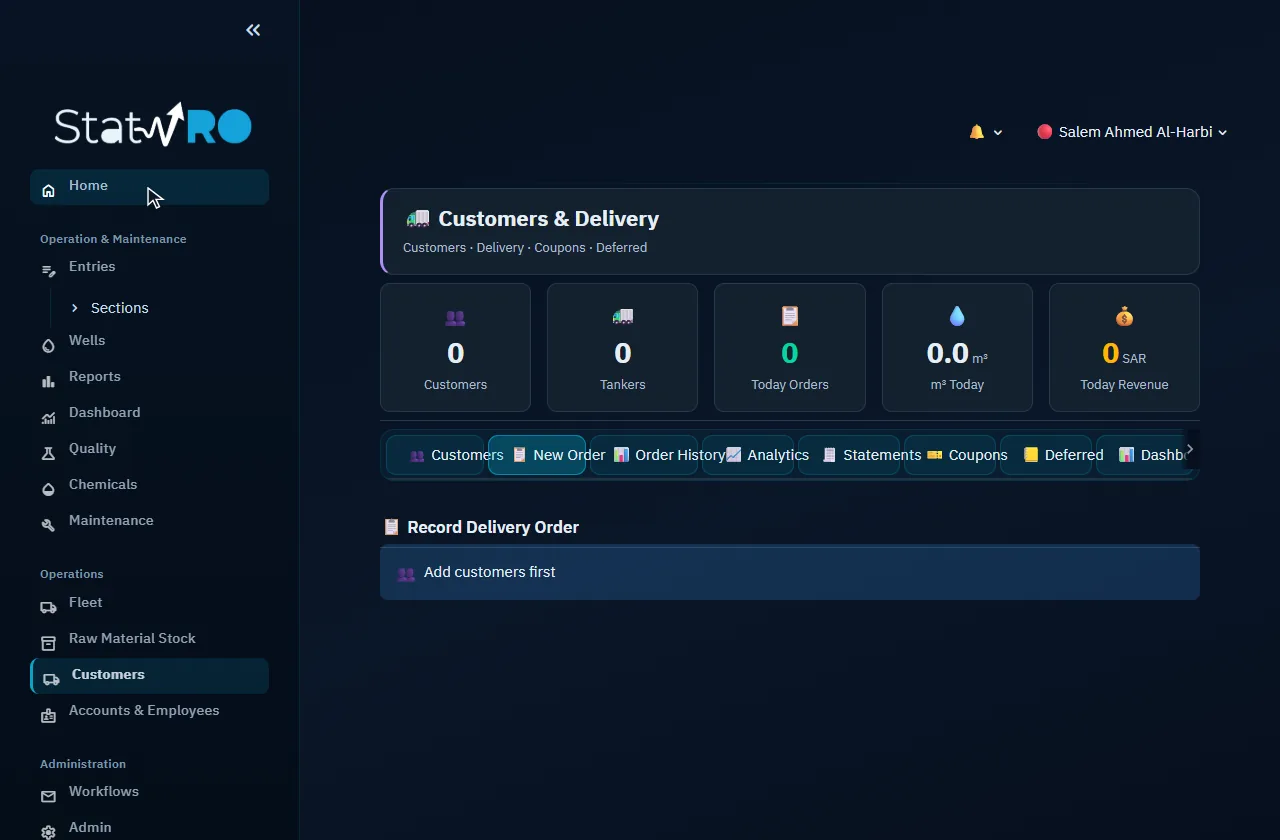
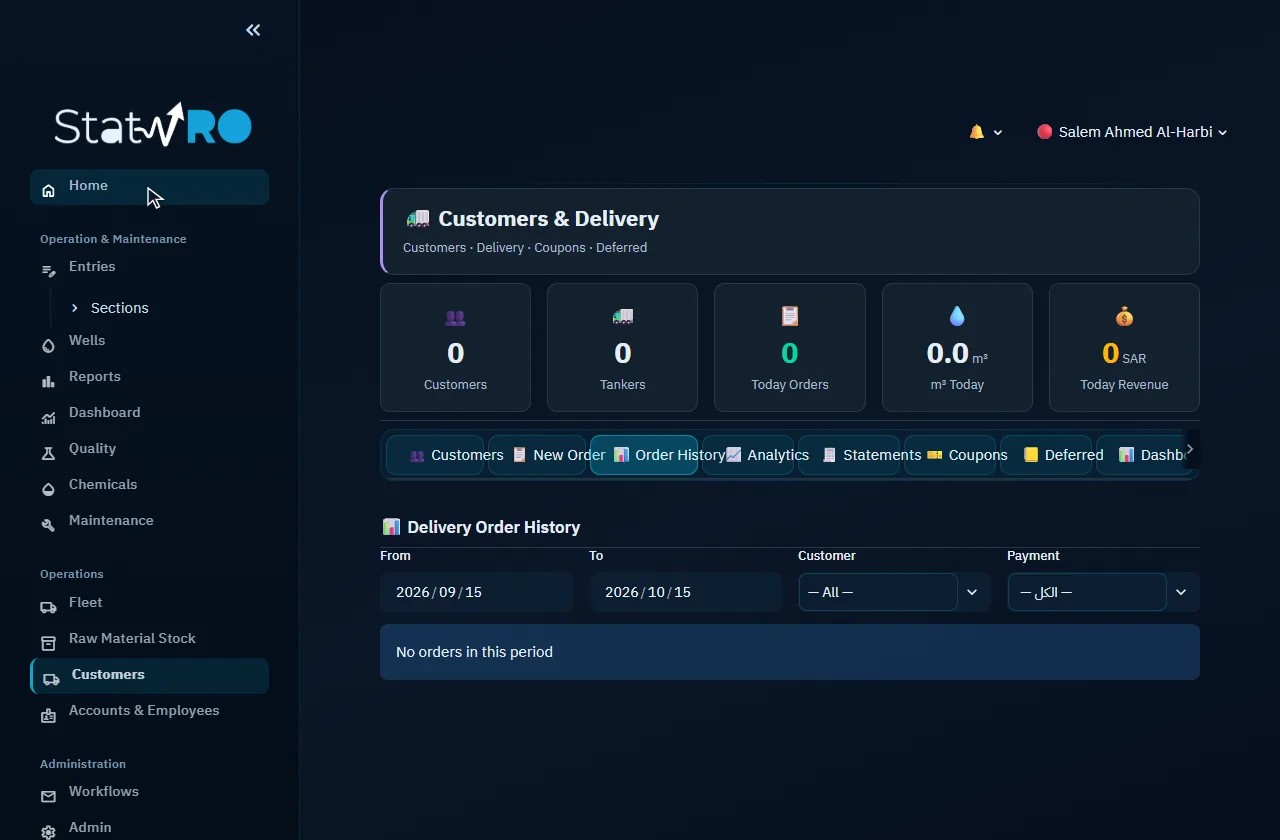
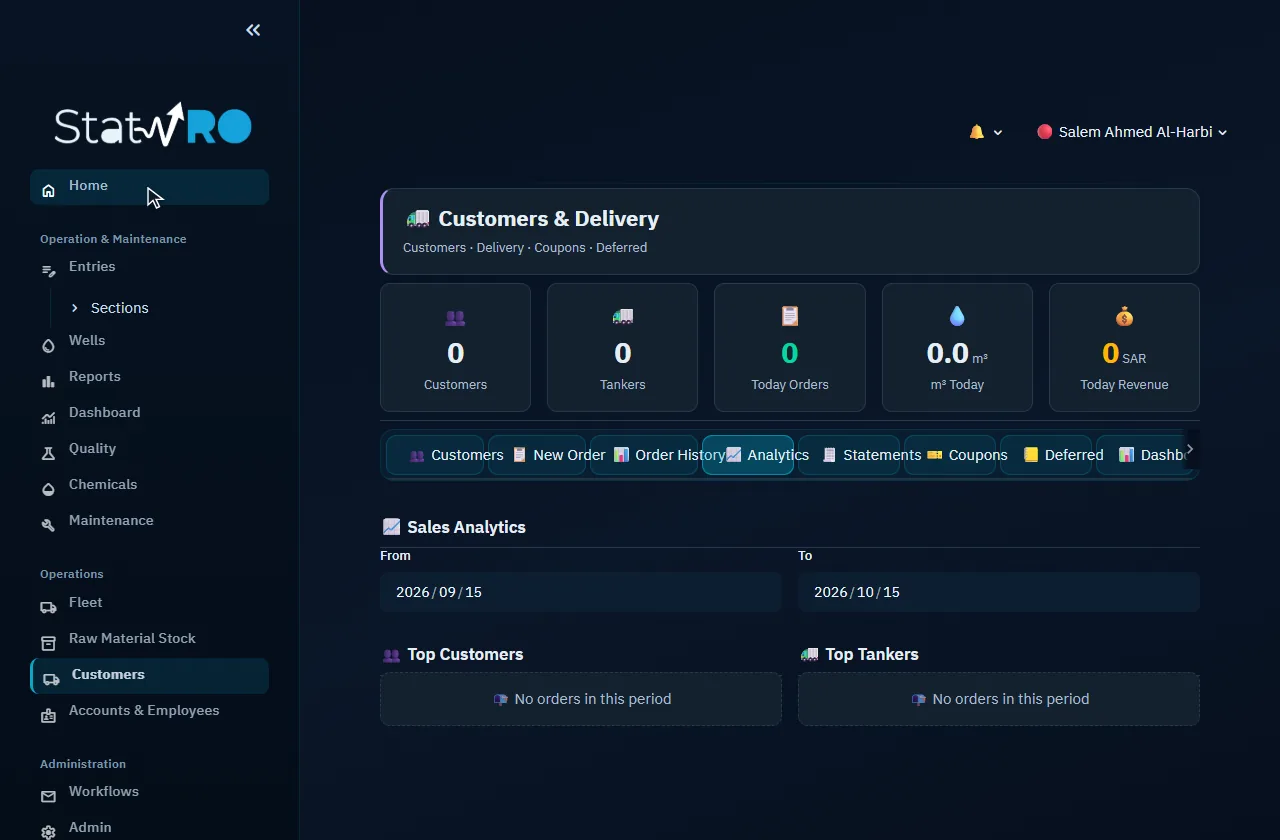
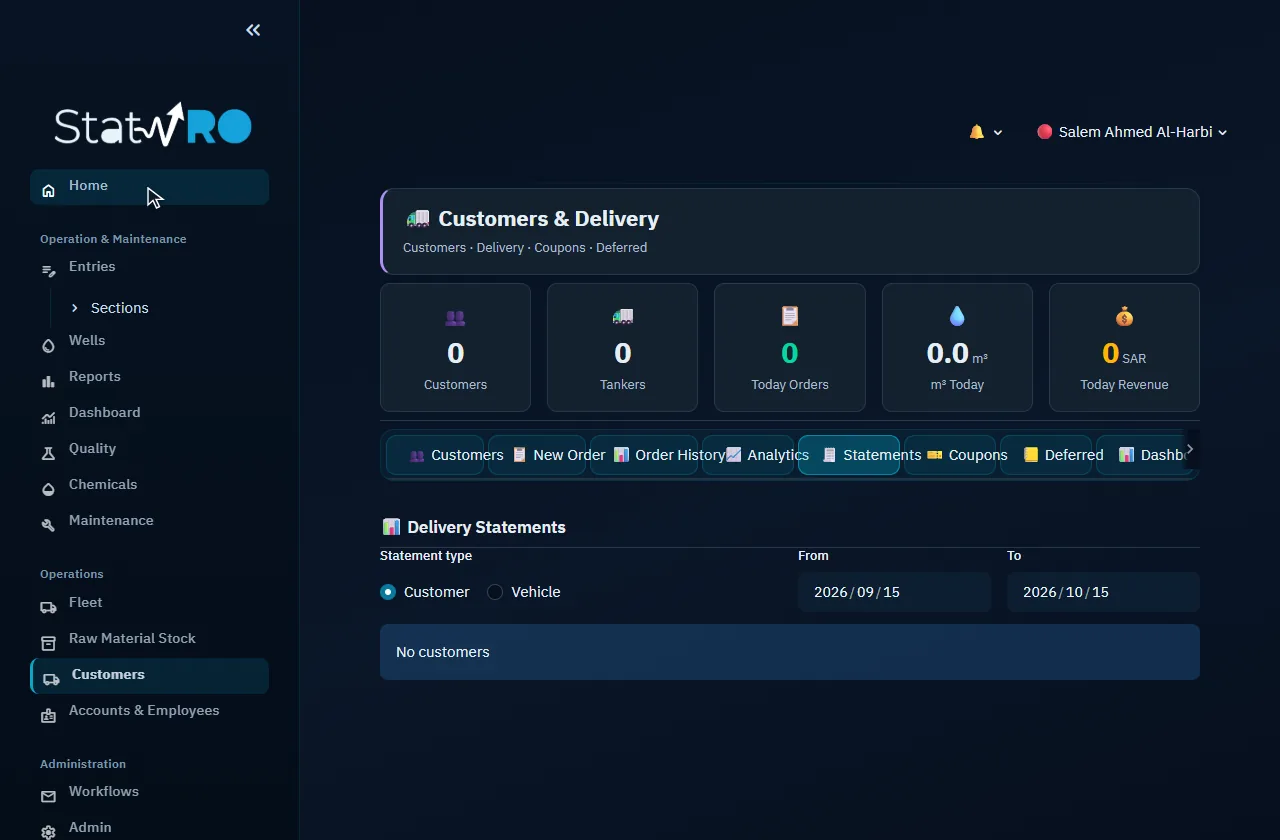
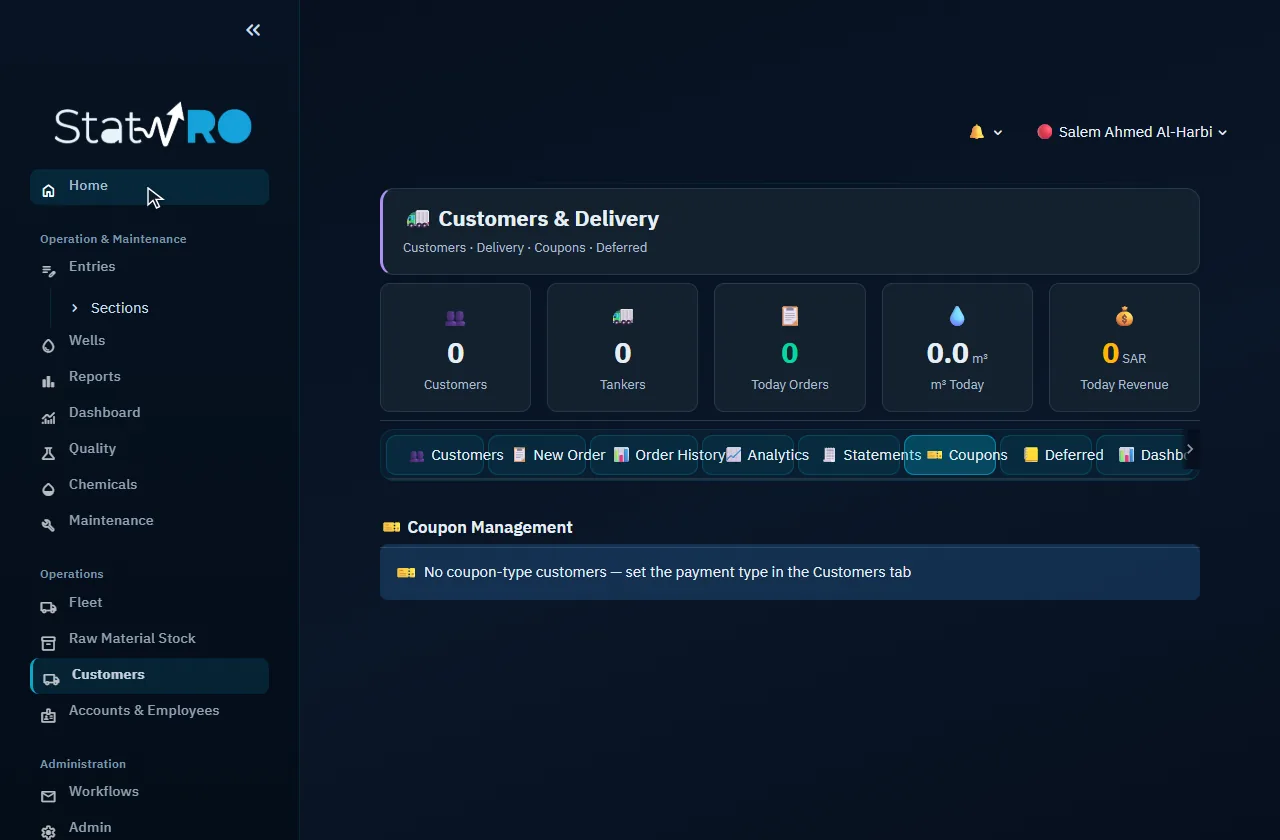
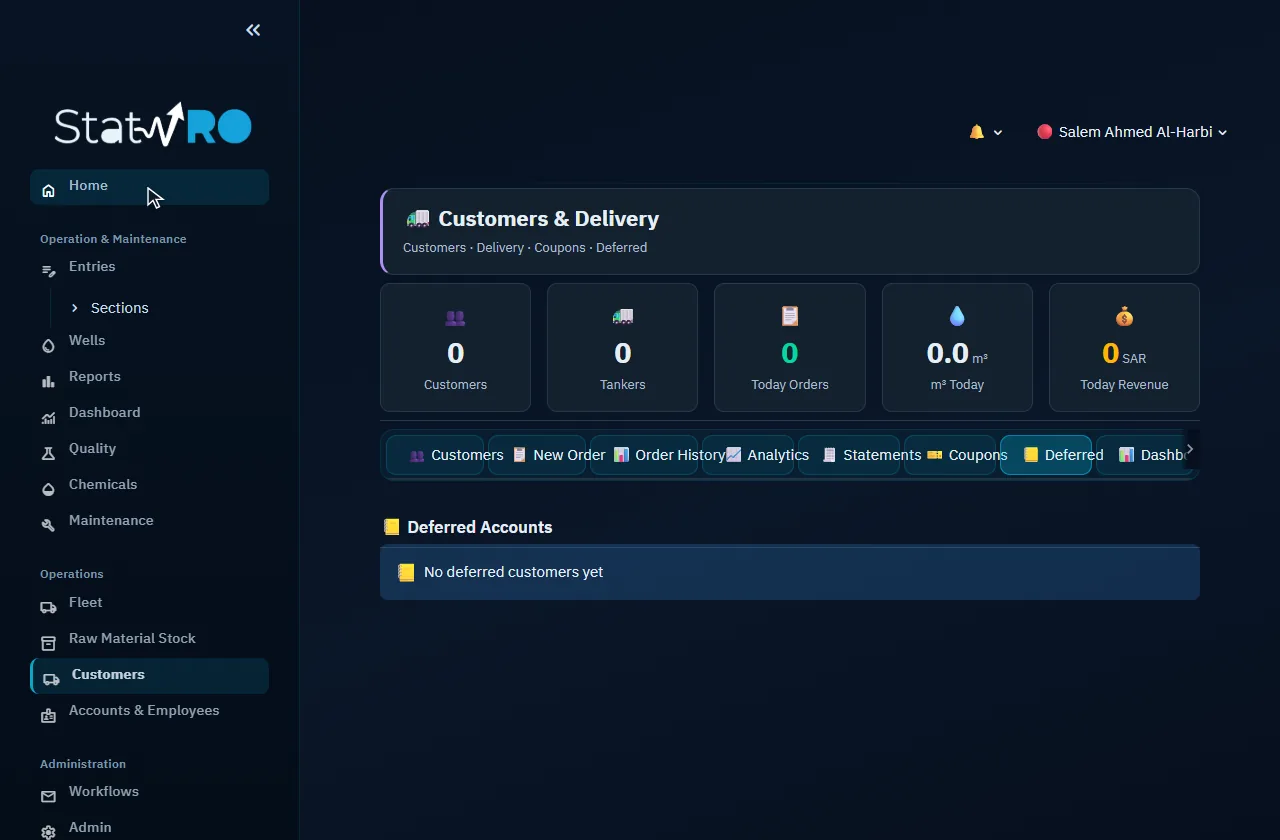
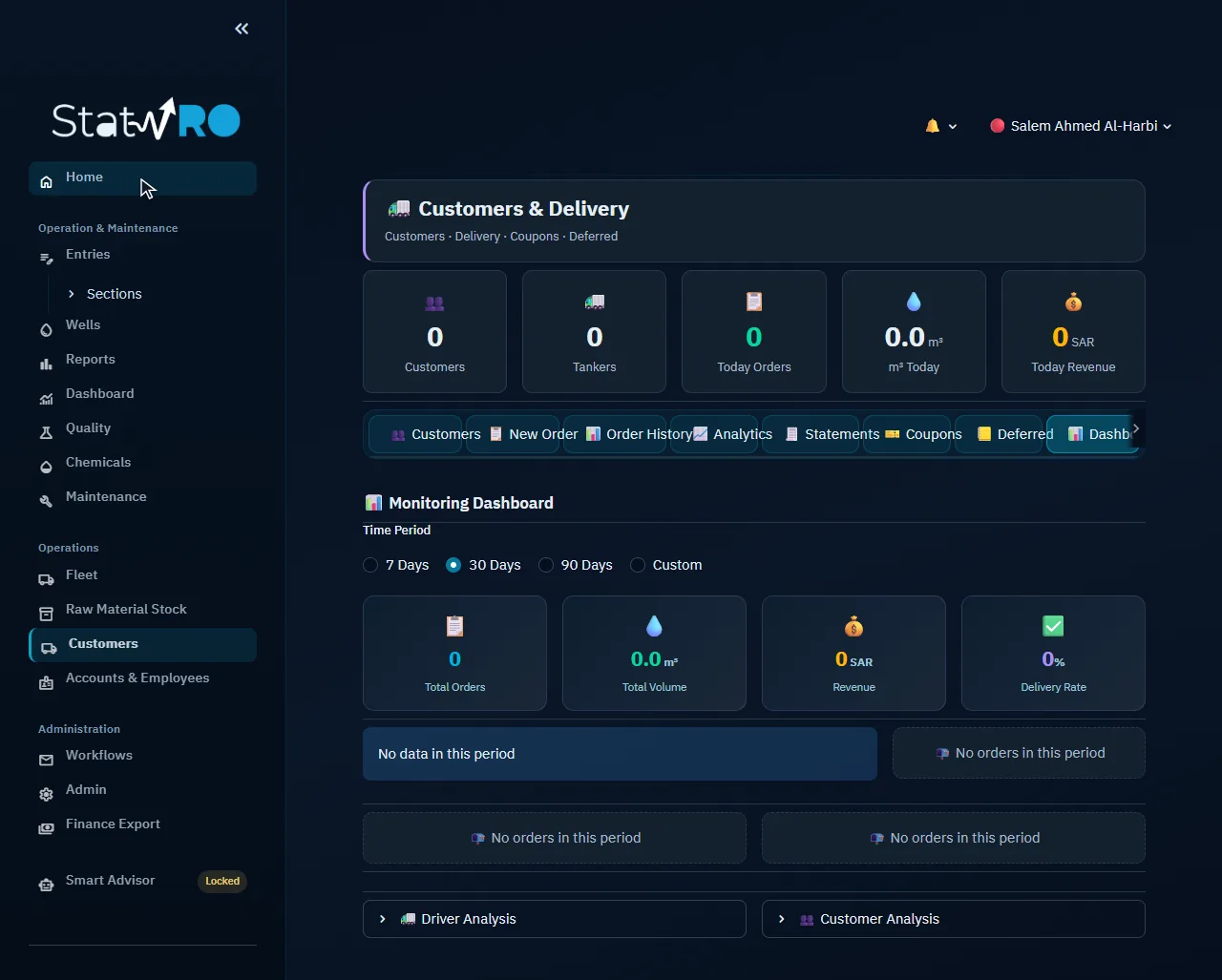
Customers and their orders, assigning them to tankers, coupons, balances, statements and analytics.

Customers ▸ 👥 Customers

Customers ▸ 👥 Customers

The customer register.

Customers ▸ 📋 New Order

Customers ▸ 📋 New Order

A new delivery order, assigned to a tanker.

Customers ▸ 📊 Order History

Customers ▸ 📊 Order History

Orders and their states.

Customers ▸ 📈 Analytics

Customers ▸ 📈 Analytics

Order and revenue analysis.

Customers ▸ 🧾 Statements

Customers ▸ 🧾 Statements

A customer statement.

Customers ▸ 🎫 Coupons

Customers ▸ 🎫 Coupons

Prepaid coupon books.

Customers ▸ 📒 Deferred

Customers ▸ 📒 Deferred

Outstanding customer balances.

Customers ▸ 📊 Dashboard

Customers ▸ 📊 Dashboard

Orders, volumes and revenue for a period.

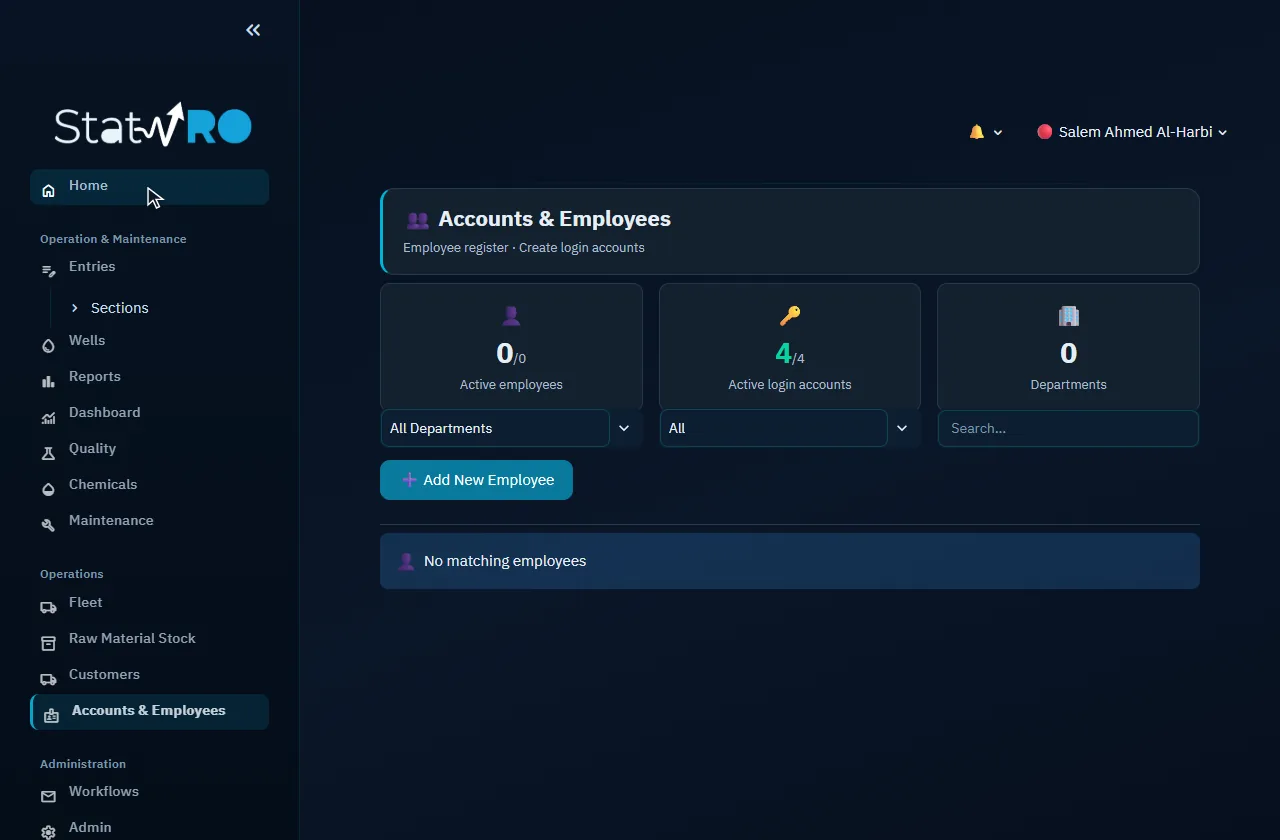
Accounts & Employees

Accounts & Employees

The employee register, and making a system account for any employee.

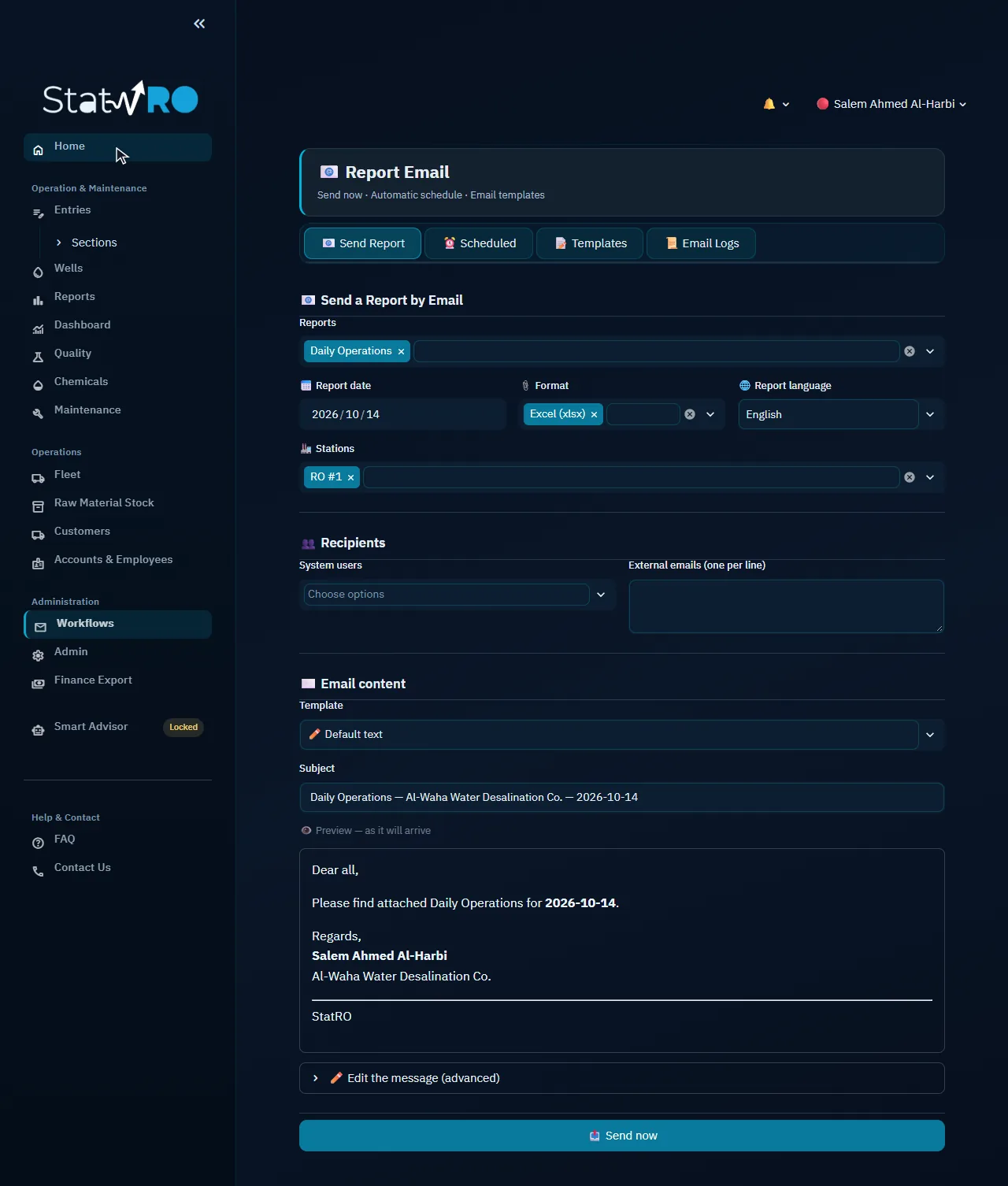
Email & Tasks

Email & Tasks

Sending reports by e-mail now or on a schedule, e-mail templates, and the sending log.

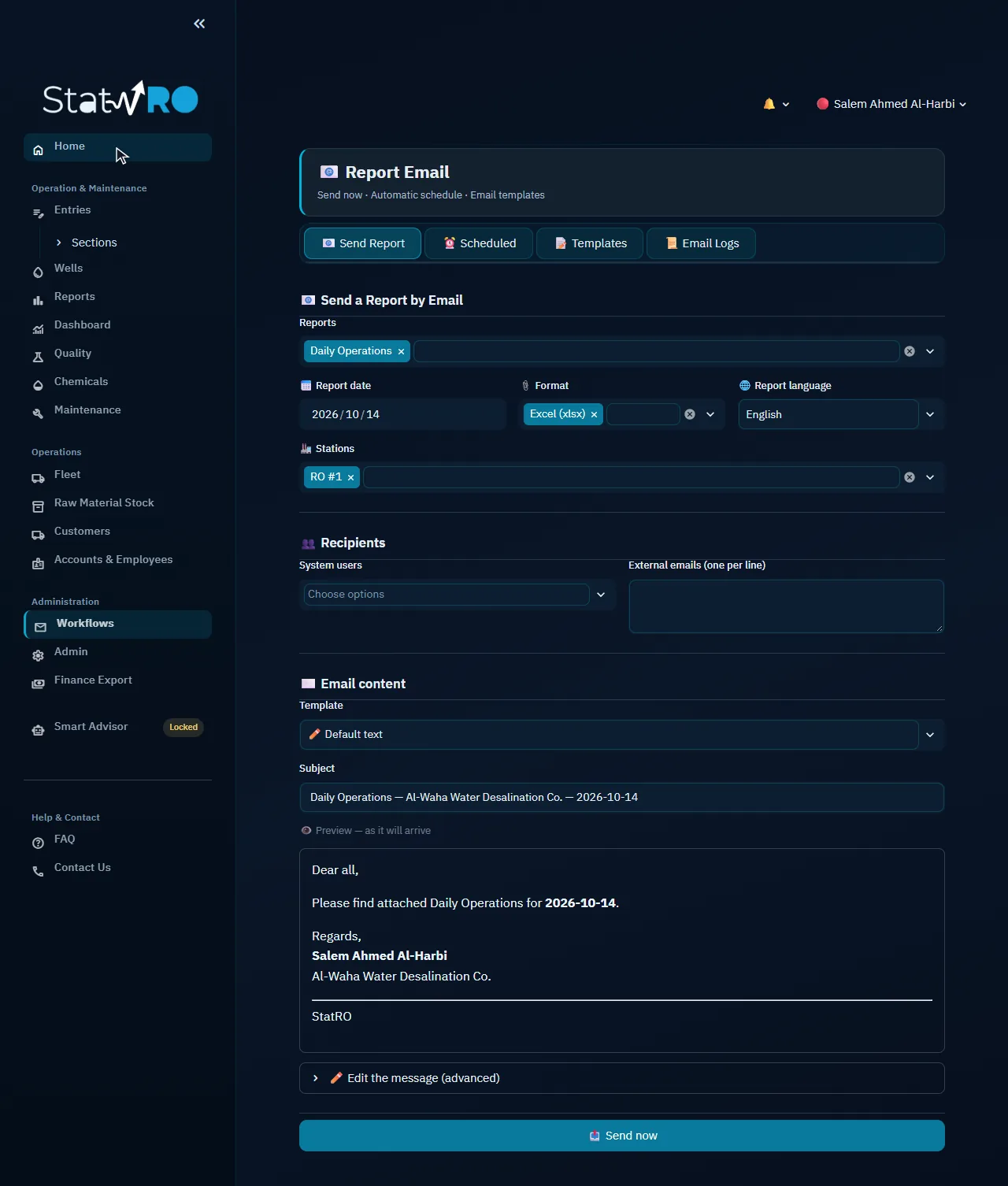
Email & Tasks ▸ 📧 Send Report

Email & Tasks ▸ 📧 Send Report

E-mailing a report now.

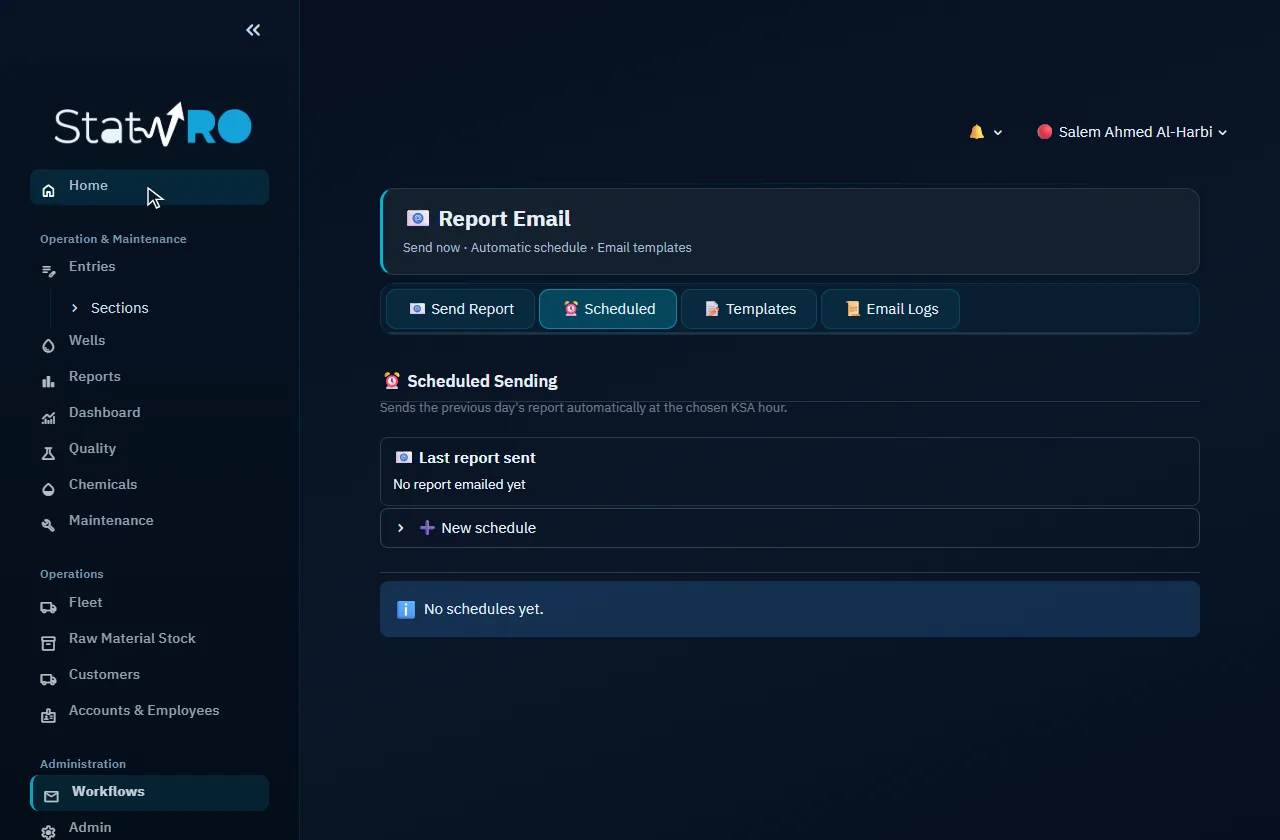
Email & Tasks ▸ ⏰ Scheduled

Email & Tasks ▸ ⏰ Scheduled

Sending reports automatically on a schedule.

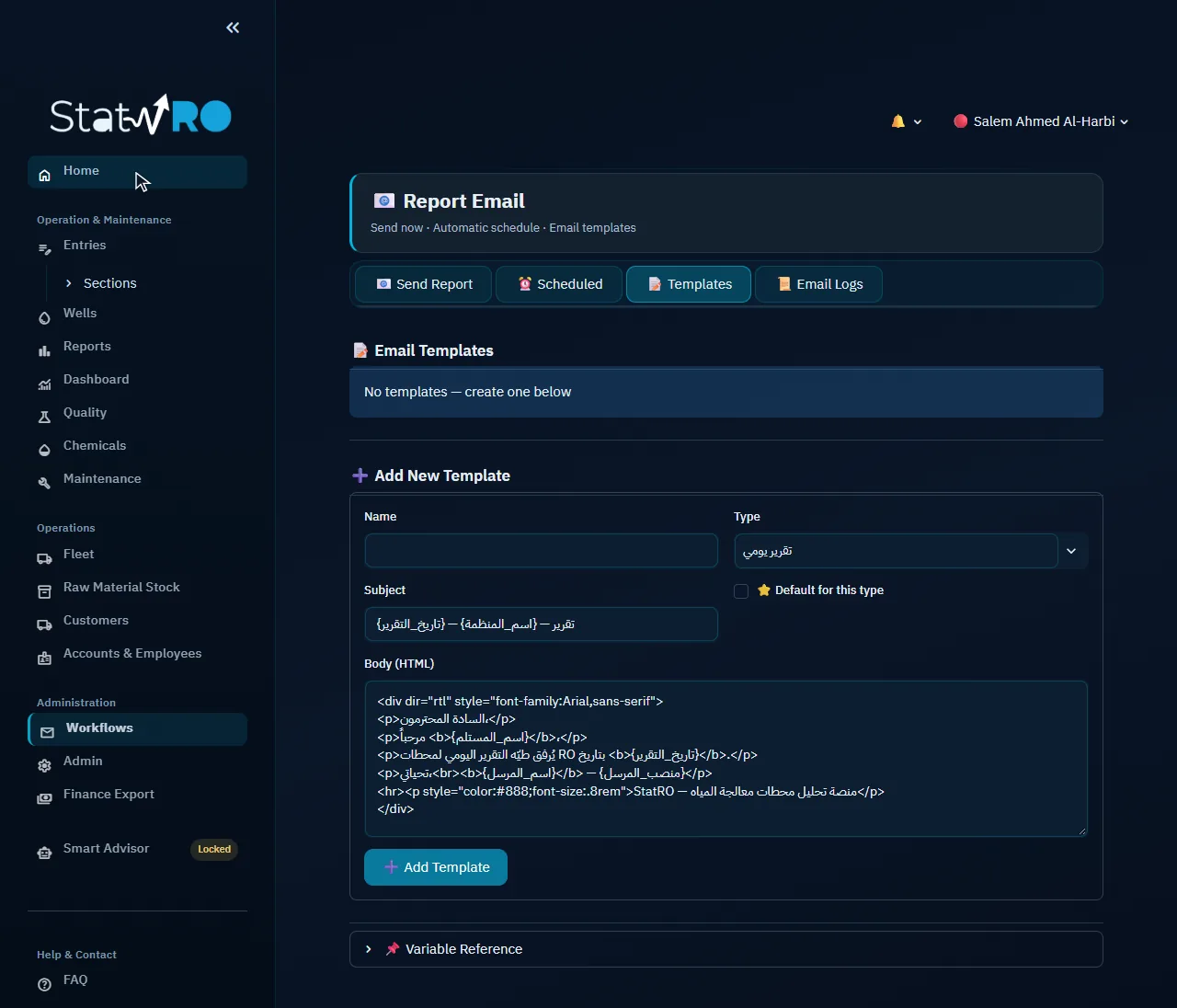
Email & Tasks ▸ 📝 Templates

Email & Tasks ▸ 📝 Templates

E-mail text templates.

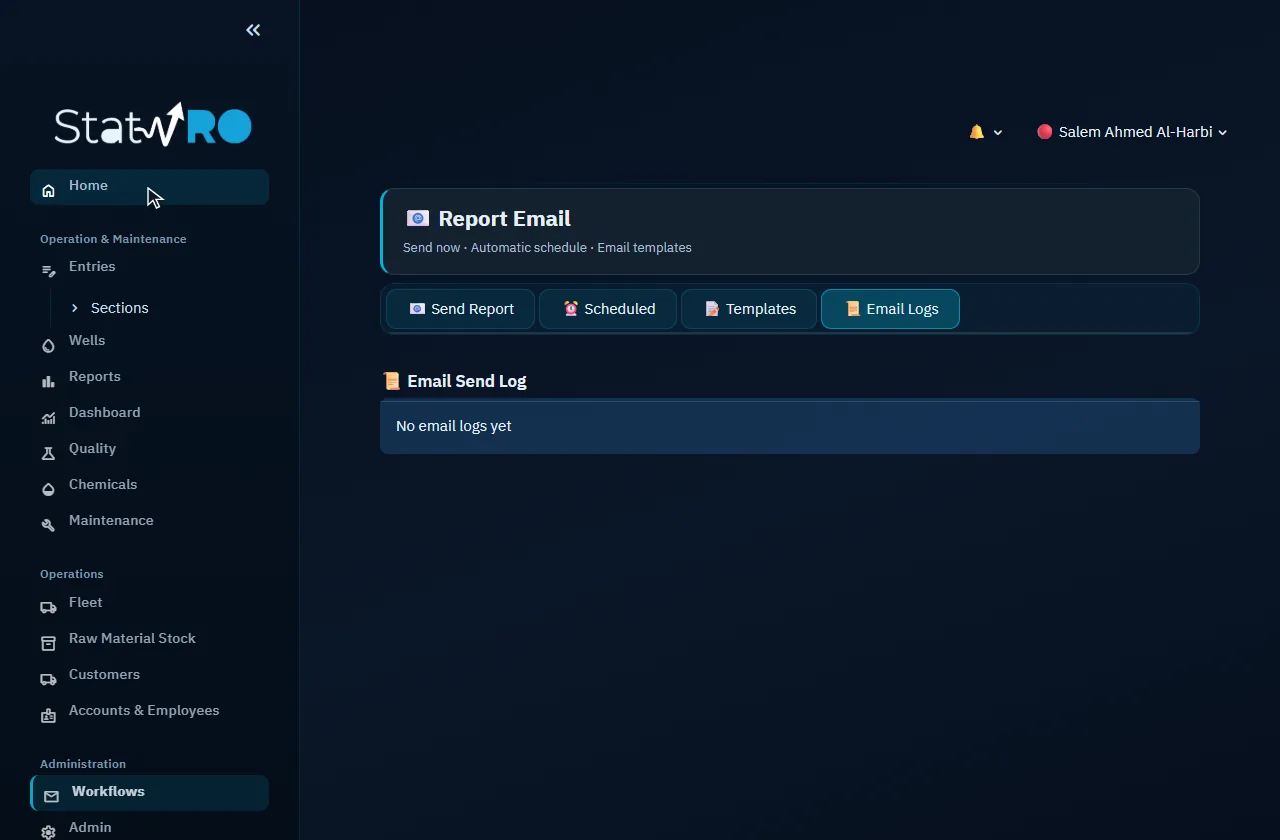
Email & Tasks ▸ 📜 Email Logs

Email & Tasks ▸ 📜 Email Logs

Everything sent.

Administration

Administration

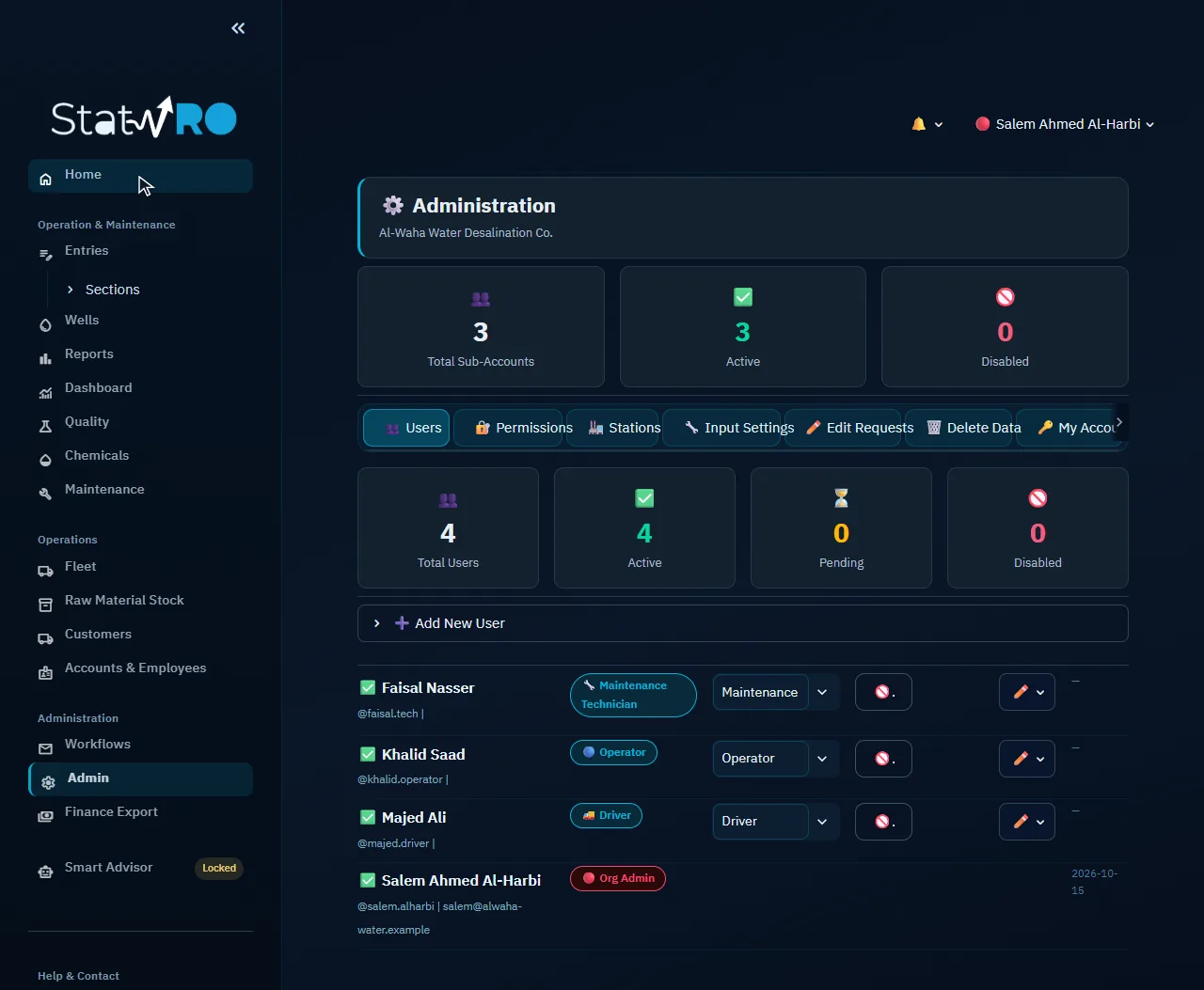
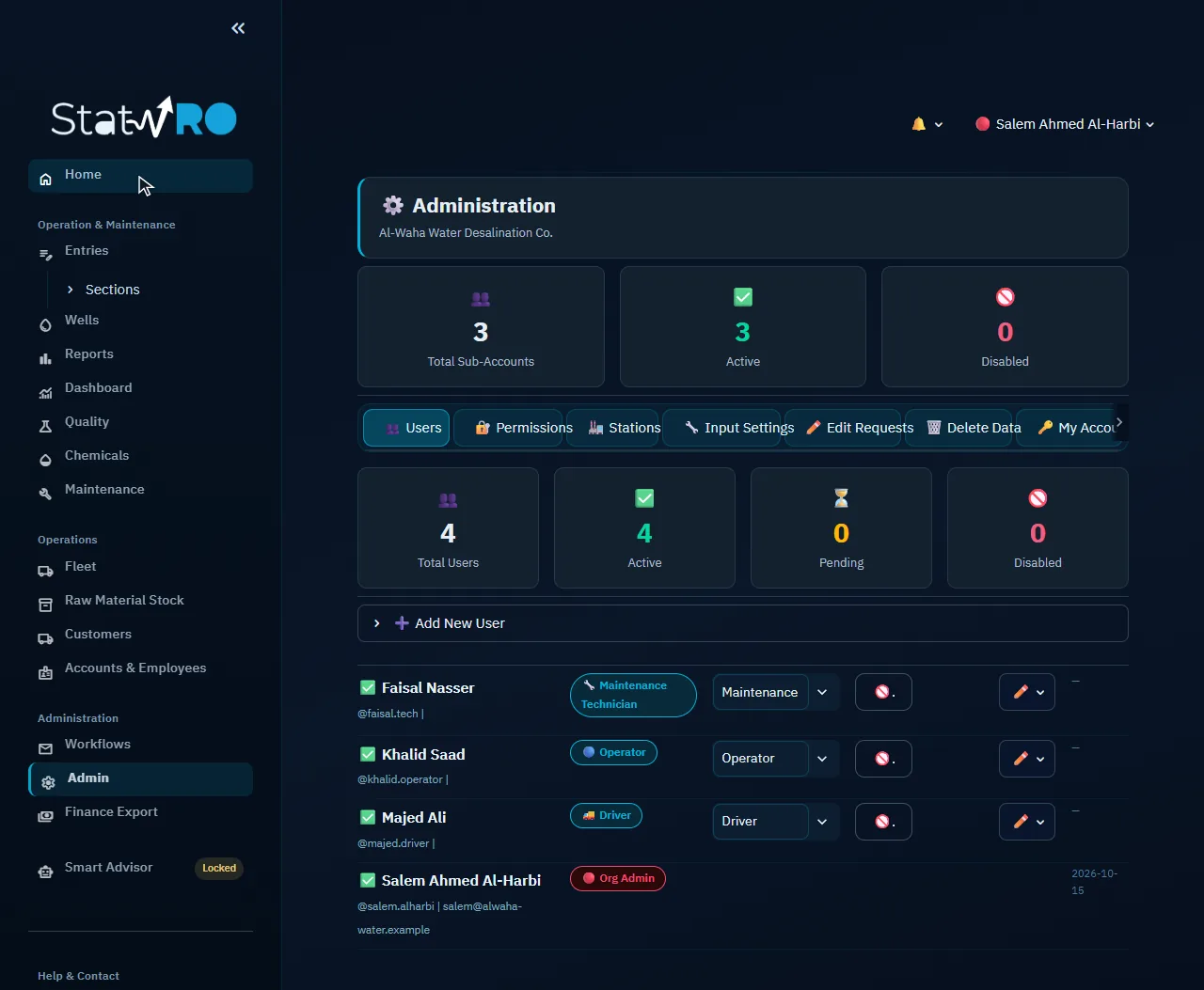
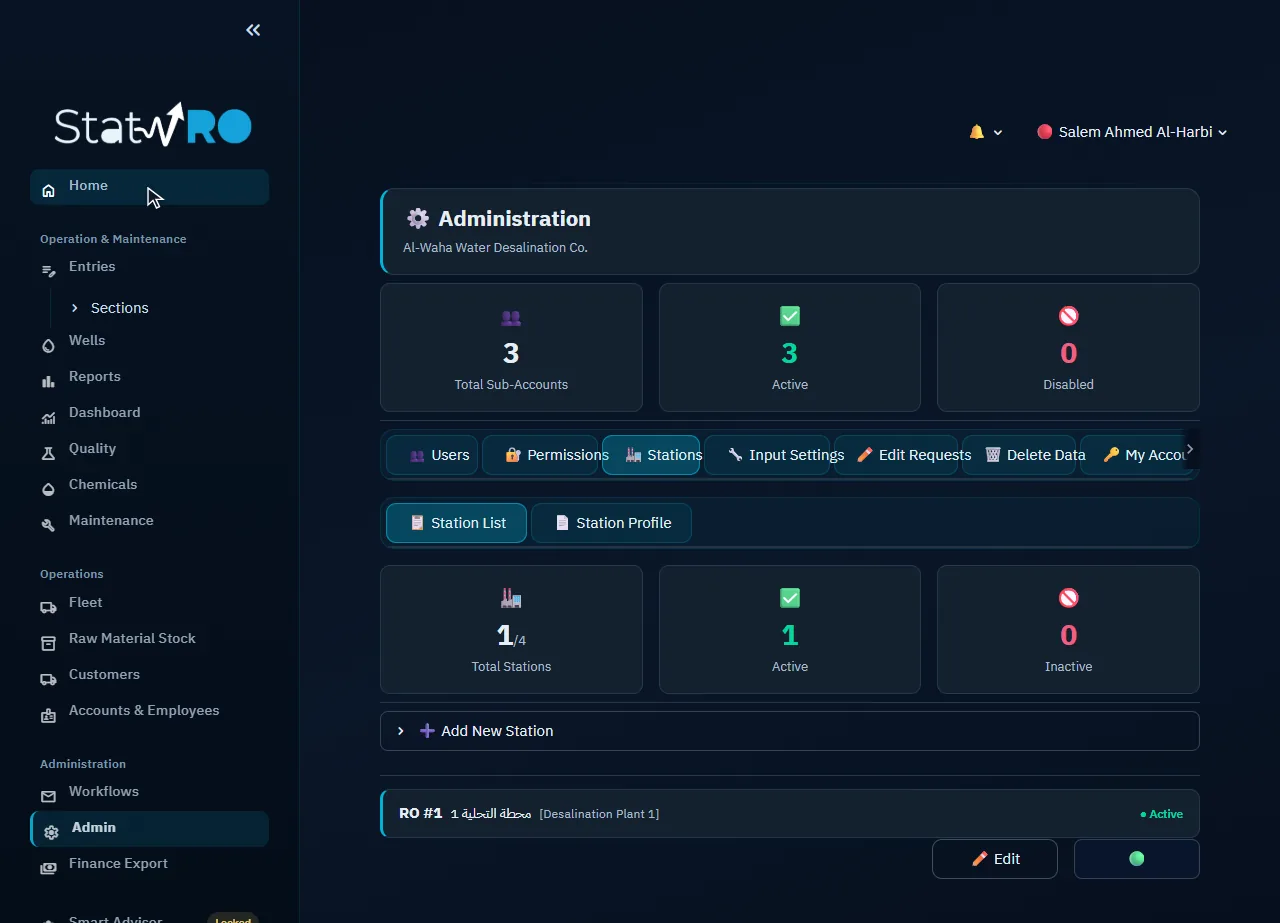
Everything about the account: users and their permissions, stations, input settings, edit requests, deletion, and your own account.

Administration ▸ 👥 Users

Administration ▸ 👥 Users

Adding sub-accounts, changing their roles, disabling them, resetting their passwords.

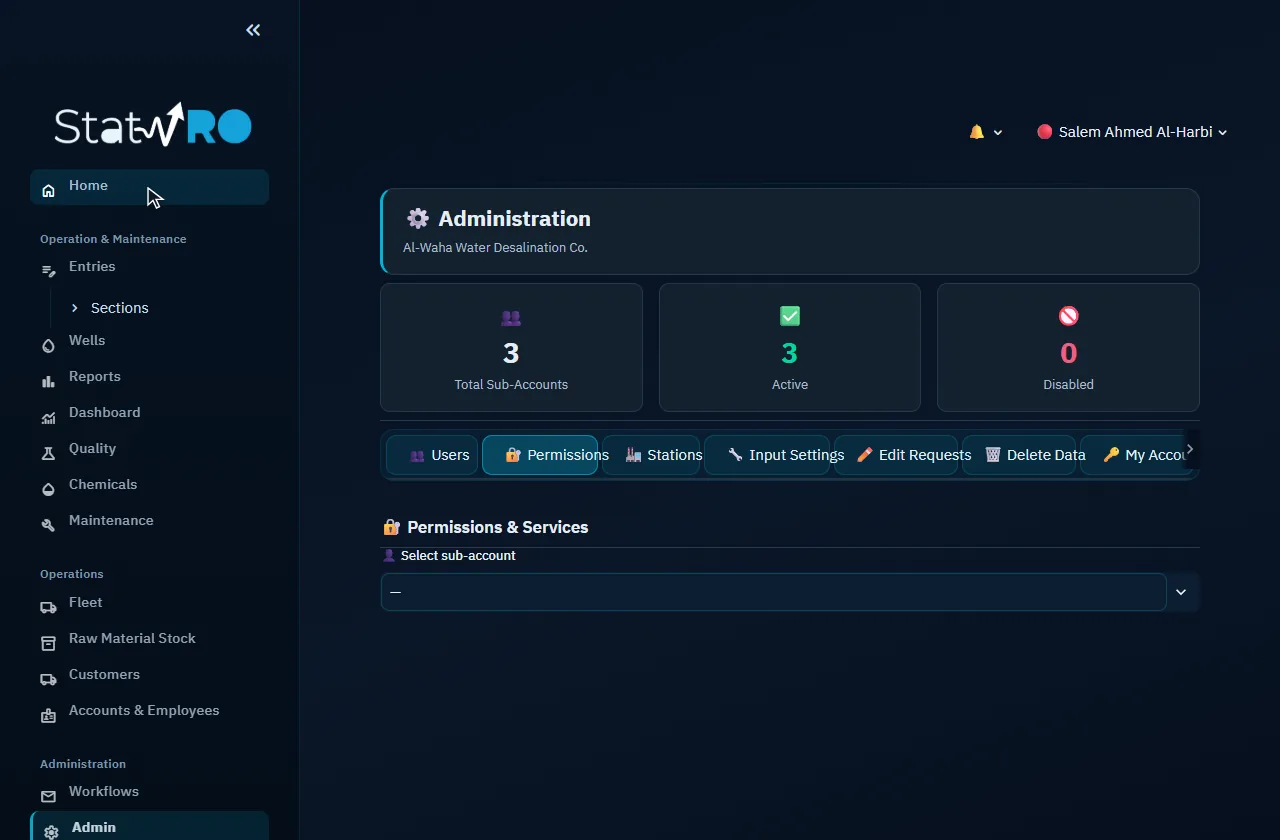
Administration ▸ 🔐 Permissions

Administration ▸ 🔐 Permissions

Which pages and sections each user sees, beyond what their role gives.

Administration ▸ 🏭 Stations

Administration ▸ 🏭 Stations

The stations: adding them, editing their RO settings, each station's profile and history.

Administration ▸ 🔧 Input Settings

Administration ▸ 🔧 Input Settings

The reading schedule, water source, tanks, wells and filling platform, as in step 3.

Administration ▸ ✏️ Edit Requests

Administration ▸ ✏️ Edit Requests

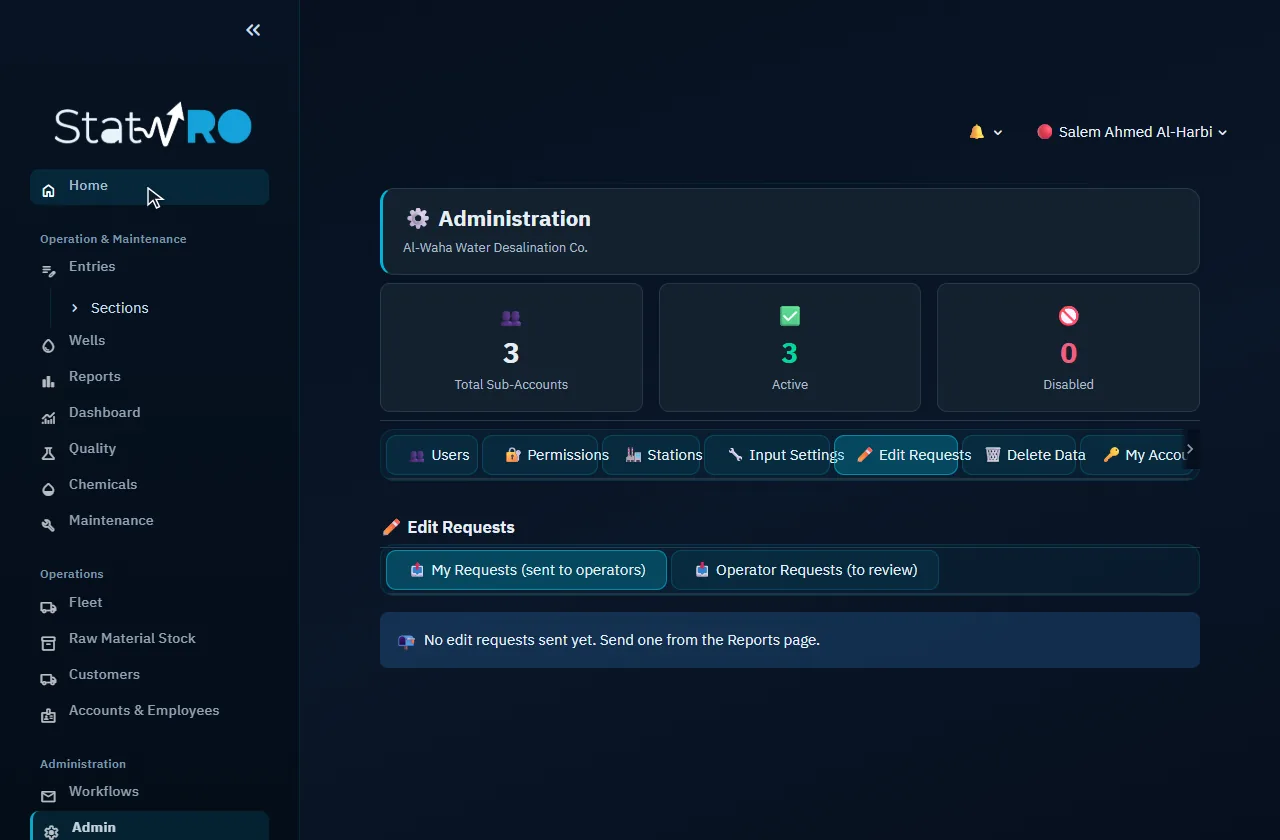
Requests from users to correct a recorded reading, to approve or refuse.

Administration ▸ 🗑️ Delete Data

Administration ▸ 🗑️ Delete Data

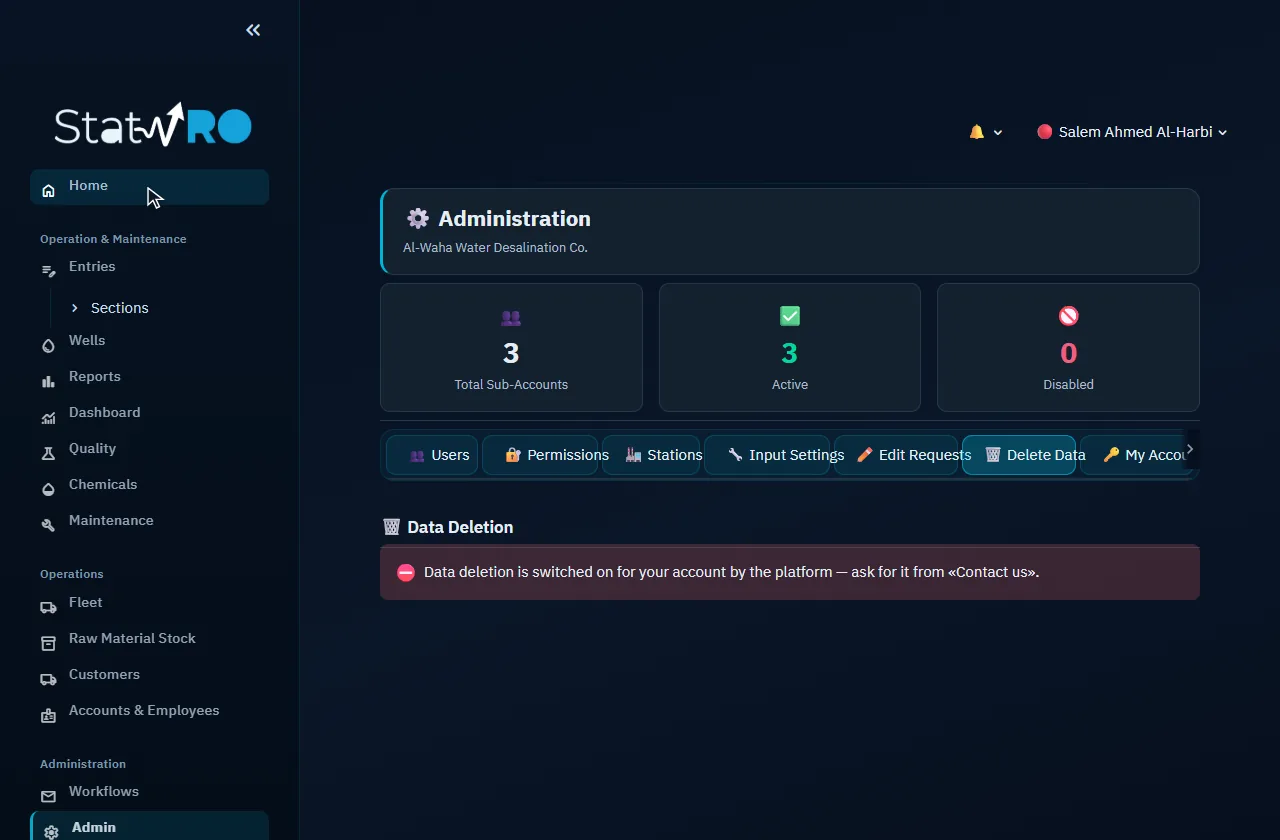
Deleting the data of a period or a module, with explicit confirmation. It cannot be undone.

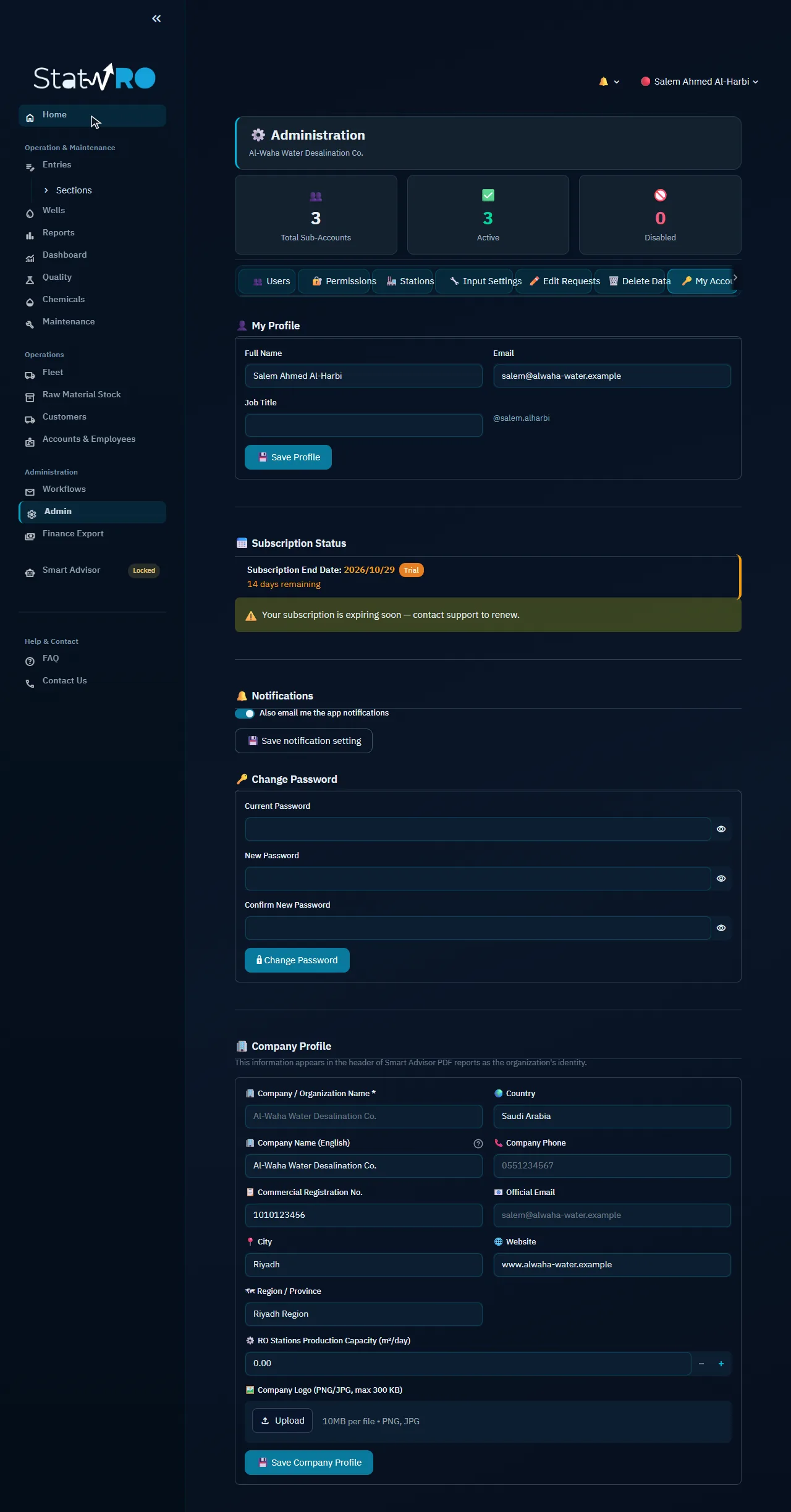
Administration ▸ 🔑 My Account

Administration ▸ 🔑 My Account

Your profile, the subscription, notifications, your password and the company details.

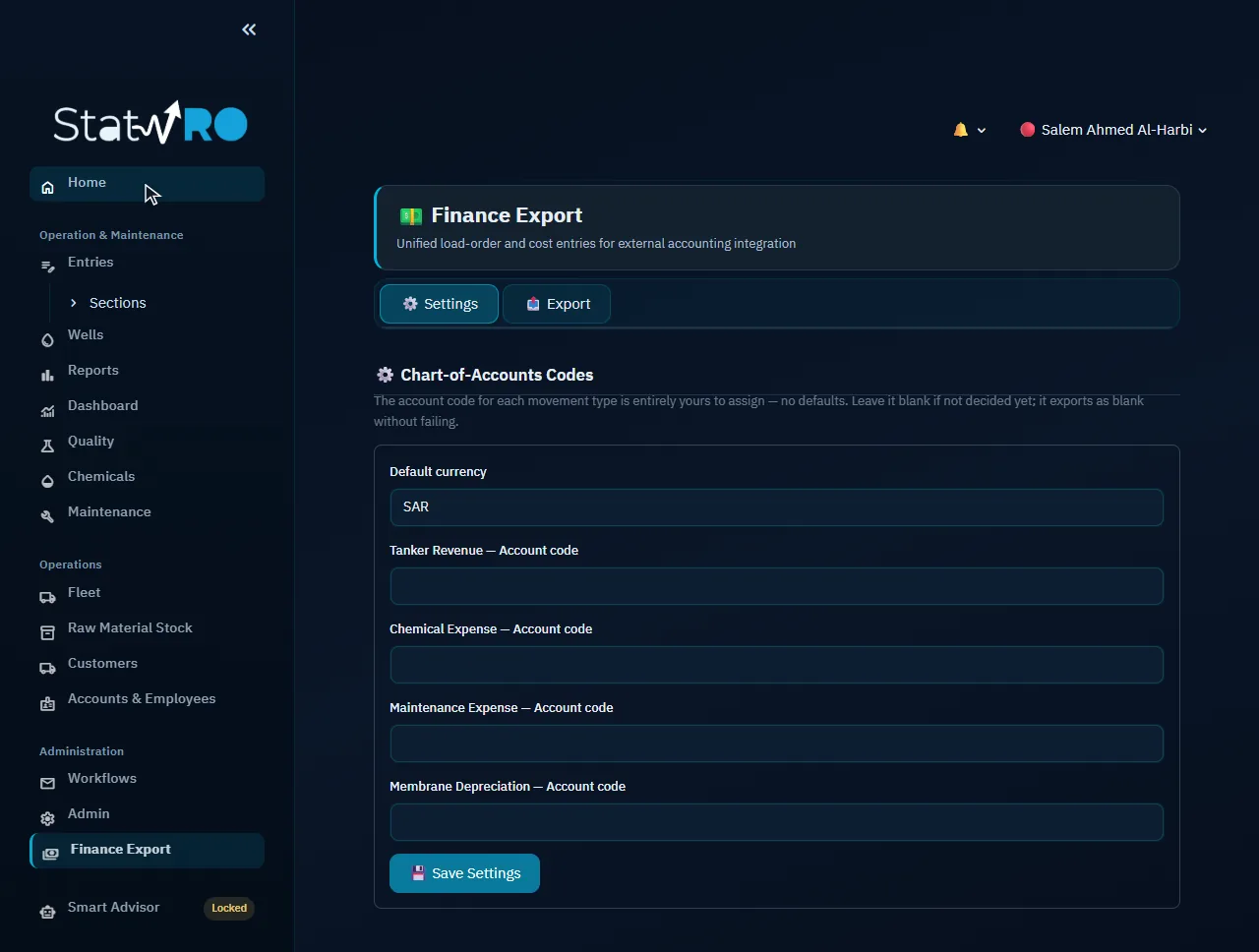
Finance Export

Finance Export

Exporting revenue and expenses as entries ready for your accounting system.

Finance Export ▸ ⚙️ Settings

Finance Export ▸ ⚙️ Settings

Account codes and currency.

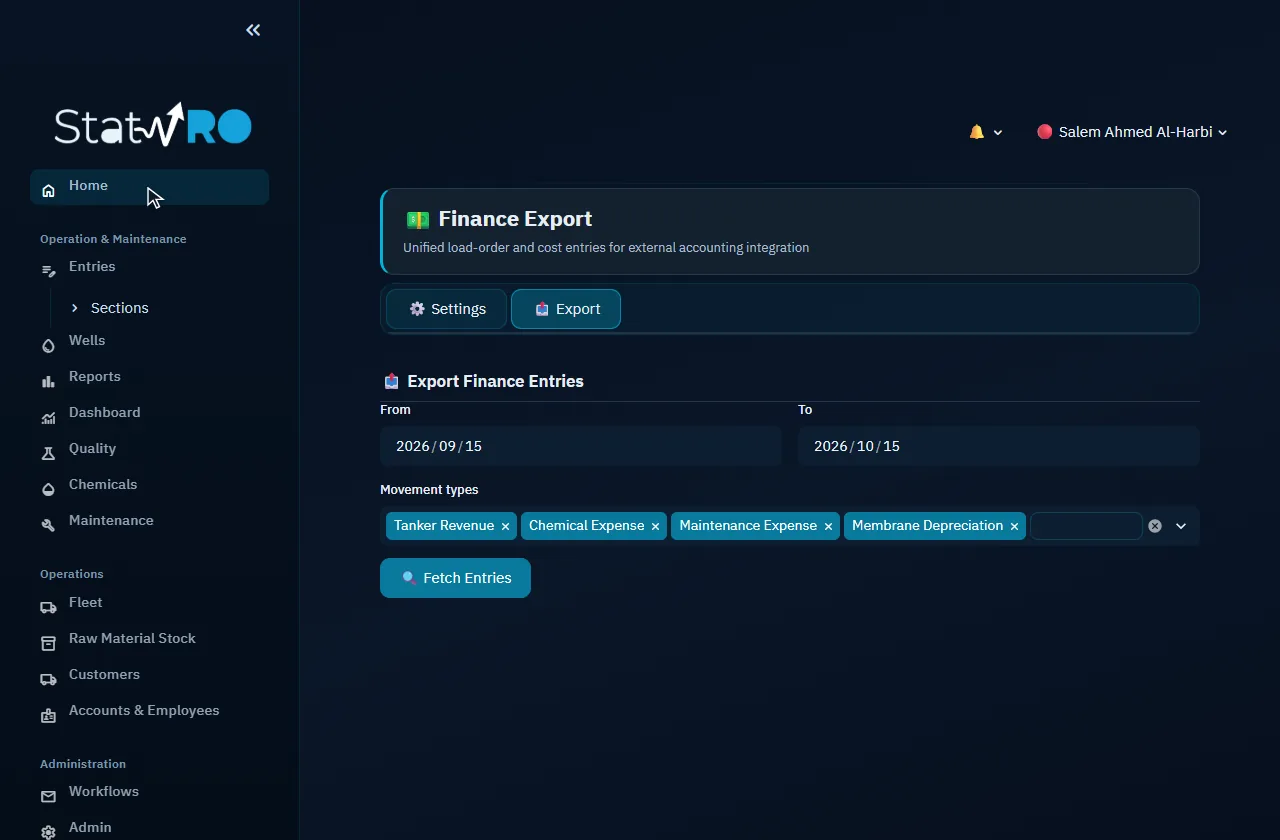
Finance Export ▸ 📤 Export

Finance Export ▸ 📤 Export

Exporting the financial entries of a period.

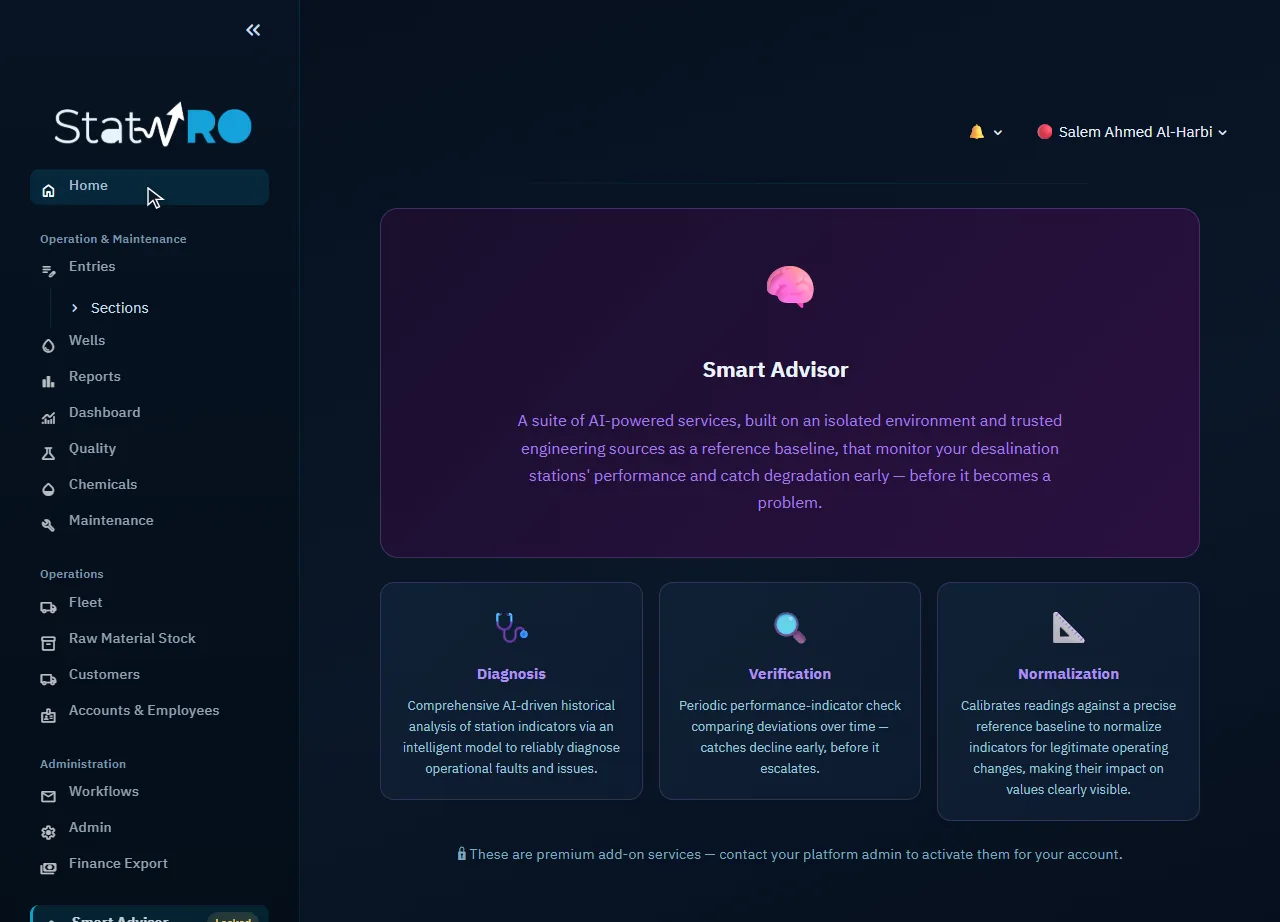
Smart Advisor

Smart Advisor

AI analysis and diagnosis of the stations' performance. An add-on enabled on request.

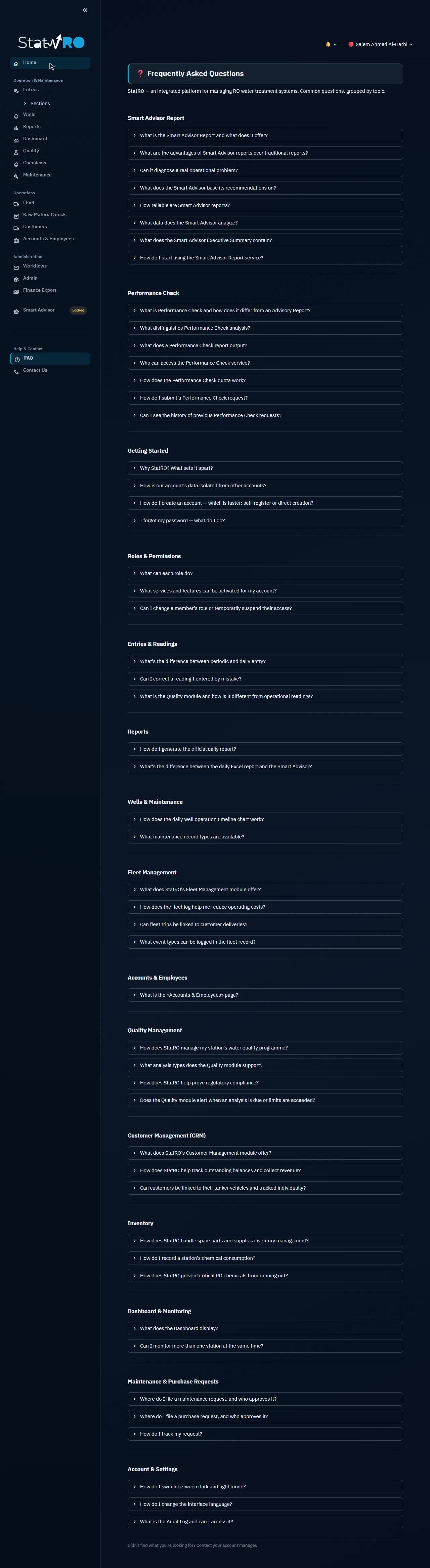
FAQ

FAQ

Short answers to the questions asked most.

Contact

Contact

Reaching the support team.

After a week of work

After a week of periodic and daily readings, tank and well levels and sales, the home page shows the day's figures (entries, active stations, reports, records) and the next entry due; the dashboard shows the operating hours, the flow rates, the key indicators (rejection, recovery, ΔP), the stations' production, the tank levels, the wells' withdrawals and the sales summary.

The home page
ScreenThe home page
The dashboard
ScreenThe dashboard